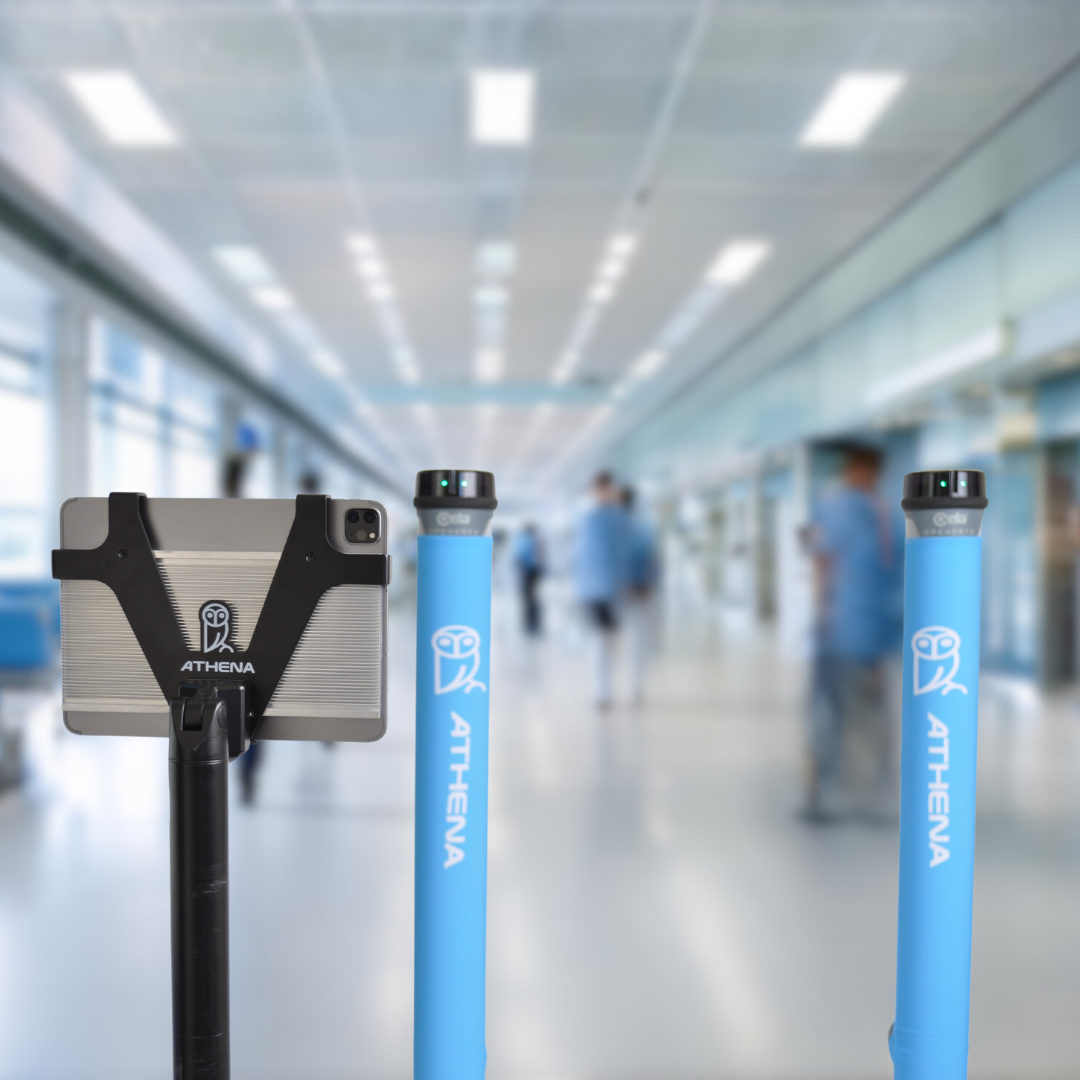
Overview
Athena Security provides a hardware-agnostic Weapons Detection System (WDS) AI software platform designed to support security screening operations, equipment testing, operational accountability, incident documentation, and centralized security reporting.
Athena's software can be configured for use with supported third-party detection equipment, including certain CEIA OPENGATE® configurations.
This guide provides instructions for customers who have independently obtained compatible CEIA OPENGATE equipment and wish to configure their installation for use with Athena's WDS software.
Important third-party equipment notice
CEIA OPENGATE® is a third-party product manufactured by CEIA. Athena Security does not manufacture CEIA OPENGATE equipment and does not offer CEIA OPENGATE for sale through this guide. Reference to CEIA or OPENGATE is for identification, compatibility, and installation-support purposes only.
This guide does not imply that CEIA sponsors, endorses, certifies, or is affiliated with Athena Security. Customers should follow CEIA's current official instructions for hardware installation, calibration, configuration, testing, and safety.
Hardware compatibility and supported software functions may depend on the equipment model, firmware, software version, available interfaces, and the customer's configuration.
1. Installation checklist
Before beginning, verify that the following equipment is available, as applicable to your installation.
Component | Purpose |
|---|---|
Controller iPad | Runs the applicable Athena WDS controller functions |
Operator iPad | Provides the operator interface |
Compatible stands or mounts | Secures iPads at appropriate operating positions |
USB-C cable and compatible power adapters | Power and applicable connectivity |
Ethernet cable (if applicable) | Wired connection when supported and configured |
Network or cellular connectivity | Software communications, where required |
Backup power unit (optional) | Supports continuity during certain power interruptions |
Customer-supplied CEIA OPENGATE equipment | Third-party detection hardware |
Certain installations may use different tablet configurations, network connections, or peripheral accessories.
Note: Required components vary by deployment. Confirm the applicable hardware and software requirements with Athena Support before installation.
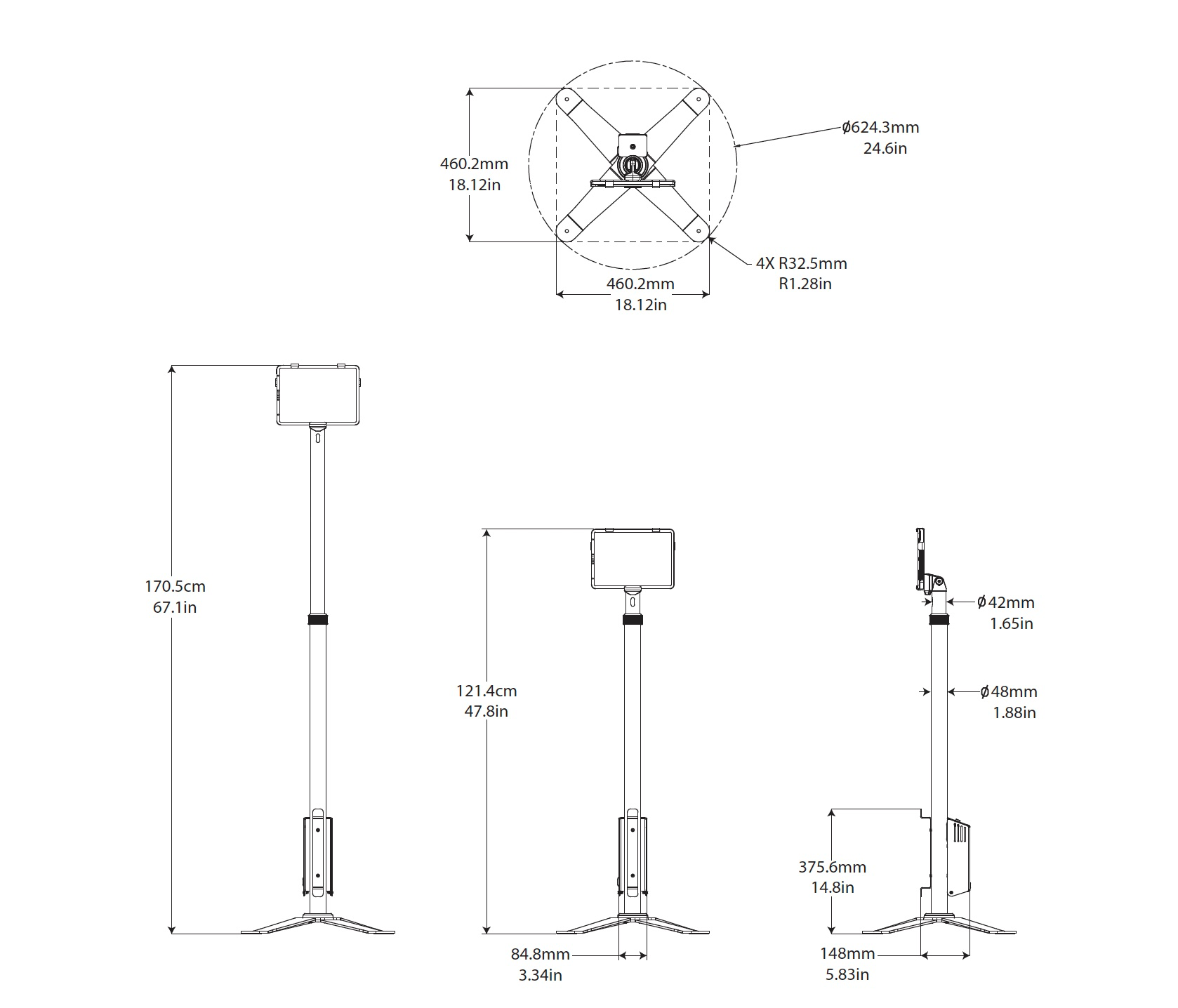
2. Set up tablet stands and mounts
Unpack the tablet stands or mounting equipment.
Place the stands on a stable and appropriate surface.
Adjust each stand to the desired operating height.
Secure the Controller and Operator iPads in their designated mounts.
Position the devices where authorized screening personnel can safely view and operate them.
Confirm that cabling and placement do not create trip hazards or obstruct emergency exits.
Follow the manufacturer's mounting and electrical safety instructions.
3. Configure Athena WDS software
If the tablets were preconfigured before shipment or deployment, verify the existing settings before making changes.
Step 1 — Launch Athena WDS
Open the Athena Weapons Detection System application on the applicable Controller and Operator iPads.
Step 2 — Open communication settings
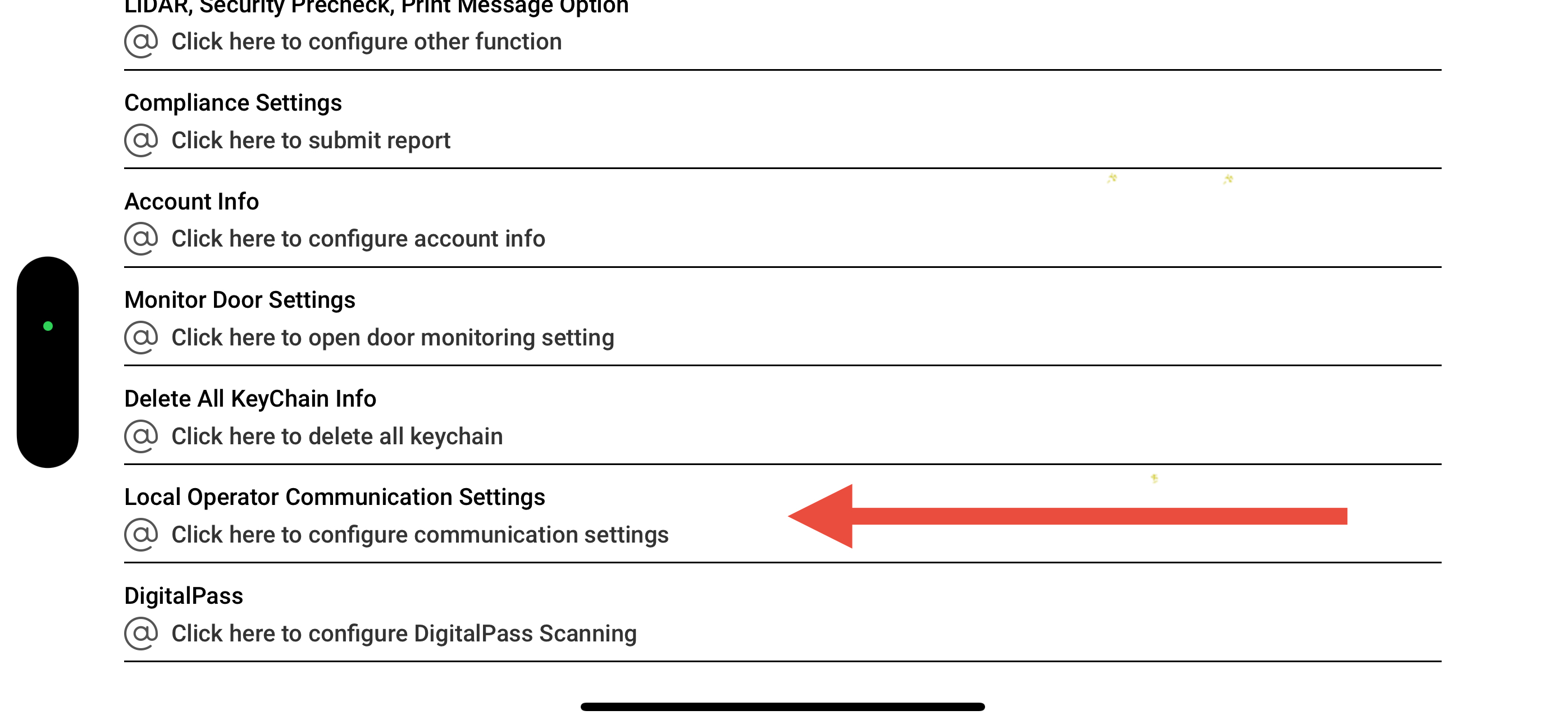
On the Controller iPad:
Open Settings.
Select Local Operator Communication Settings.
Review the available communication options.
On the Operator iPad:
Open Settings.
Select Local Controller Communication.
Review the communication configuration.
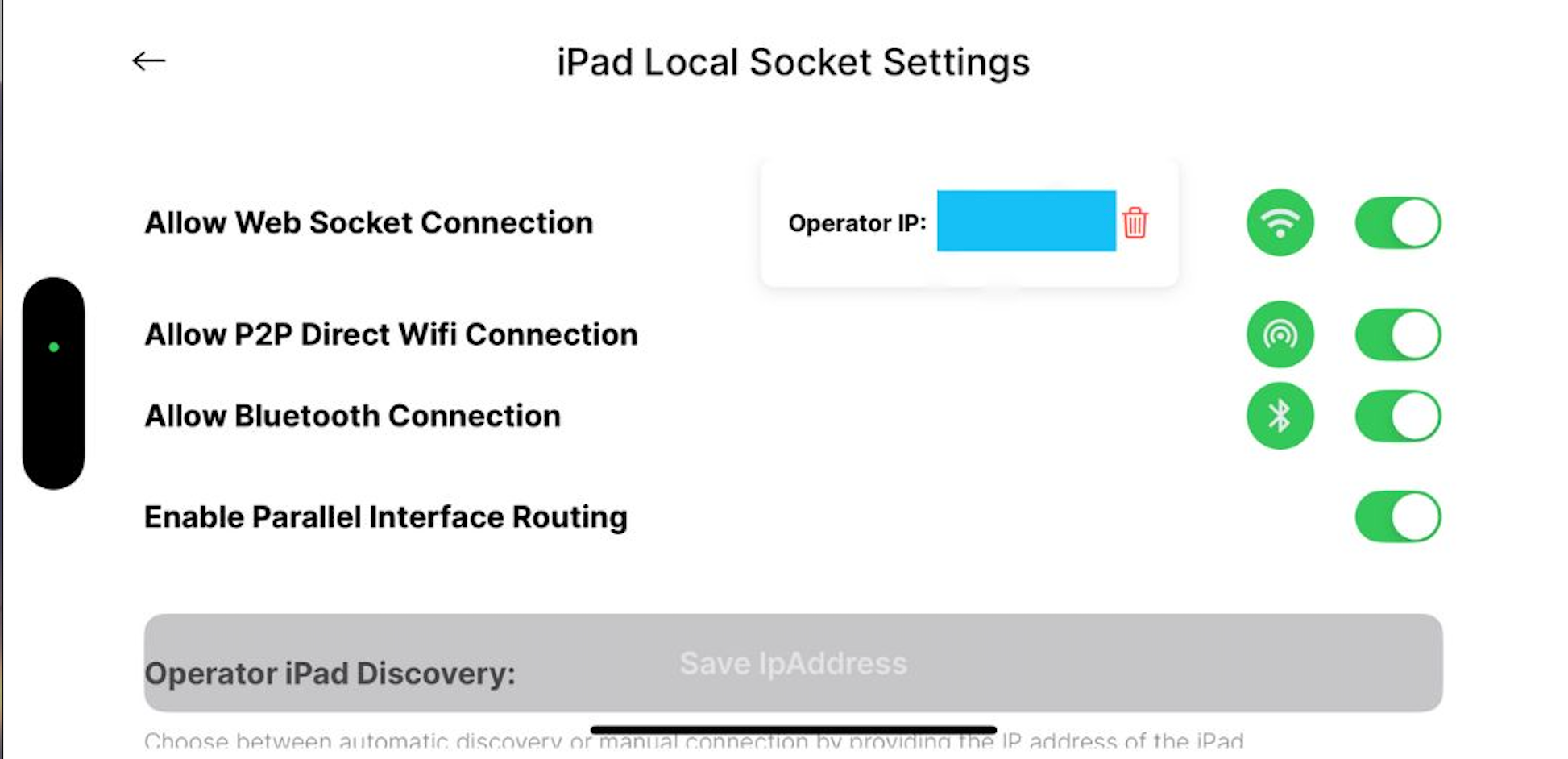
Step 3 — Configure supported communication
For installations using the applicable peer-to-peer configuration, enable the settings identified by Athena for that software version:
Allow P2P
Bluetooth
Enable Parallel, if supported and required
Leave WebSocket communication disabled unless the installation specifically requires a compatible network-based connection and the setting is authorized by the applicable deployment instructions.
Important: Communication settings may vary by software version, network security requirements, and installation architecture. Do not enable unneeded services solely to complete setup.
Step 4 — Pair the tablets
If the Operator and Controller iPads do not connect automatically:
Open the pairing interface on the Controller iPad.
Display the available pairing QR code.
Use the Operator iPad to scan the QR code.
Select the applicable pairing options. For versions where Athena instructs the installer to select ALL, use that option only if appropriate for the deployment.
Confirm that the devices establish communication.
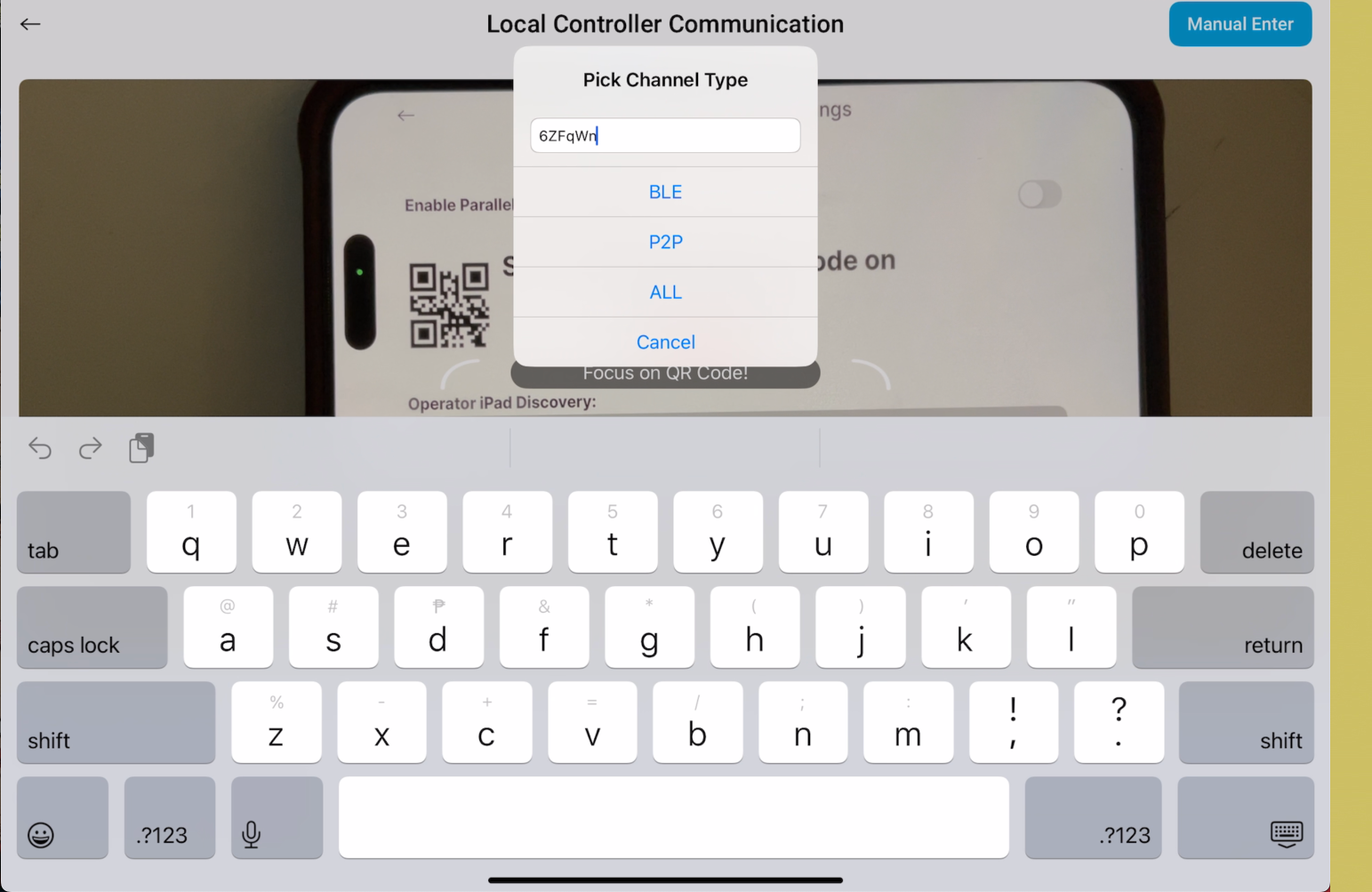
Step 5 — Verify connectivity
Confirm that:
Both tablets are powered and operating.
The appropriate Athena WDS application is running.
Communication status is displayed correctly.
The Operator and Controller functions respond as expected.
Required data or status is exchanged successfully.
Verify that power adapters and cable connections are secure.
4. Install customer-supplied CEIA OPENGATE equipment
CEIA OPENGATE is a separate detection system. Customers are responsible for obtaining, installing, maintaining, and operating their equipment in accordance with CEIA's documentation and applicable requirements.
The following information is a general setup reference and does not replace the official CEIA hardware manual.
Step 1 — Position the detection equipment
Select an appropriate screening location.
Review the current CEIA installation and spacing requirements for the specific model and configuration.
Position the equipment according to CEIA's approved layout.
Confirm that the screening area provides sufficient clearance for people and any permitted belongings.
Identify nearby moving metal objects and other potential sources of interference.
Do not rely on a universal pole spacing or clearance value. Previously published Athena instructions referenced specific measurements, but installation requirements should be confirmed against the current CEIA documentation.
Step 2 — Power on the CEIA equipment
For compatible two-pole CEIA OPENGATE configurations:
Identify the manufacturer-designated primary and secondary units, where applicable.
Locate the manufacturer-specified power controls.
Power on each unit in accordance with CEIA's instructions.
Allow the equipment to complete its initialization sequence.
Avoid moving the equipment or nearby metal objects during initialization when required by the manufacturer.
Initialization time and indicators depend on the equipment version and configuration.
Step 3 — Verify equipment status
Check the manufacturer-designated status indicators to confirm that the equipment is operating normally.
If warning indicators appear or initialization does not complete:
Consult the current CEIA manual.
Check the manufacturer's orientation, positioning, and environmental requirements.
Follow manufacturer-approved restart or troubleshooting procedures.
Contact the equipment supplier or CEIA support when hardware-specific assistance is needed.
Do not begin operational screening while an unresolved equipment warning or malfunction exists.
Step 4 — Connect with Athena WDS software
Where the customer's CEIA equipment and Athena software configuration support integration:
Open the Athena WDS application.
Access the applicable device integration or connection settings.
Follow Athena's deployment-specific configuration instructions.
Verify that supported equipment events or status information are received correctly.
Confirm that the operator interface displays the expected information.
Perform the applicable integration and operational tests before screening begins.
Integration availability and functionality are configuration-dependent. Not all third-party hardware features, signals, or settings are necessarily accessible through Athena software.
5. Establish security operating procedures
Before putting the installation into service, the organization's authorized security personnel should establish and document appropriate screening procedures.
These should address:
Security goals and threat assessment
Detection requirements and operational settings
Operator and supervisor responsibilities
Alarm response and secondary screening
Equipment testing and recordkeeping
Escalation and incident reporting
Procedures for equipment malfunction or communications failure
Applicable privacy, safety, and organizational requirements
For CEIA equipment, detection sensitivity and other manufacturer-controlled security settings must be selected and maintained by authorized personnel in accordance with CEIA's documentation and the organization's approved policies.
Athena may provide software features that support security workflows, testing records, and reporting, but Athena software does not replace the underlying detector's operation, manufacturer-specified testing, or human security judgment.
6. Test the installation before operational use
Perform and document appropriate acceptance and operational tests prior to live screening.
Athena software verification
Verify applicable functionality, such as:
Operator and Controller communication
User access and permissions
Supported equipment event or status communication
Operator notification workflows
Testing documentation functions
Incident recording and reporting
Synchronization or offline behavior, where supported
Recovery after an expected restart or connection interruption
Third-party hardware verification
Complete the manufacturer's prescribed equipment tests and verify that the installed detection hardware performs according to the organization's documented security requirements.
Use appropriate approved test objects and procedures. Do not assume that a successful software connection establishes detection performance.
If tests fail, do not treat the installation as operationally ready until the issue has been addressed and the required testing repeated.
7. Operating Athena WDS as a security management platform
Athena WDS software is intended to support more than the presentation of detection alarms. Depending on the deployment, licensed features, and equipment configuration, the platform may provide:
Software capability | Operational purpose |
|---|---|
Device and operator status | Visibility into supported system communications and conditions |
Equipment testing documentation | Records of completed screening equipment checks |
Alarm and incident workflows | Structured responses to security events |
Operator accountability | Records of applicable operator actions and acknowledgments |
Centralized reporting | Review of available screening records across supported installations |
Security procedures and training | Consistent operational processes |
Integrations | Connection to supported detection and security technologies |
These features are Athena software capabilities and should not be interpreted as CEIA OPENGATE hardware specifications or manufacturer performance claims.
8. Space planning and installation layout
The deployment layout should account for safe movement, accessibility, appropriate screening throughput, secondary screening areas, electrical and communication requirements, and any manufacturer-required clearance or environmental conditions.
For CEIA equipment, use the official CEIA layout documentation. Athena's space-planning guidance may supplement, but does not supersede, those requirements.
Related resource: Athena WDS Space Planning and Layout Design Guide (insert current support link).
9. Troubleshooting
Issue | Recommended action |
|---|---|
Athena tablets are not communicating | Verify power, software settings, supported connectivity, and pairing |
Operator iPad does not display expected data | Verify applicable application status and integration settings |
CEIA hardware does not initialize | Refer to CEIA manufacturer's troubleshooting procedures |
CEIA warning or fault indicators appear | Follow CEIA documentation or contact the authorized equipment support provider |
Athena reports are not updating | Verify applicable network connectivity and synchronization status |
Detection results are unexpected | Stop relying on the affected equipment for screening until manufacturer-approved checks and organizational testing requirements have been completed |
Do not modify, bypass, or override manufacturer safety or security settings without proper authorization.
10. Technical support
For Athena WDS software, configuration, operator workflows, reporting, or applicable integrations:
Athena Security Support
Email: support@athena-security.com
Phone: 833-928-4362
Support portal: Athena Security Help Desk
In-app support: Select Support within the applicable Athena WDS application and submit a ticket.
For CEIA equipment hardware defects, internal components, manufacturer-controlled calibration, firmware, or hardware-specific maintenance, contact CEIA or the authorized equipment supplier.
Athena support may assist with the software integration but cannot replace CEIA's manufacturer-specific technical support.
11. Reference materials
Athena resources
Athena WDS application instructions
Athena WDS testing and operator training guide
Athena WDS space planning and layout guide
Athena Control Center support documentation
Athena-compatible iPad specifications
Third-party manufacturer resources
Use the latest applicable documentation from the respective provider.
12. Trademark and independence notice
Athena Security and its associated product names are trademarks or service marks of Athena Security or their respective owners.
CEIA and OPENGATE® are trademarks of their respective owners. CEIA OPENGATE is manufactured by CEIA, independently of Athena Security.
References to CEIA products are made solely to identify third-party equipment that customers may use with supported Athena software configurations. Such references do not imply authorization, endorsement, sponsorship, partnership, or affiliation between Athena Security and CEIA.
Athena Security provides independent software and related services. Third-party hardware remains subject to its manufacturer's specifications, operating instructions, warranties, and applicable terms.
This guide is informational and does not constitute manufacturer approval, certification of any hardware configuration, or a guarantee of weapons detection performance.
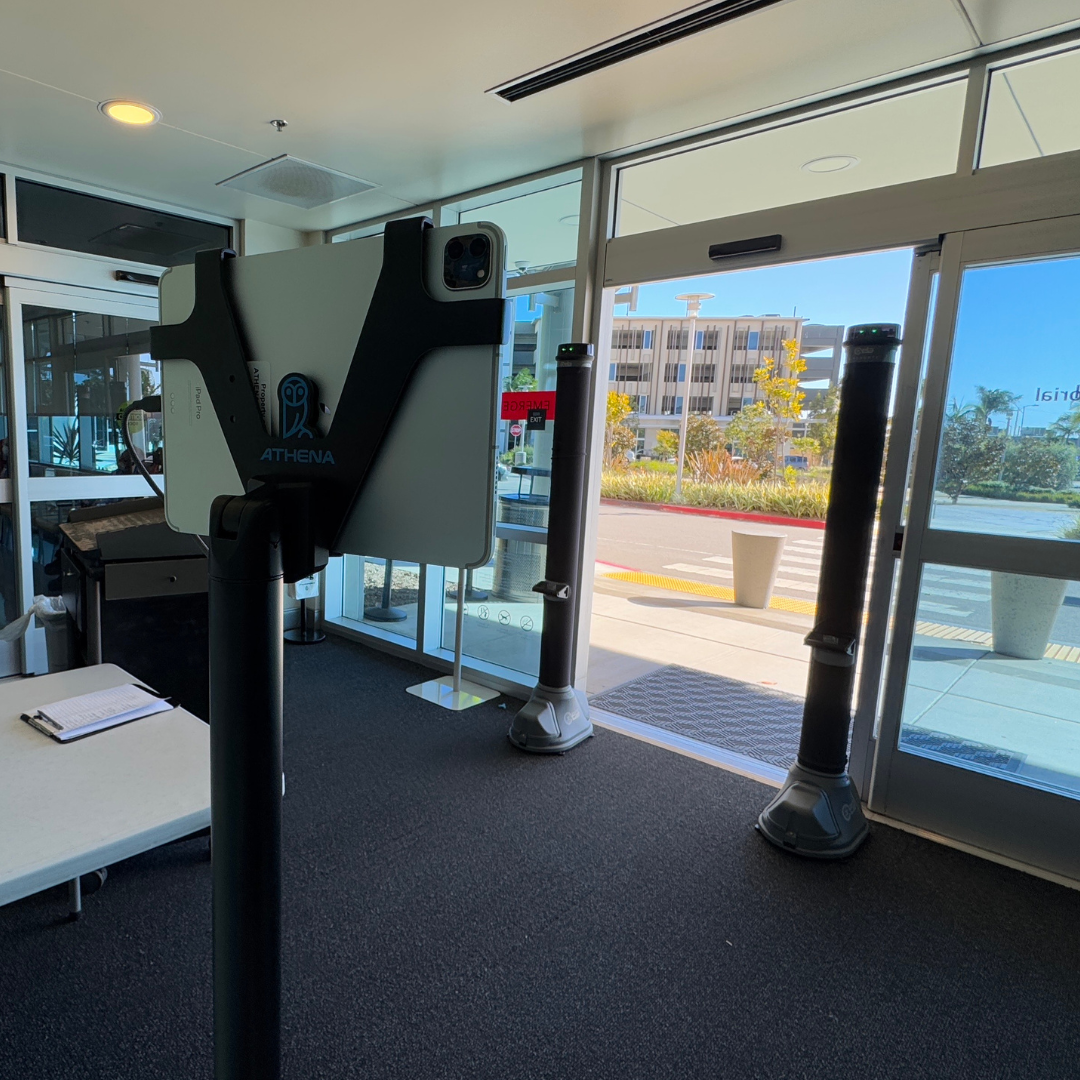
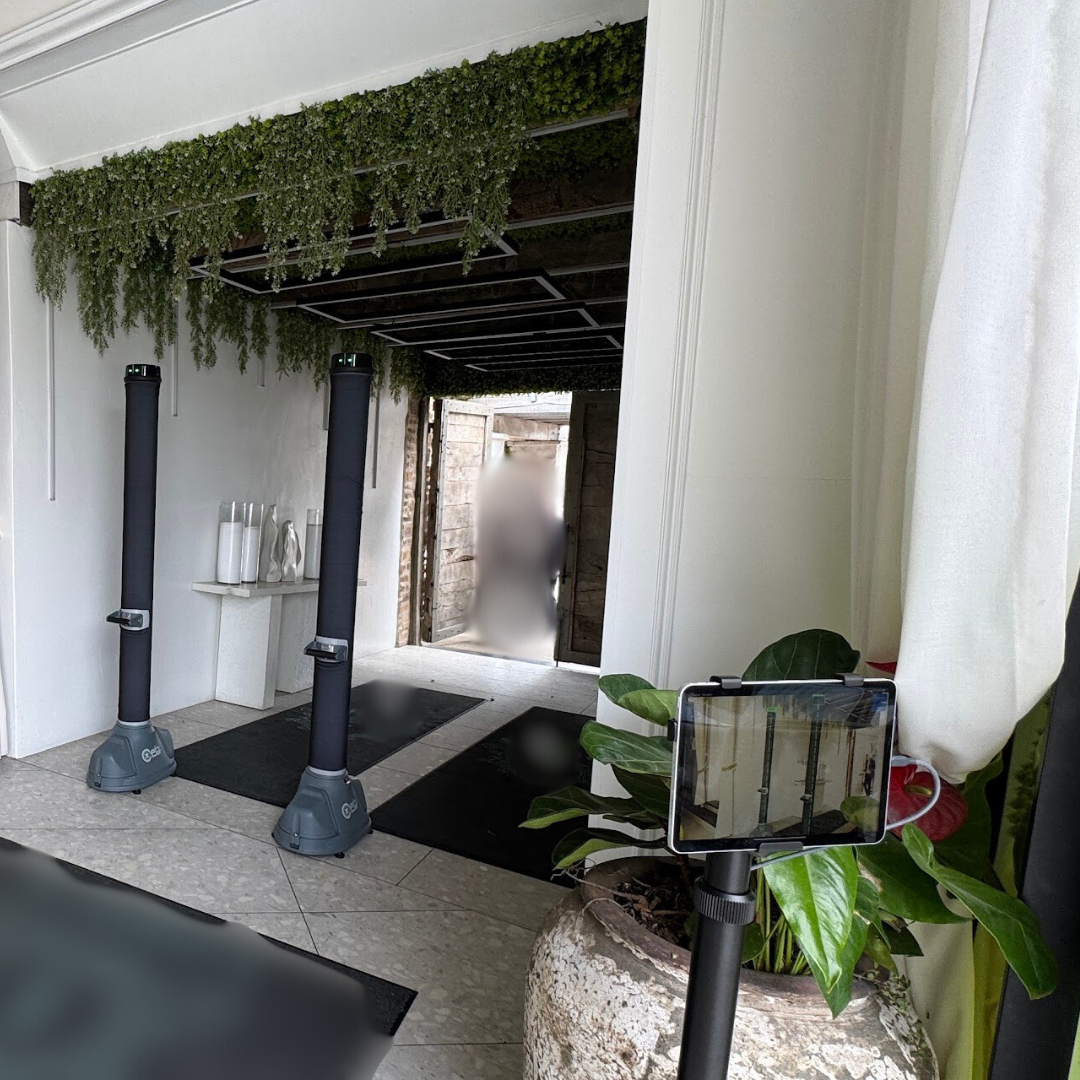
Aesthetic Options
- [Details on aesthetic options]


How to use Athena Support-
Click support on the operator iPad and submit a ticket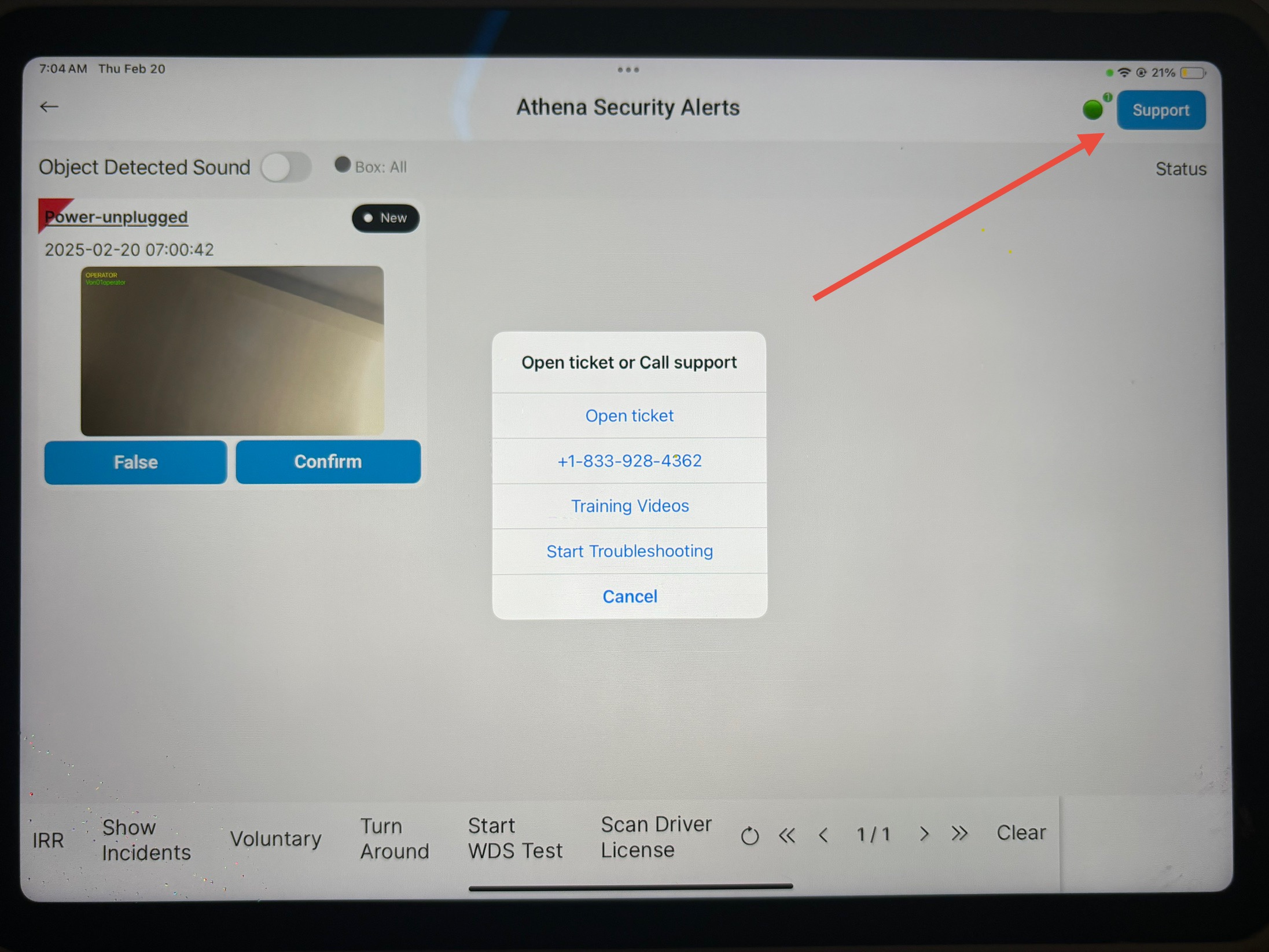
Email- support@athena-security.com,
Call-833-928-4362 27/7 Support
Athena Security Help Desk Ticket (website) https://support.athena-security.com/support/home
Was this article helpful?
That’s Great!
Thank you for your feedback
Sorry! We couldn't be helpful
Thank you for your feedback
Feedback sent
We appreciate your effort and will try to fix the article