Introduction to Athena Weapons Detection System (WDS)
The Athena Security Weapons Detection System (WDS) is an advanced, hardware-agnostic security AI platform designed to improve weapons screening, enhance situational awareness, and provide real-time alerts, security documentation, operational accountability, and centralized reporting.
Athena WDS operates as a unified security software and compliance platform across supported weapons detection hardware, allowing organizations to standardize screening procedures, operator workflows, equipment testing, incident documentation, and reporting regardless of the detection hardware manufacturer.
The platform supports integration with compatible walk-through metal detectors and weapons detection technologies. These systems perform the physical detection of metallic threats, including ferrous and non-ferrous objects, according to their respective hardware capabilities and configurations.
Athena WDS adds an intelligent software layer to support screening operations, security personnel, threat response procedures, and operational compliance.
Hardware Independence: Athena's core WDS software features and workflows are consistent across supported hardware platforms. The underlying detection technology, hardware settings, and detection performance may vary by manufacturer and model.
The images and examples in this guide may show CEIA OPENGATE® equipment for illustration purposes only. CEIA OPENGATE is independently manufactured third-party hardware and is not required to use Athena WDS. Athena Security does not manufacture or sell CEIA OPENGATE equipment through this guide.
Athena WDS System Components
A typical Athena WDS installation consists of three primary components, regardless of the supported detection hardware manufacturer.
1. Controller Tablet
The Controller Tablet serves as a central processing and communication component of the Athena WDS platform.
Equipped with supported technologies such as LiDAR, high-resolution cameras, and advanced processing capabilities, the Controller Tablet supports Athena's software-based security functions and communicates with the Operator Tablet and connected detection equipment.
Key capabilities include:
Processing supported detection events and system information.
Communicating with the Operator Tablet.
Supporting real-time alerts and security workflows.
Supporting applicable camera-based monitoring and security functions.
Facilitating operational documentation and system monitoring.
The Controller Tablet can be mounted on a wall, ceiling, or stand, depending on installation requirements.
For applicable configurations, the tablet may be positioned approximately 6–12 feet from the screening area. Actual positioning depends on the environment, camera coverage, and deployment requirements.
2. Operator Tablet
The Operator Tablet provides security personnel with a centralized, real-time interface to manage screening operations.
The Athena WDS Operator Tablet delivers the same core software features and operational workflows across supported hardware platforms.
Key capabilities include:
Real-Time Alerts: Display screening alerts and supported detection events as they occur.
Threat Response Workflows: Guide security personnel through established screening and secondary inspection procedures.
Operator Accountability: Document applicable operator activities, responses, and acknowledgments.
Equipment Testing and Compliance Records: Record testing activities and maintain an auditable history of equipment checks.
Incident Documentation: Record security events, operator actions, and incident details.
Centralized Reporting: Support review and analysis of screening activities across supported locations.
System Communication Monitoring: Display the communication status of connected Athena components.
The Operator Tablet may be positioned wherever it best supports security personnel and operational procedures, provided the required communication and connectivity are maintained.
3. Weapons Detection Hardware
Athena WDS is designed to work with supported third-party and Athena-provided weapons detection technologies, creating a consistent software experience across compatible hardware.
The connected detection equipment performs the physical screening of individuals and, where supported, their belongings.
Depending on the equipment's technology and configuration, detection may include metallic threats such as firearms, knives, and other prohibited metal objects.
Athena WDS provides a common software platform across supported hardware, including:
Consistent operator interfaces and screening workflows.
Real-time security notifications and response procedures.
Equipment testing documentation.
Security incident recording.
Operator accountability and audit records.
Centralized management and reporting.
Standardized operational procedures across multiple facilities.
Although hardware manufacturers may use different detection methods, Athena WDS enables organizations to maintain a unified approach to screening operations and security documentation.
About the images in this guide: Some installation photographs and examples feature CEIA OPENGATE® detection equipment. These examples are provided solely to illustrate a possible physical installation. The Athena WDS platform and its core software capabilities are not limited to CEIA products.
CEIA OPENGATE is manufactured independently by CEIA. References to its products do not imply affiliation, sponsorship, endorsement, or a hardware sales relationship.
Operator and Controller Communication Status
The Athena WDS Operator Tablet displays a connection status indicator in the upper-right corner of the application.
GREEN — Connected: The Operator and Controller Tablets are communicating as expected.
RED — Disconnected: The Operator and Controller Tablets are not communicating or have experienced a connection interruption.
If the communication indicator is red:
Verify that both tablets are powered on.
Confirm that the Athena WDS application is running on both devices.
Check the configured communication settings.
Verify the applicable Bluetooth, peer-to-peer, or network connection.
Reconnect the devices using the approved Athena pairing procedures if necessary.
Contact Athena Security Support if the issue persists.
Important: The connection indicator represents communication between Athena system components. It does not independently confirm the operational readiness, calibration, or detection performance of connected screening hardware.
One Security Platform. Multiple Detection Technologies.
Athena WDS enables organizations to deploy supported weapons detection technologies while maintaining a standardized software platform for screening operations, security procedures, equipment testing, reporting, and accountability.
Organizations can select detection equipment based on their individual security requirements without having to change the core Athena WDS operational software experience.
The detection hardware identifies potential threats. Athena WDS helps security teams manage, document, and respond to screening events through one unified platform.
This version makes Athena's universal WDS platform the focus of the training guide. CEIA OPENGATE is mentioned only as an example of detection equipment appearing in the installation images, not as a required component or the source of Athena's software features.
Operator & Controller communication - In the top right corner of the Operator tablet you will see a connection status button. If this is showing GREEN the system is communicating as expected. If the connection status is RED the Operator and Controller are not connected.
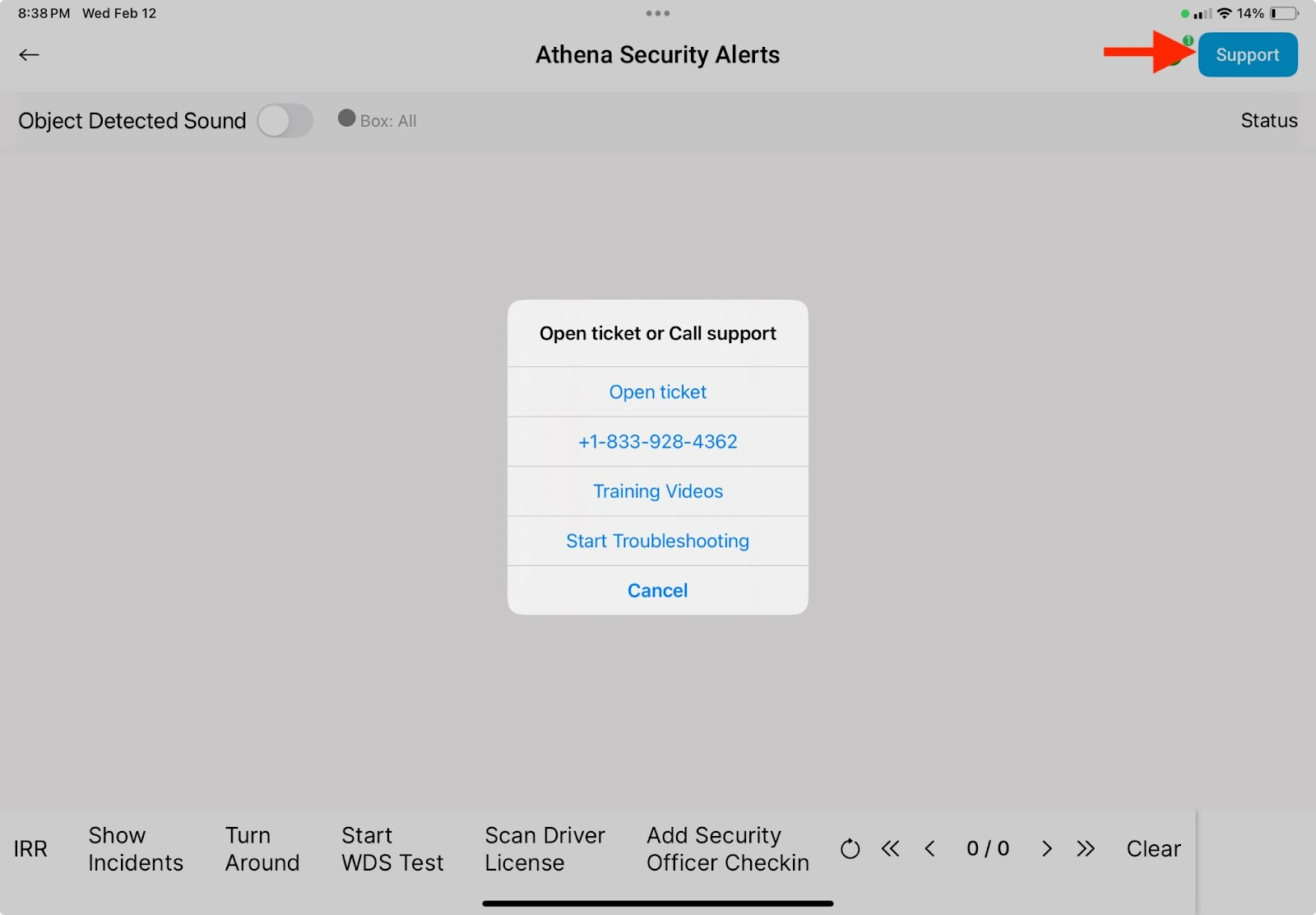
NOTE: Please contact our 24/7 support team by selecting the support button in the top right corner of the screen. You can call us 1-833-928-4362, or submit a ticket.
WDS Test - On the Operator tablet select the ‘Start WDS Test’ on the bottom of the Operator screen. This will activate the WDS TEST function for the next 10 minutes.
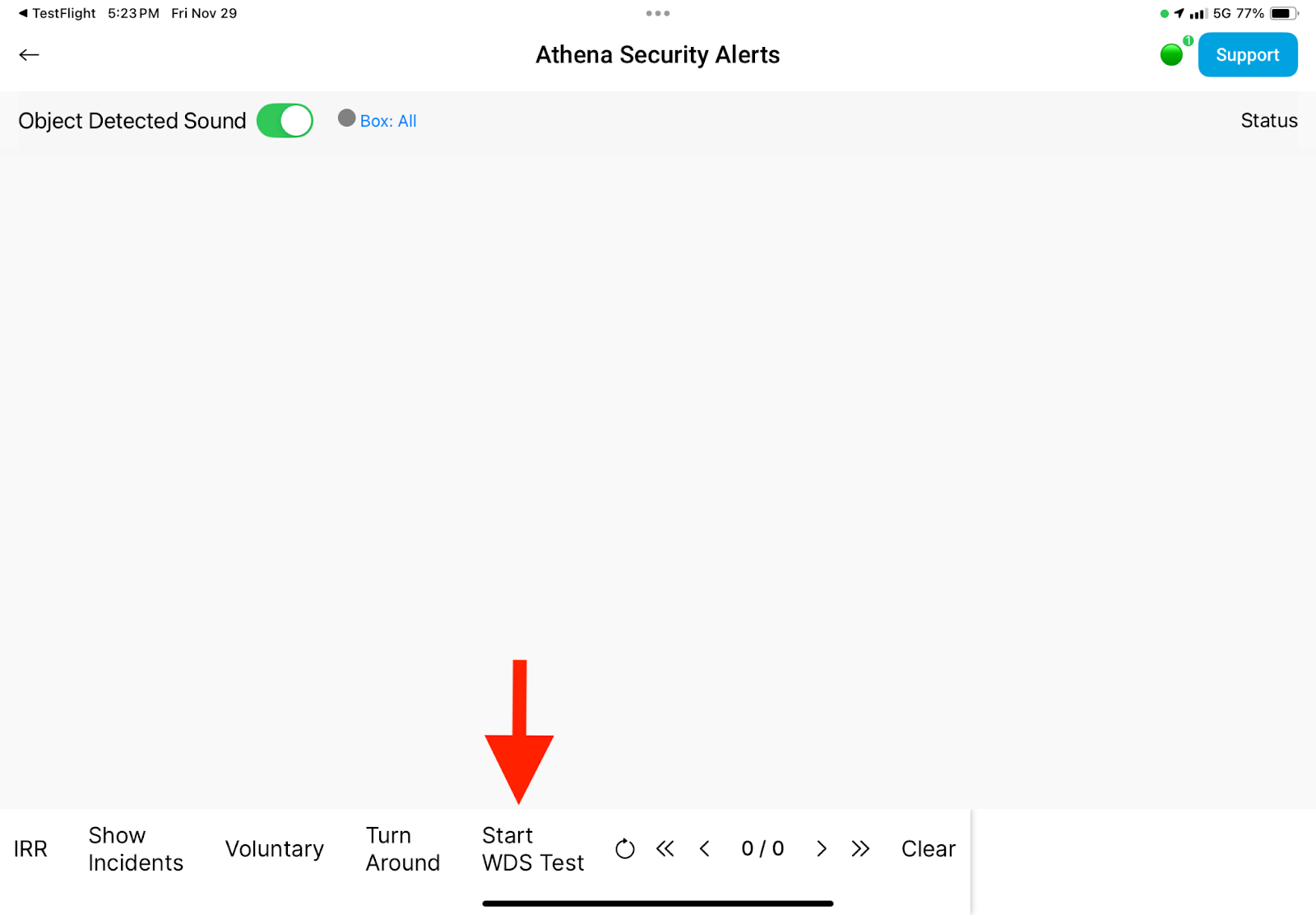
NOTE: Once you select the test, the Controller tablet will verbally state “ You are now in WDS Test mode” the screen will show a template for you to follow to correctly test all 9 spots, using the AM7 test piece provided. ( See Image Below )
WDS Test Template - Using the AM7 test piece provided to test all 9 spots as indicated below on the Controller tablet.
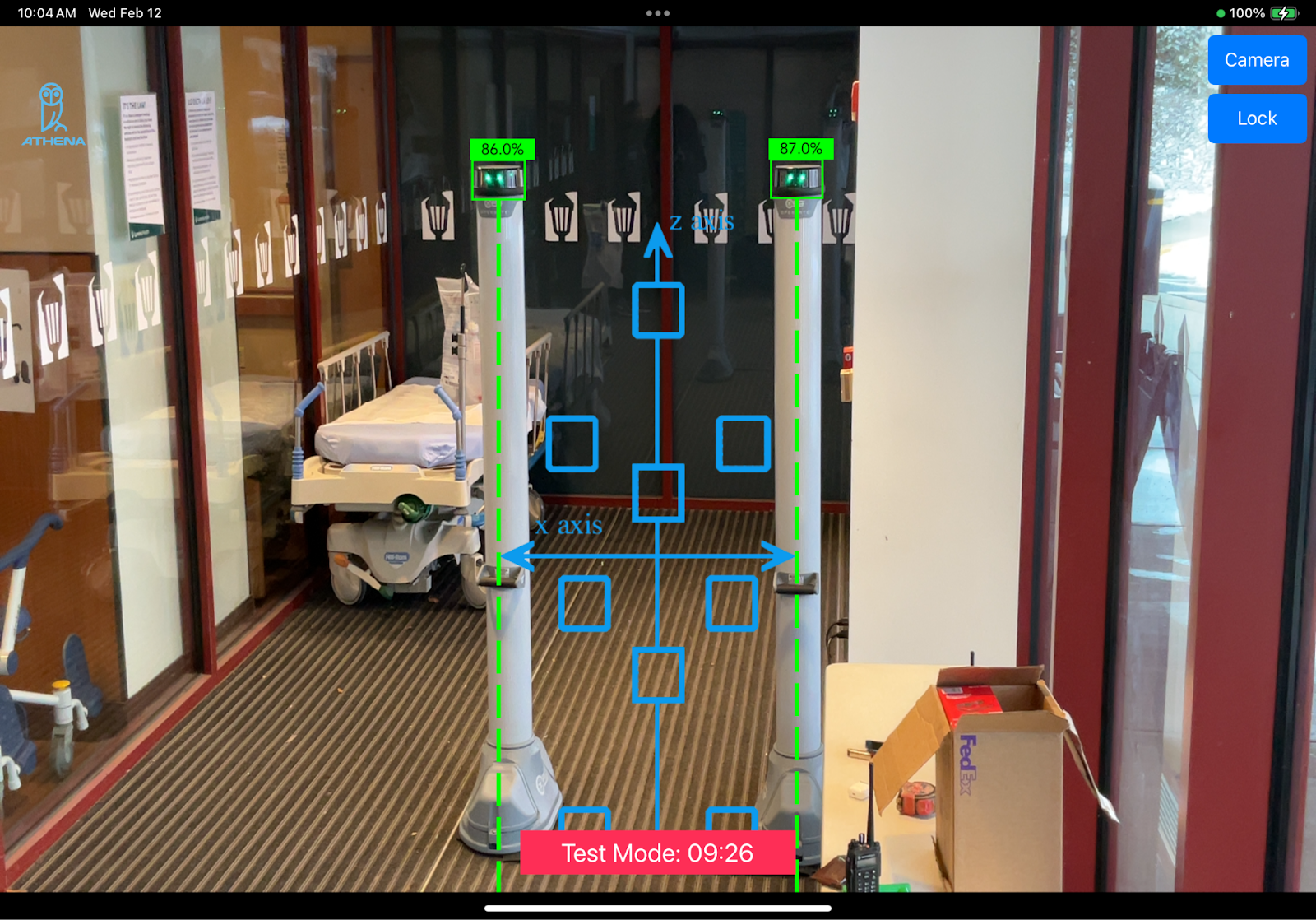
NOTE: Please ensure you are a “Clean Tester” by removing all large metals, phones, watches, and electronics from your person. This will ensure that the system is being tested to the highest standards of accuracy and reliability, allowing us to properly evaluate the poles detection capabilities and adherence to homeland security protocols.
Compliance Record of Testing WDS - Once the test has been completed and the tester has walked through the OPENGATE poles at least 9 times as shown on the template above. You will be asked to complete the compliance record - Please fill out the information requested.
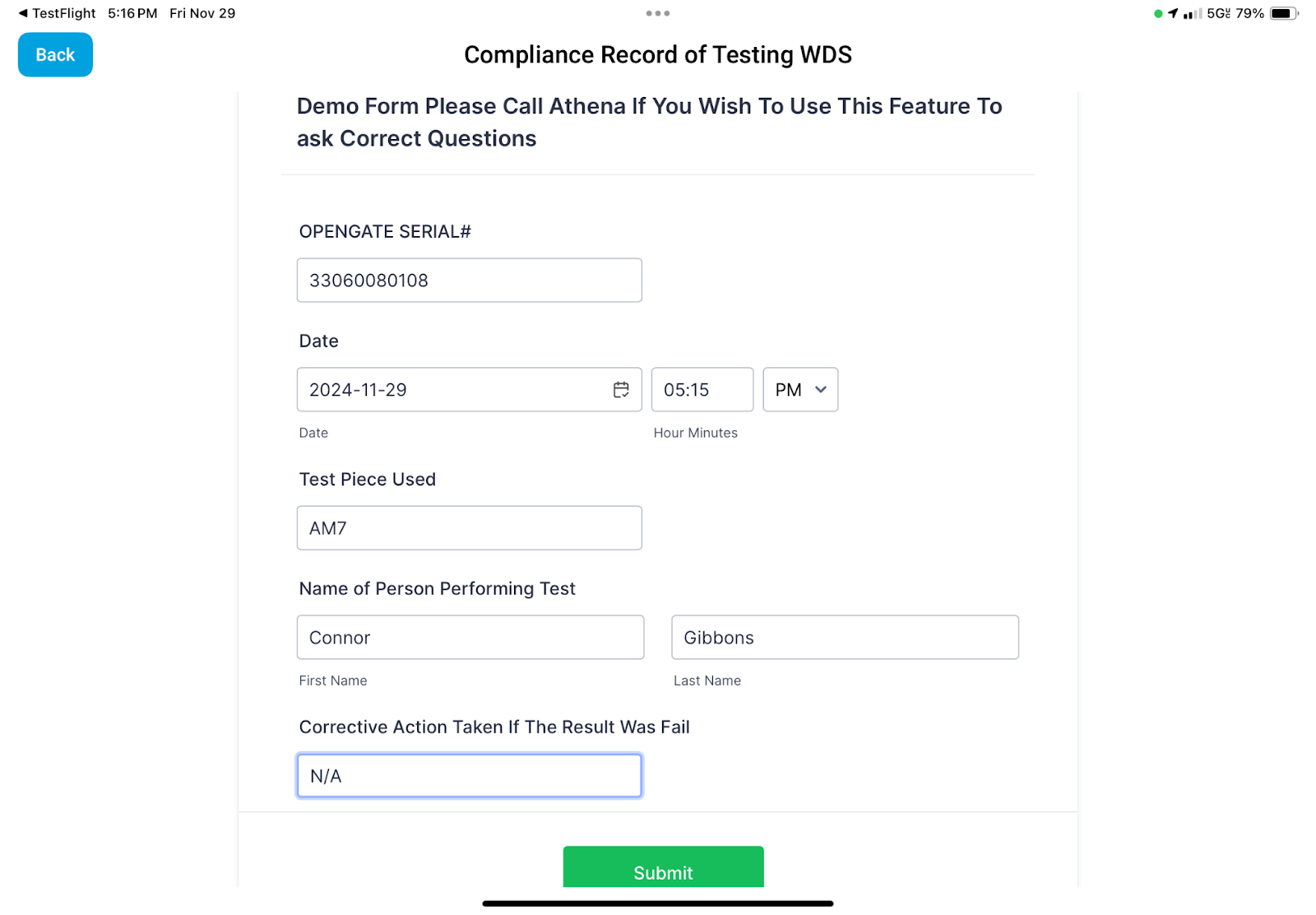
NOTE:For optimal performance, it is recommended to test the system at least once per week. Please consult your company’s policy to ensure testing is conducted in alignment with established guidelines and requirements.
Scanning Drivers License - You can scan a drivers license by selecting the “Scan Drivers License” at the bottom of the Operator tablet.
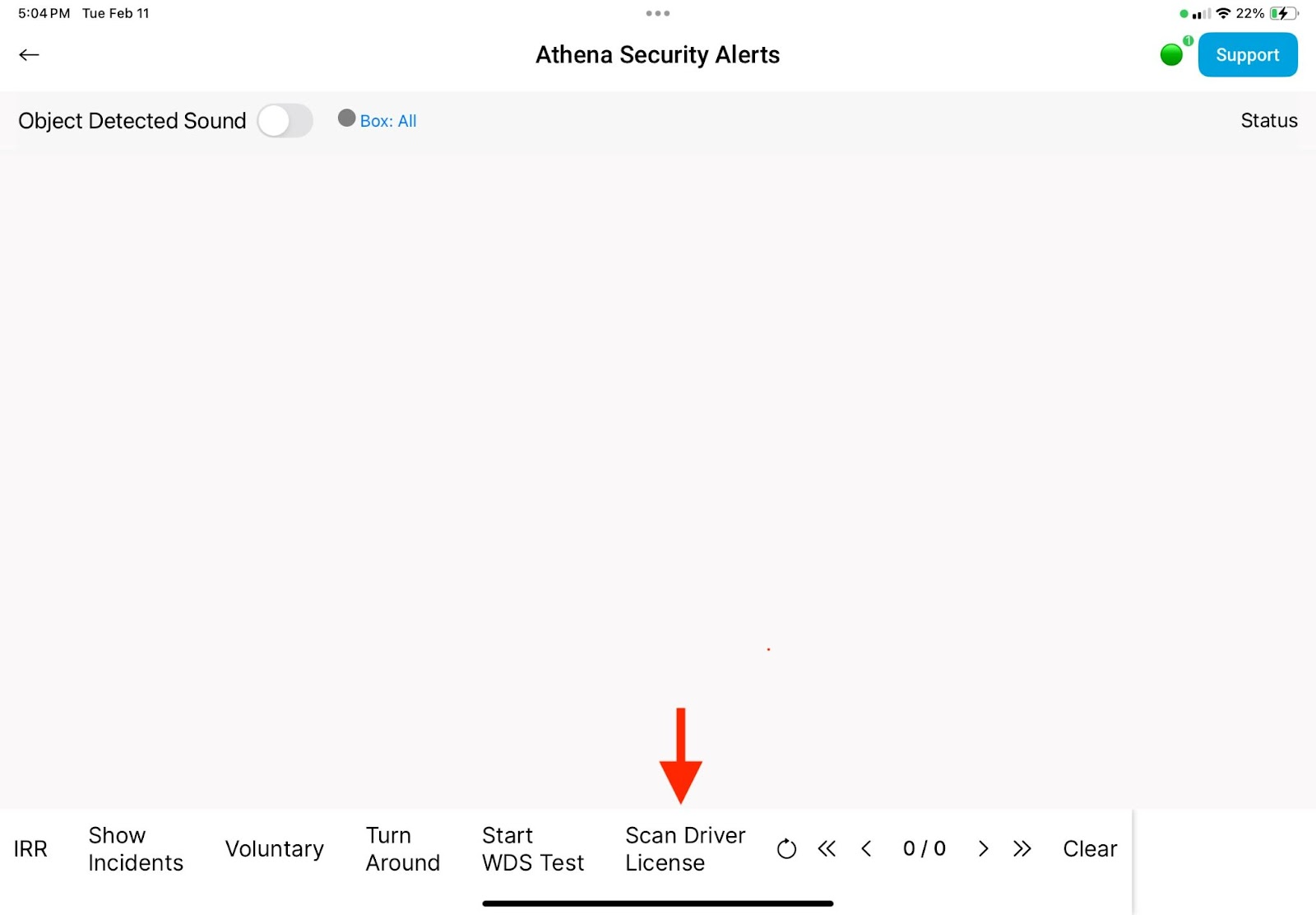
Drivers License Info - Once you scan the barcode on the back of the state issued ID it will pull all of the available information as shown on the image below.
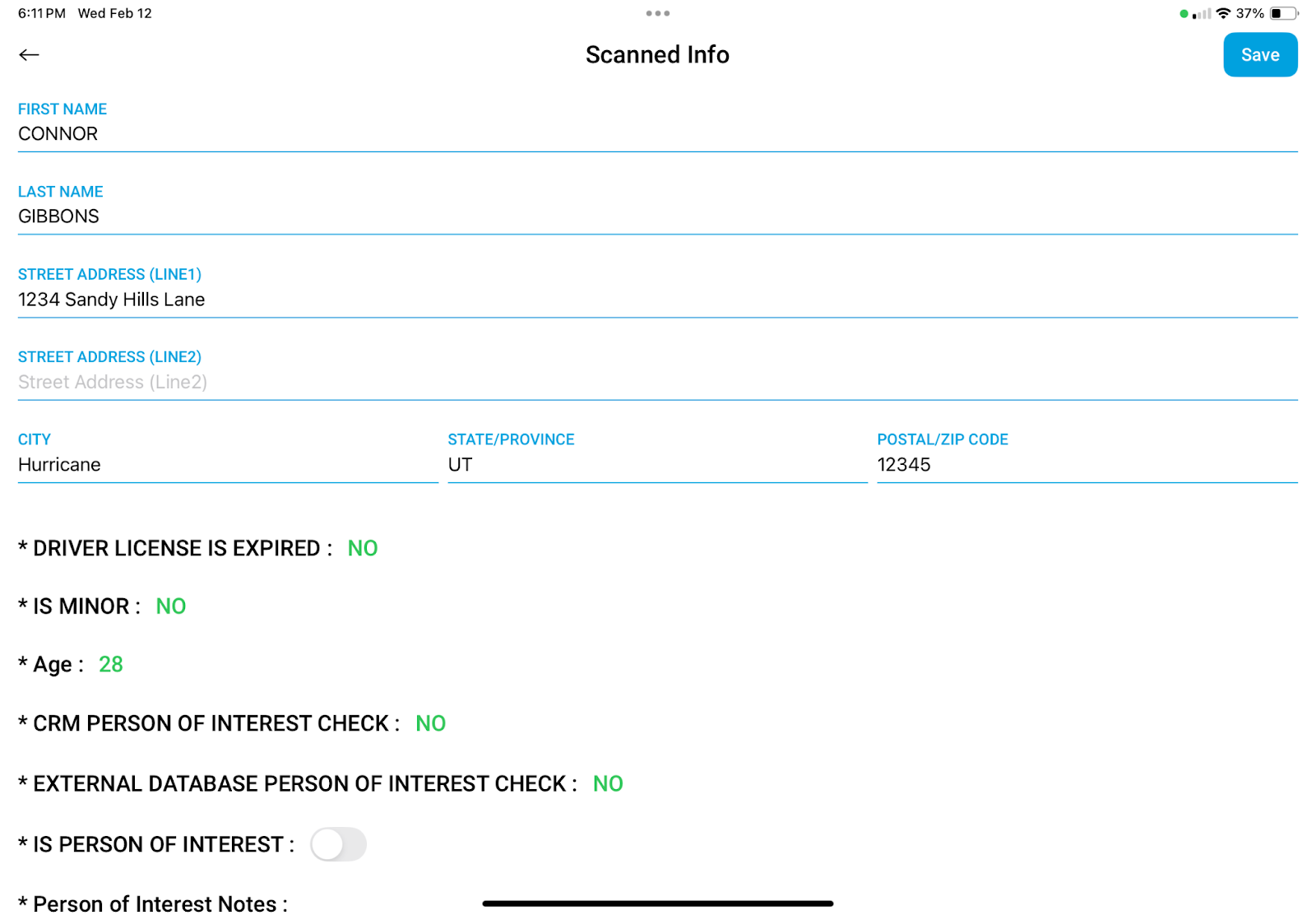
Adding to POI list - Once you scan their ID below the information pulled from the ID you are able to add the person as a POI (Person of Interest) by clicking the toggle to on. You are also able to leave notes on the person before you save the ID information.
NOTE: This action will save the individual’s information to the system, flagging them as a POI (Person of Interest). The flagged information will be accessible and retrievable by management as needed.
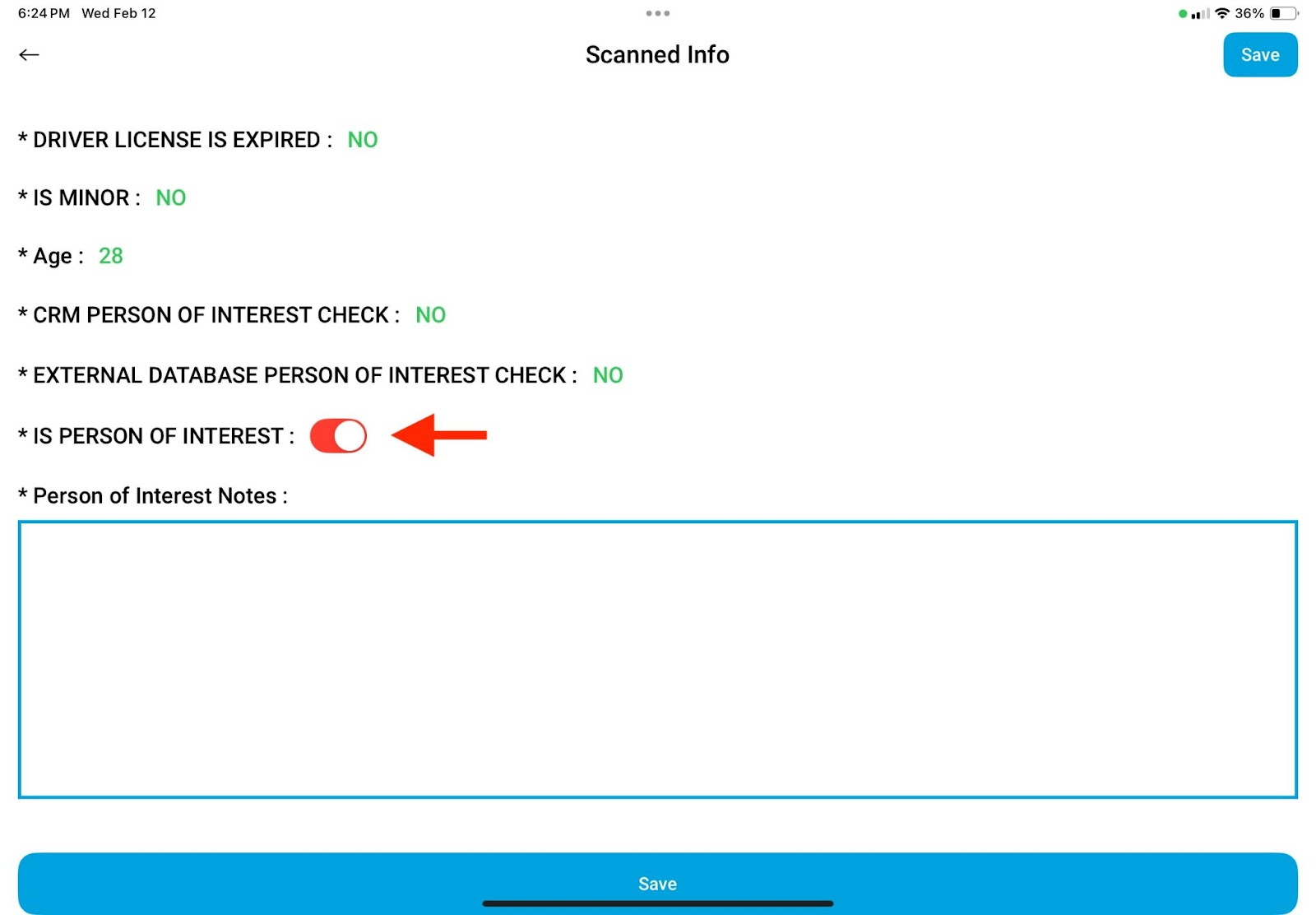
Adding Security Officer Checkin - The Security Officer assuming responsibility for the post must ‘Add Security Officer Checkin’ on the Operator tablet by selecting the button displayed below.
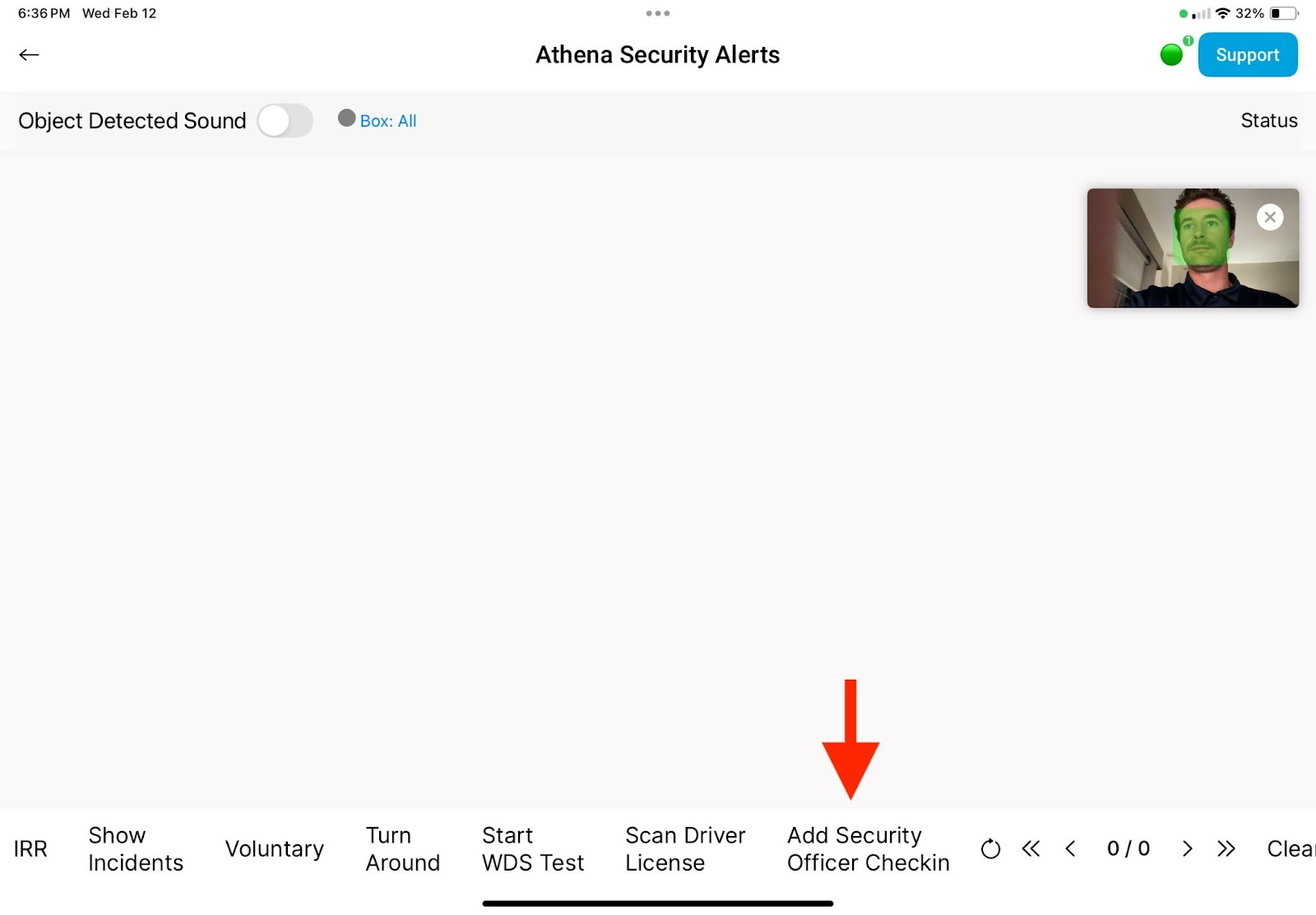
NOTE: Once you select ‘Add Security Officer Check-In,’ a small image will appear in the top right corner of the tablet. When a green box covers your face, tap on the image to proceed.
Adding Security Officer Checkin - After selecting the green box, you will be prompted to enter your name in the field displayed below the image, as shown below.
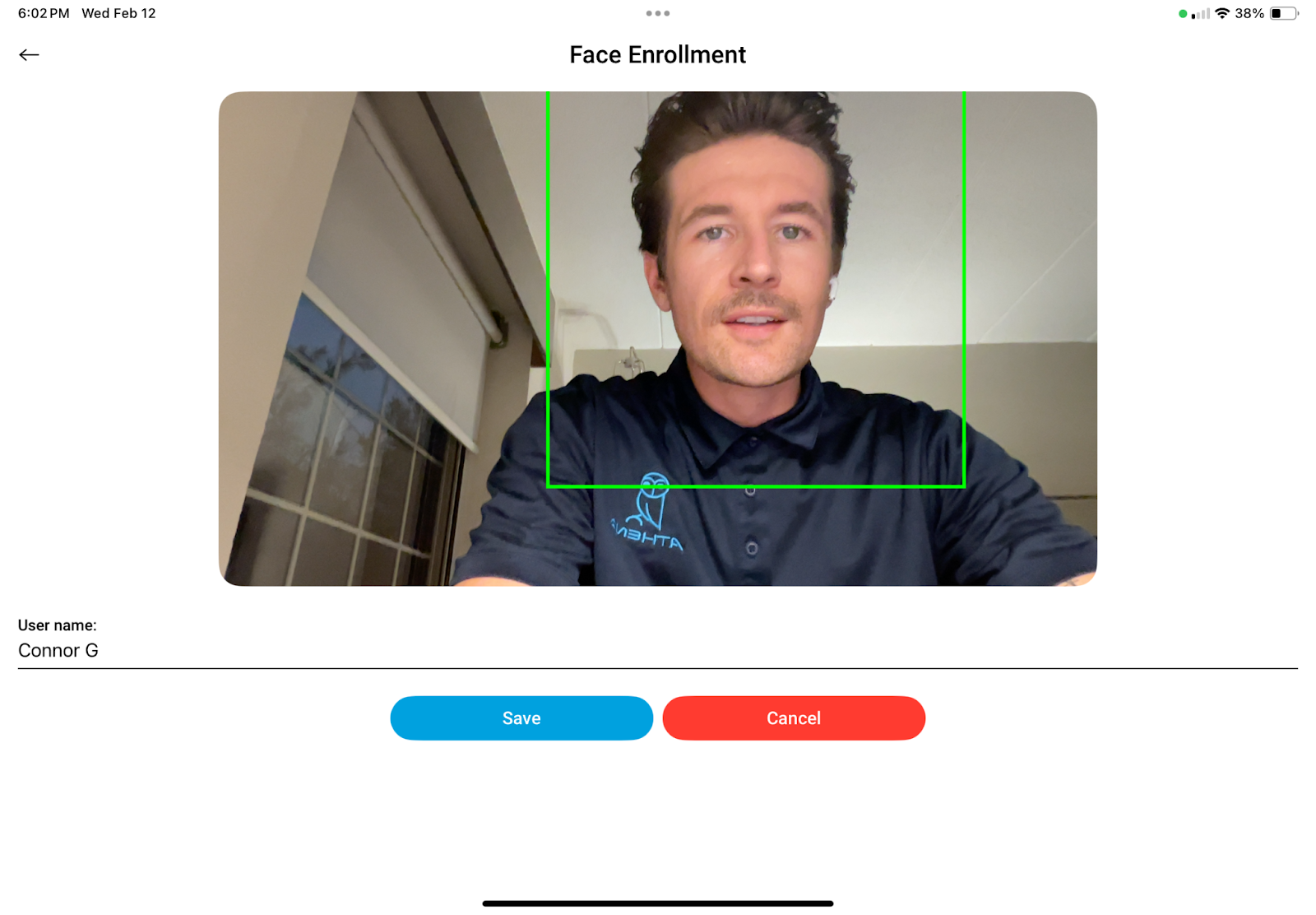
NOTE: Enter your name in the ‘User Name’ field and select ‘Save’ - You will now be registered as the Security Officer responsible for the post.
Checking in - Every 15 or 30 minutes, depending on the interval set by management, the Operator tablet will prompt you to ‘Check-In’ - The small image in the top right corner of the screen will reappear, and you will need to center your face within the frame until it is successfully captured. Once completed, you will receive a confirmation prompt stating ‘Check-In Complete’

Alerts - When the OPENGATE system triggers an ‘Object Detected’ alert, the Operator tablet will display the alert screen for the officer to review.
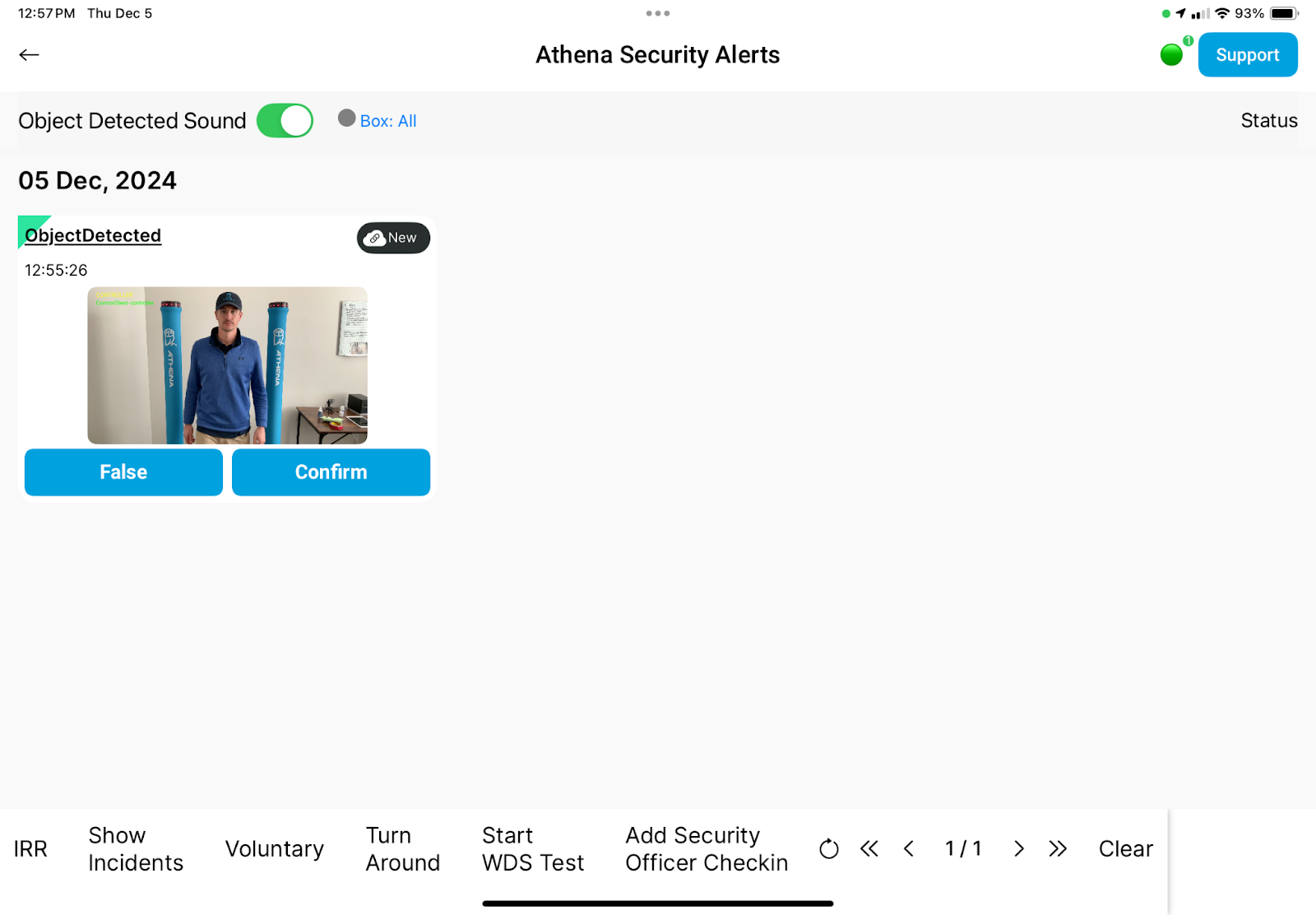
False Alerts - If the alert is determined to be a false alarm, the Security Officer must select ‘False’ on the alert displayed on the Operator tablet and specify the reason for the false alarm.
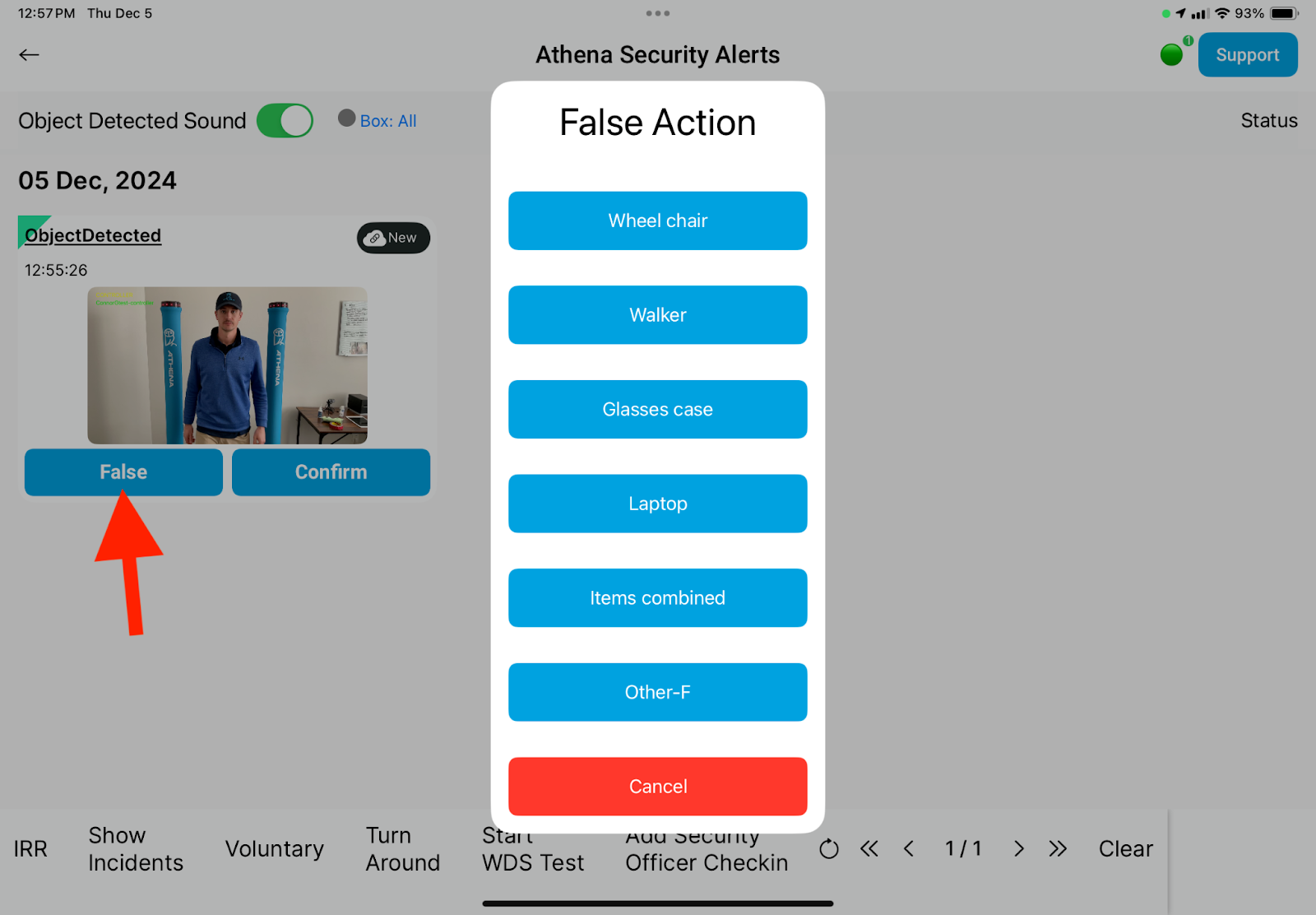
NOTE: The ‘False’ action will be recorded and remain retrievable on the Operator screen by selecting ‘Status’ in the top right corner. If the alert was incorrectly resolved, the Officer can update its status in the ‘False Alerts’ tab.
Confirm Alerts - If the alert is identified as a ‘THREAT’ the Security Officer must select ‘Confirm’ on the alert and specify the object that triggered the detection.
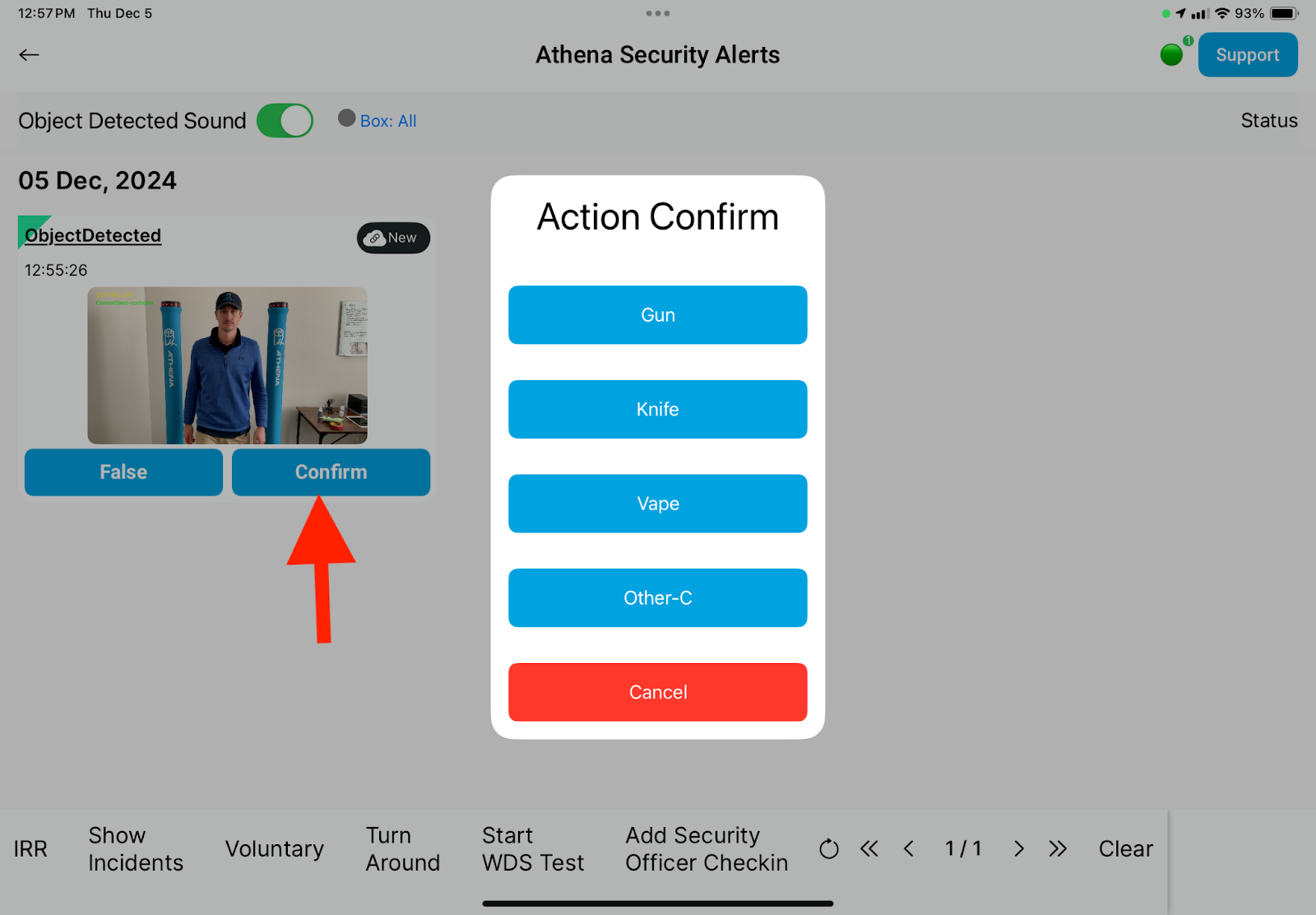
NOTE: The ‘Confirm’ action will be recorded and remain accessible on the Operator screen by selecting ‘Status’ in the top right corner. If the alert was inaccurately resolved, the Officer can review and update its status in the ‘Confirmed Threats’ tab.
Incident Response Report (IRR) - Once the alert has been confirmed and the Officer selects the object that was detected and/or confiscated, they will be prompted to complete an Incident Response Report.
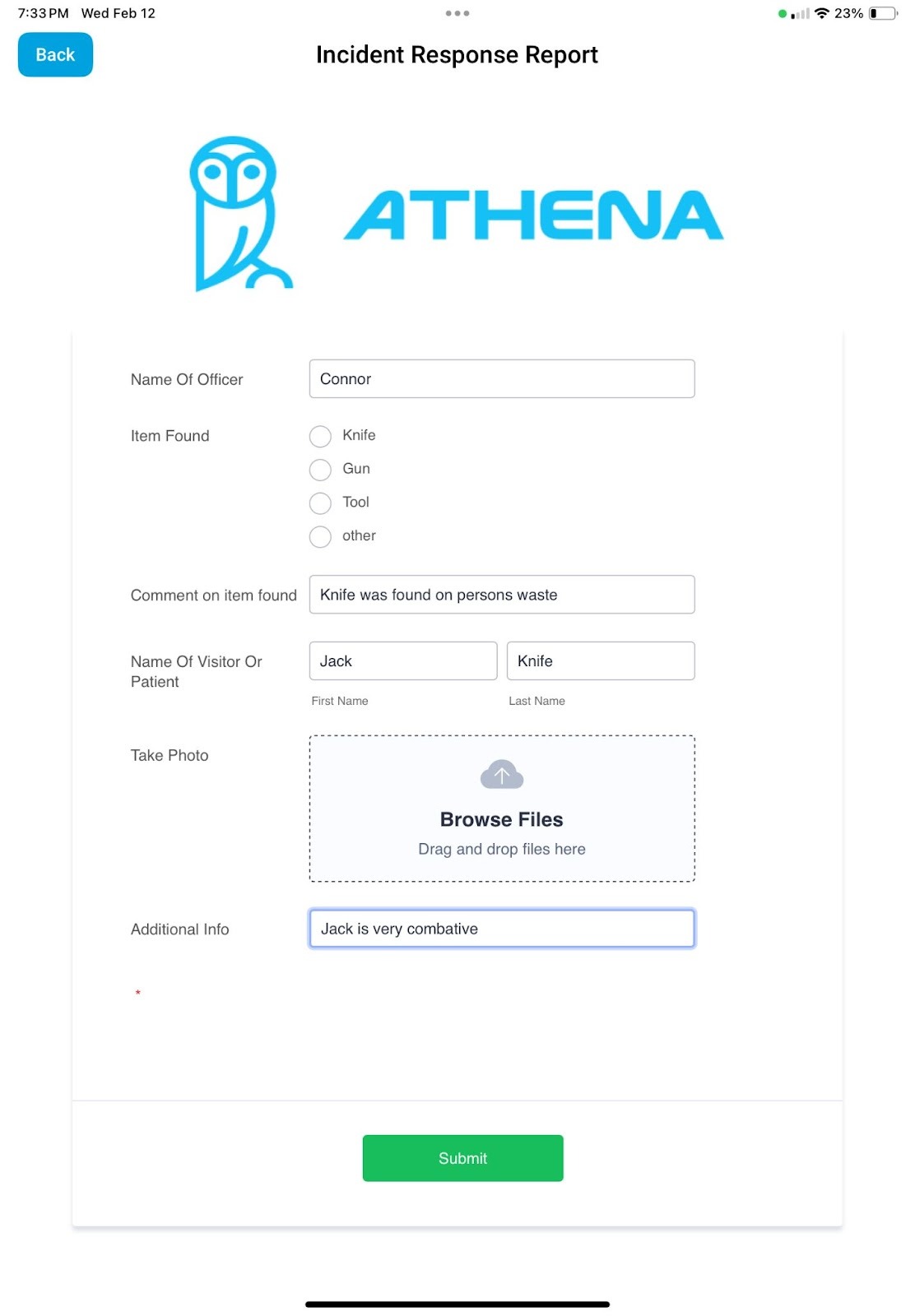
NOTE: In the Incident Report, the Officer will provide all relevant details related to the confirmed alert. Additionally, the Officer will have the option to capture a photo of the confiscated item to document its condition at the time of confiscation.
IRR - You can submit an Incident Response Report (IRR) without an active alert by selecting the IRR button located in the bottom left corner of the screen.
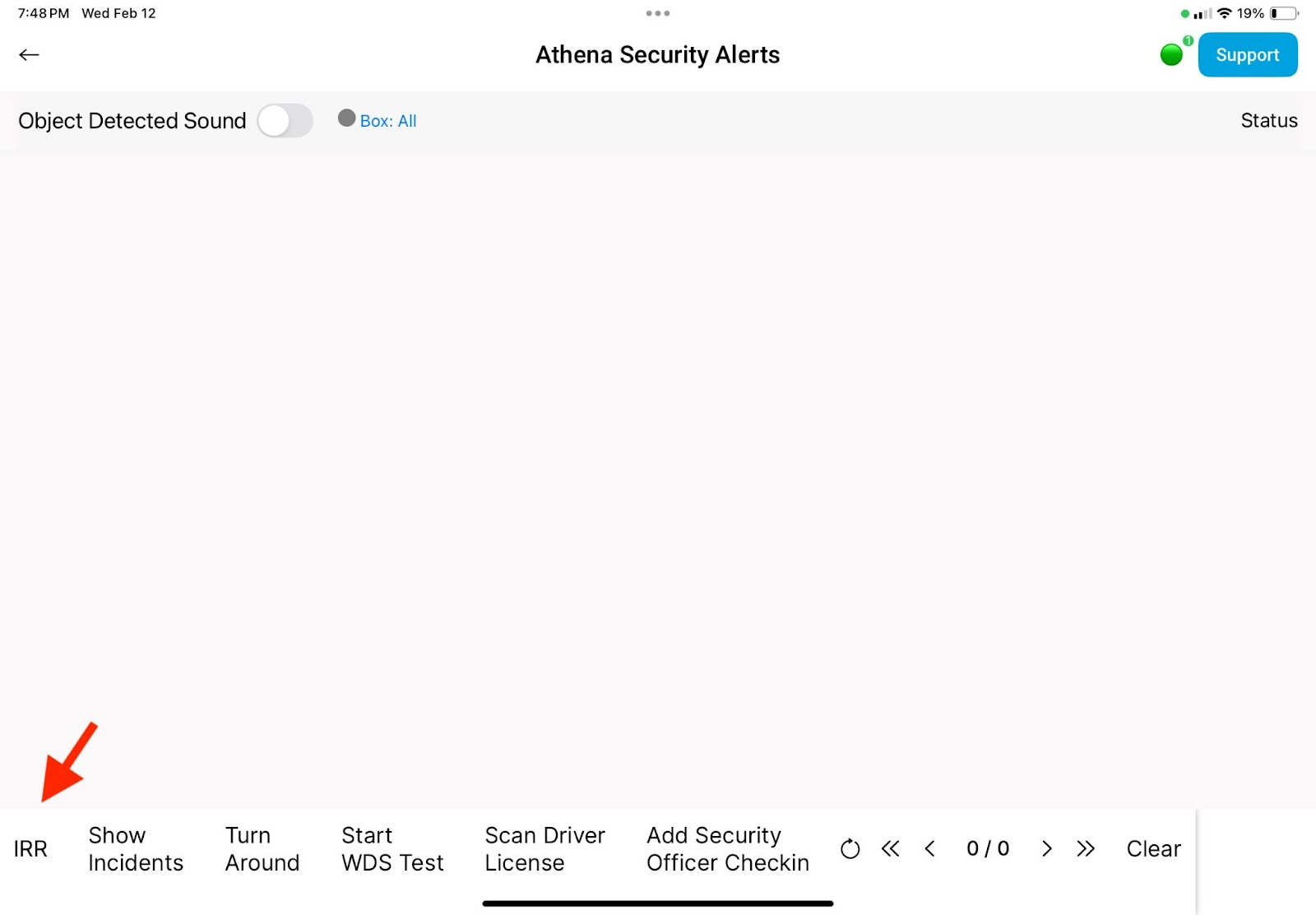
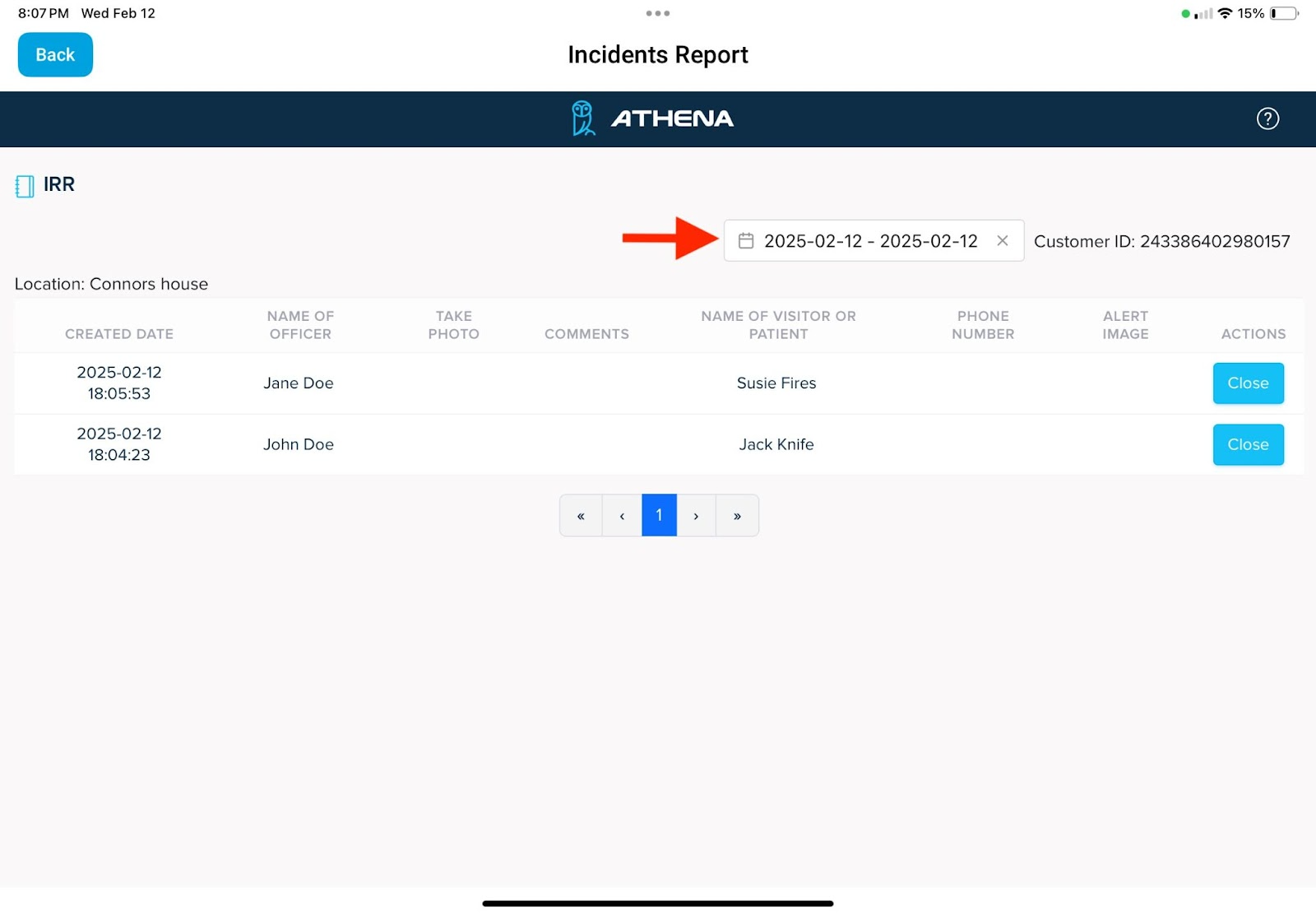
Show Incidents - The ‘Show Incidents’ button at the bottom of the Operator screen will open a page displaying all Incident Response Reports (IRR) that have been submitted; filtered by the date range selected at the top of the screen.

Turn Around - The ‘Turn Around’ button is used to capture an image of individuals or the surrounding area if someone exhibits suspicious behavior upon encountering the Athena Weapons Detection System.
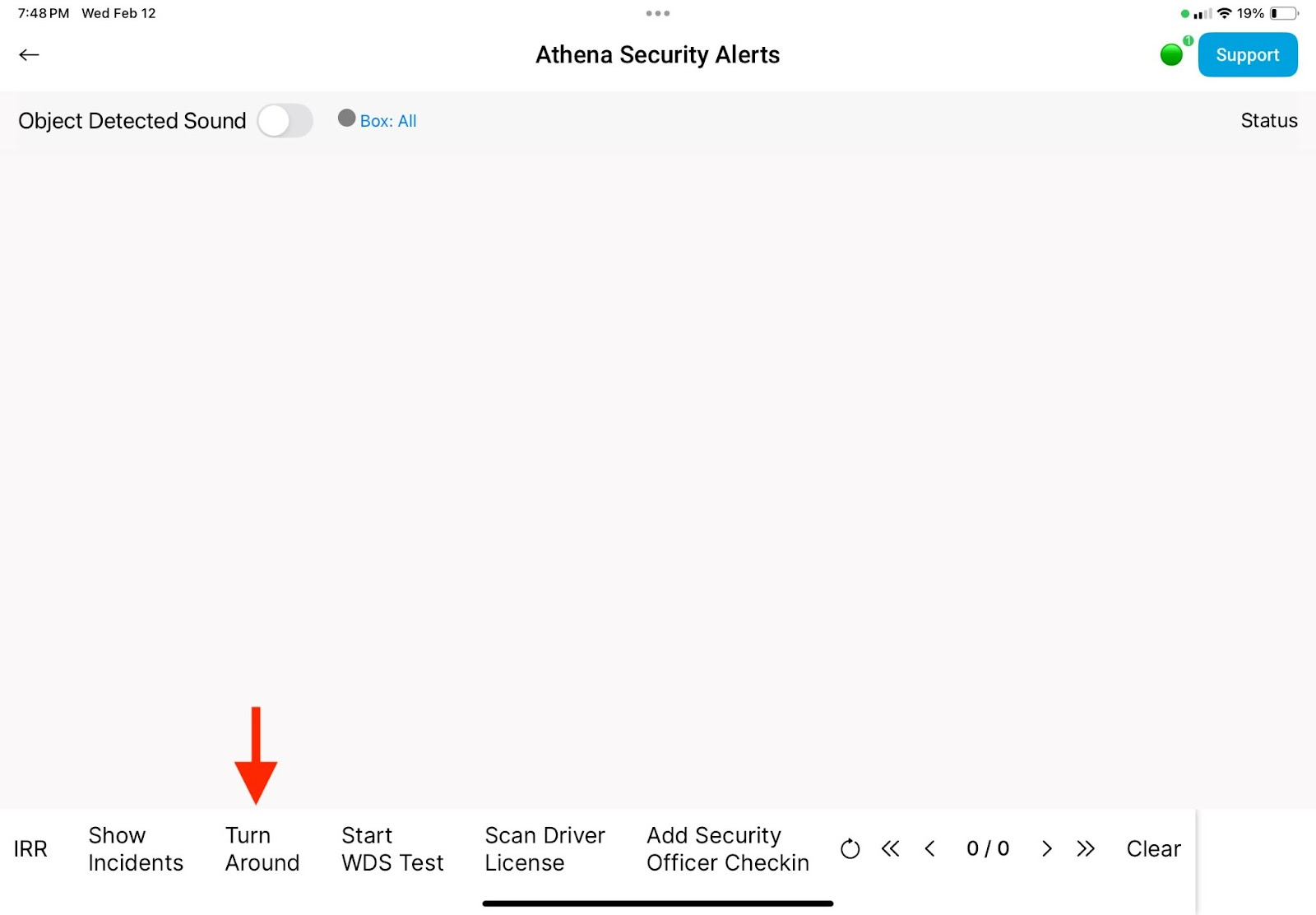
NOTE: This feature can also be utilized at any time to document activity or incidents as needed.
Alert Status - In the top right corner of the Operator screen, the ‘Status’ feature enables you to filter alerts based on the actions taken by the Security Officer.
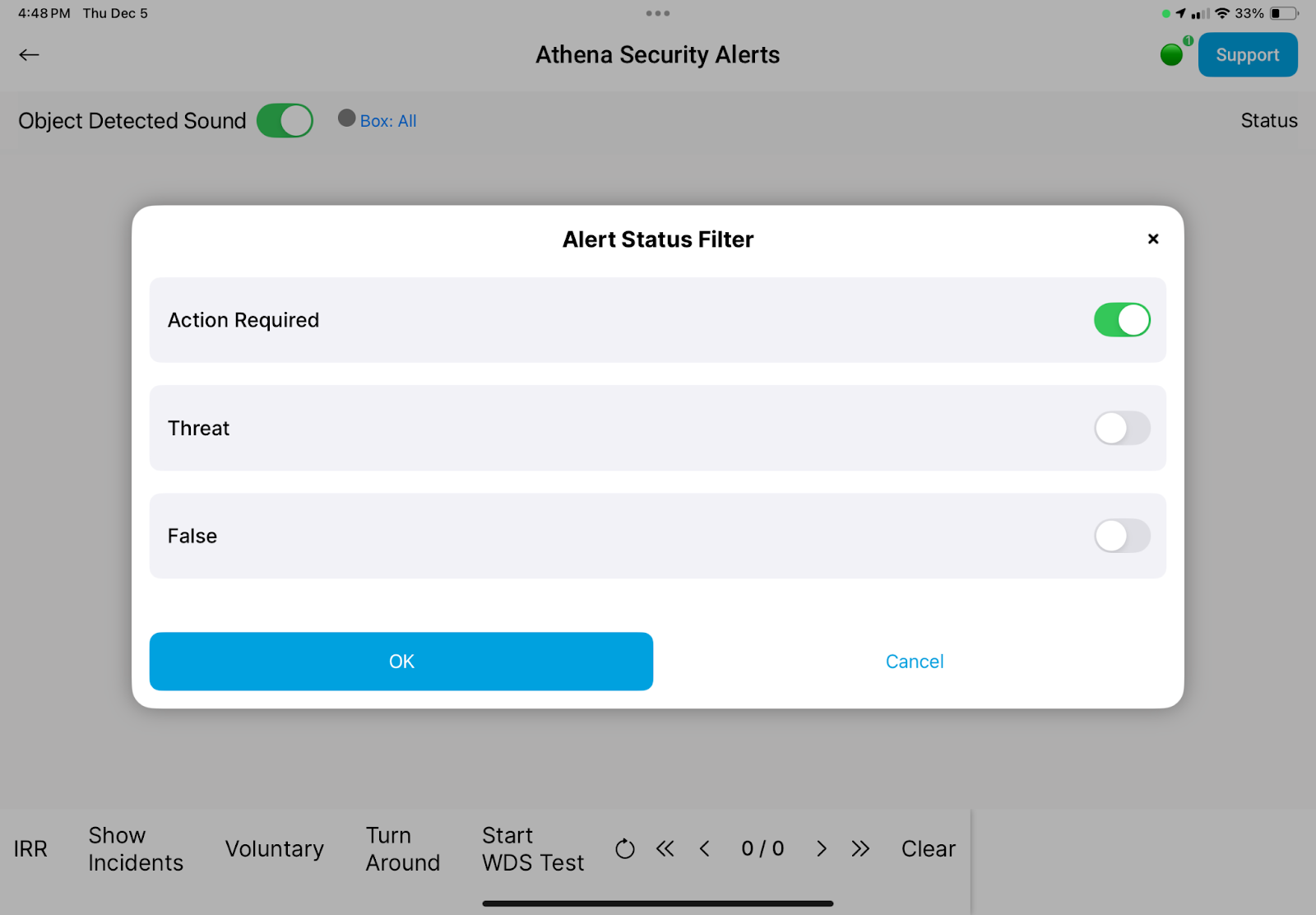
NOTE: This screen allows you to filter alerts based on the response selected for each alert. If an alert was incorrectly classified, the Officer can use this filter to reclassify it. If all alerts are displayed on the Operator tablet, it indicates that all filters are currently selected. The Operator tablet will automatically revert to the ‘Action Required’ filter after 10 minutes.
Support - To contact our support team at any time, select the ‘Support’ button located in the top right corner of the screen. This will provide you with options to either submit a ticket or call our support line at 1-833-928-4362.
Was this article helpful?
That’s Great!
Thank you for your feedback
Sorry! We couldn't be helpful
Thank you for your feedback
Feedback sent
We appreciate your effort and will try to fix the article