Overview
Description
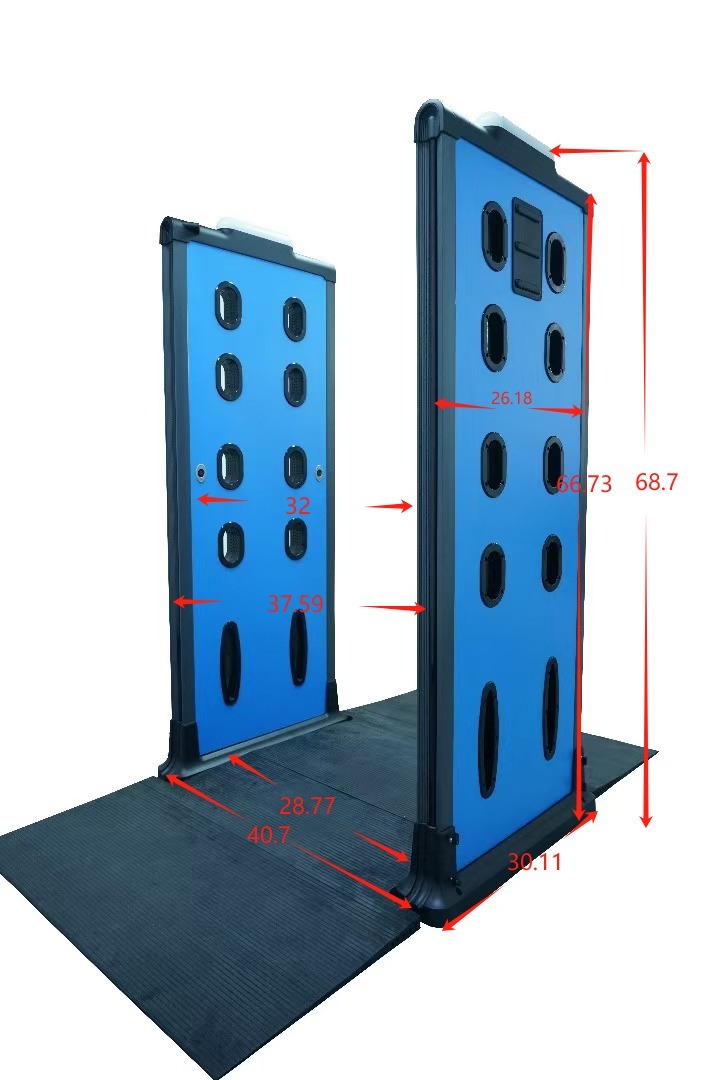
40.7 inches wide
120v AC-powered
Touchscreen user interface
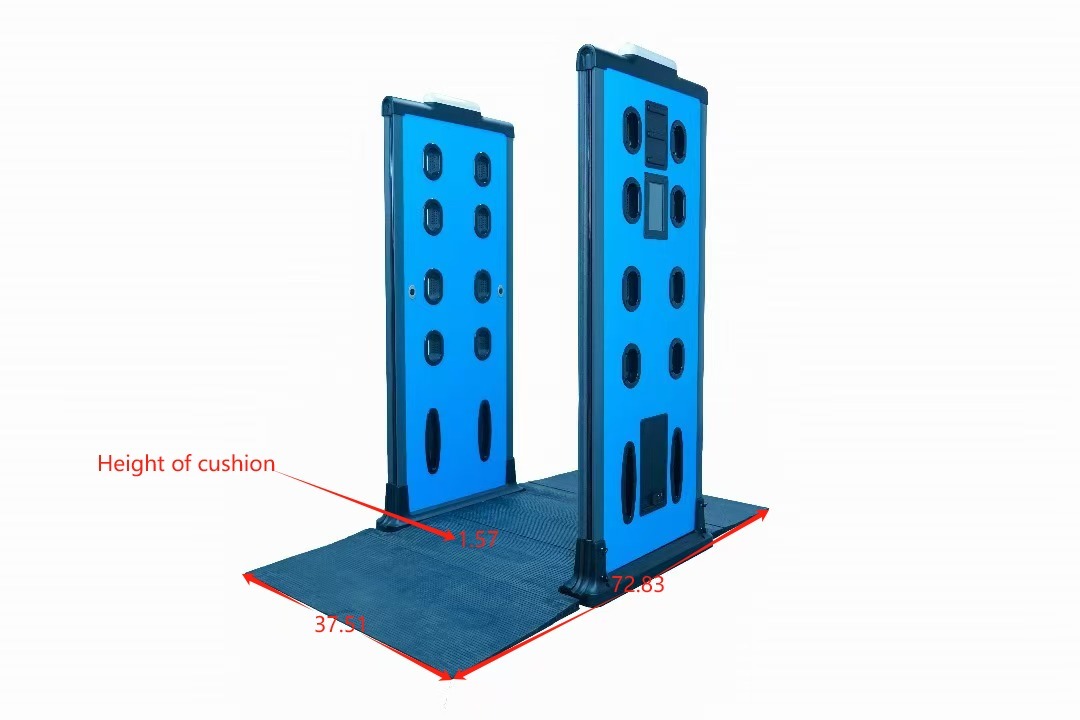
Includes custom rubber cushion system to provide a smooth passage through the weapons detector
Dimensions
Overall Height: 68.7 inches
Overall Width: 40.7 inches
Overall Length: 72.83 inches
Panel Height: 66.73 inches
Panel Width: 26.18 inches
Cushion Height: 1.57 inches
Cushion Width: 37.51 inches
Installation
Install the two panels into the base, with the top camera pointed toward the entrance and the Athena Owl logo facing outward on both panels
Connect the Power over Ethernet (PoE) injector to power with the provided power cable, and the LAN port to the network switch and the PoE side to the Apollo main panel with the provided network cable.
NOTE: The PoE Ethernet cable is grey and the LAN ethernet cable is black. If you do not have a grey cable, it is not required.
The panels will power on and within about two minutes will show green lights on the top
Connect the Operator iPad either to the switch with a network adapter and cable or via WiFi to the router, depending on the original installation
Place the Operator iPad where a Security Officer will be positioned to handle alerts
Setup Operator App
Open Operator App
Ensure connection to the Apollo, which is indicated by the Green circle in the upper-right corner of screen
Test that the Operator is receiving data when a test piece passes through the Apollo
Screening Operation
The Screener should be standing 5 - 8 feet away from the Apollo
If the lights on the Apollo remain green, the individual is clear and can proceed through the checkpoint
If the lights turn red then the individual needs to be sent for secondary screening. An auditory alarm may also be enabled.
Portability
Both the iPad and Apollo are semi-portable, with the Apollo panels weighing approximately 60 lbs. each
When relocating the Apollo, considerations should be made concerning interference from electronic noise. Keep the Apollo at least 2 feet away from known sources of electronic noise.
Configuration
iPad Setup
In the iPad Settings: Set the iPad IP Address to 192.168.8.127 on whichever interface will be used.
Apollo IP Address
Check: Access Required IP Address Masterlist
Check Wireless and Wired setup:
Apollo Weapons Detection System - Single Line Diagram Wired and Wireless Setup
Apollo Setup
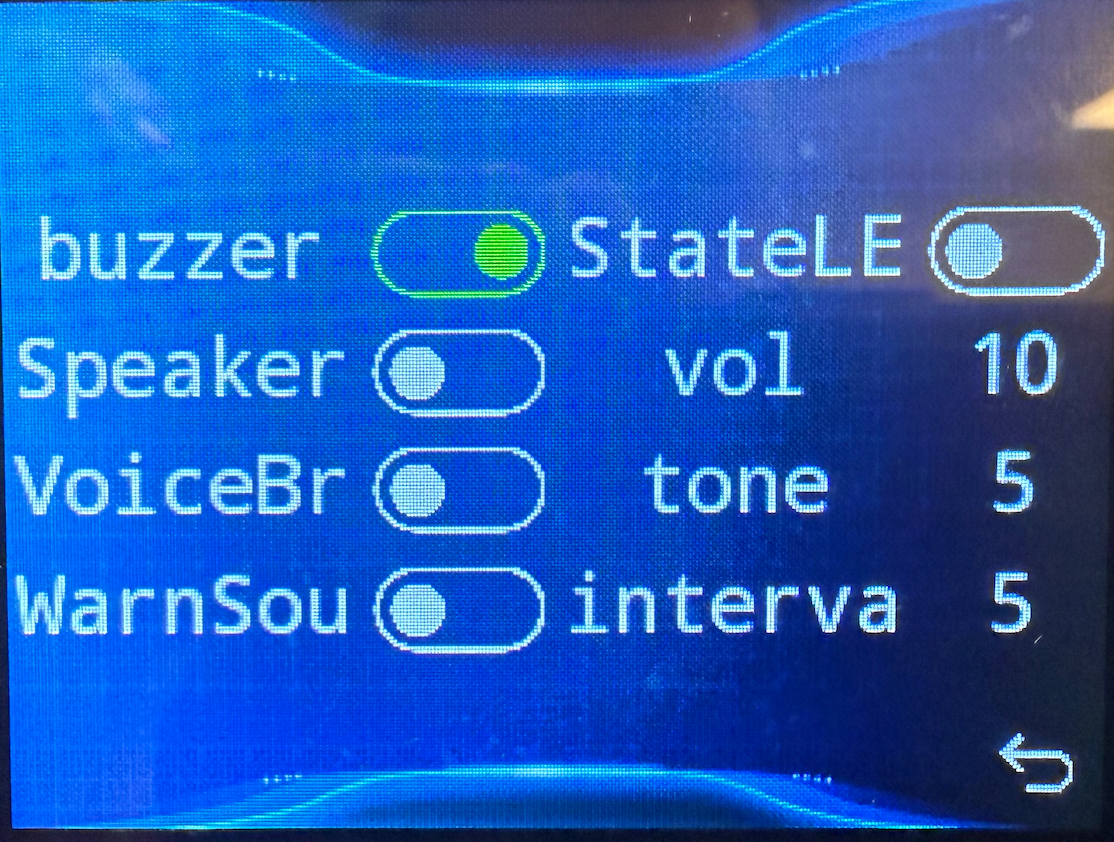
Enable or disable the audible alert tone in the menu under Alerter by enabling the Buzzer and setting it to 10 for Enable or 0 for Disable. Additionally, the Tone must be set different on each unit if more than one is setup in the same area.
Choose the detection level from the home screen, either NILECJ2B or GA, as well as the sensitivity of 1-4
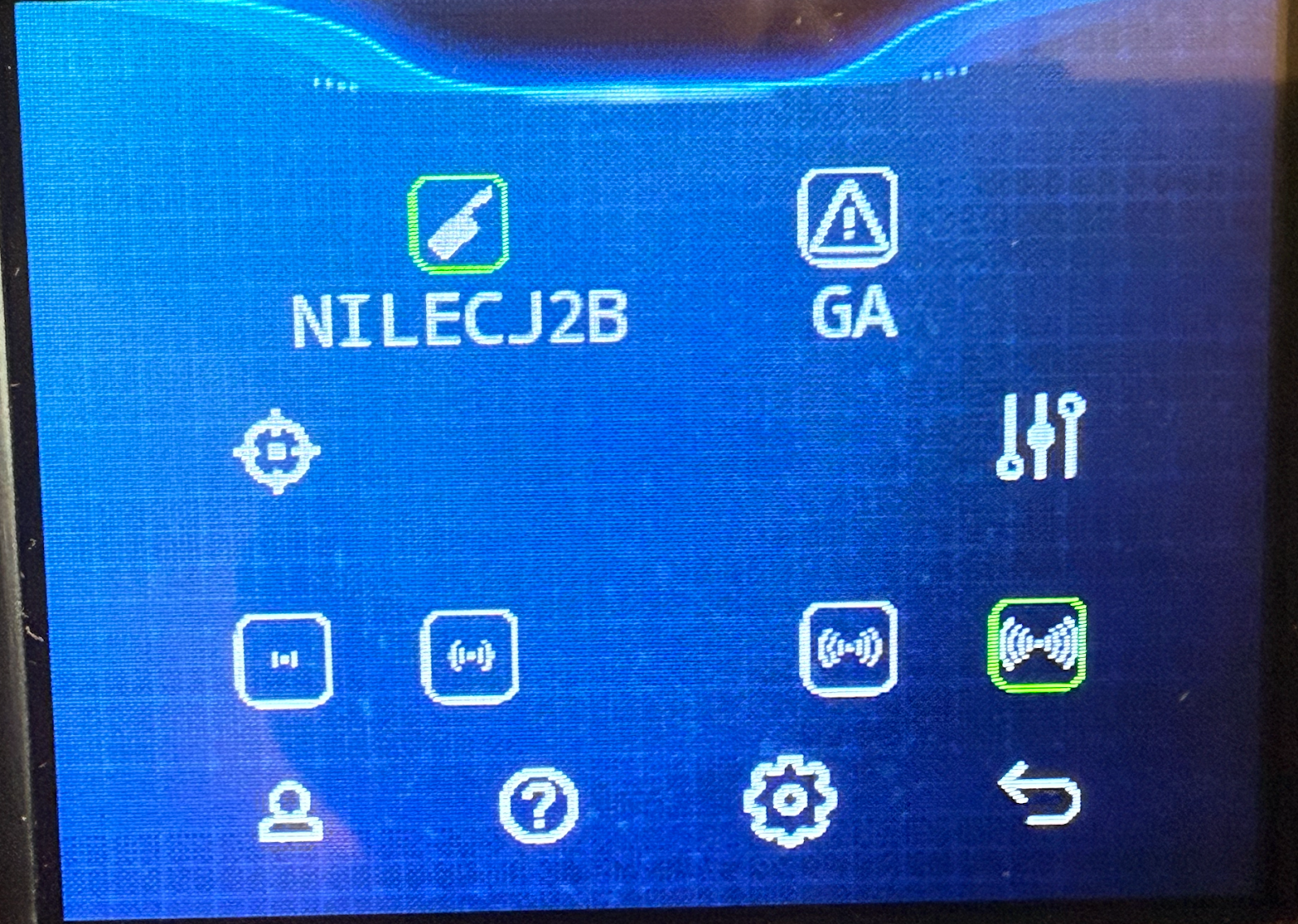
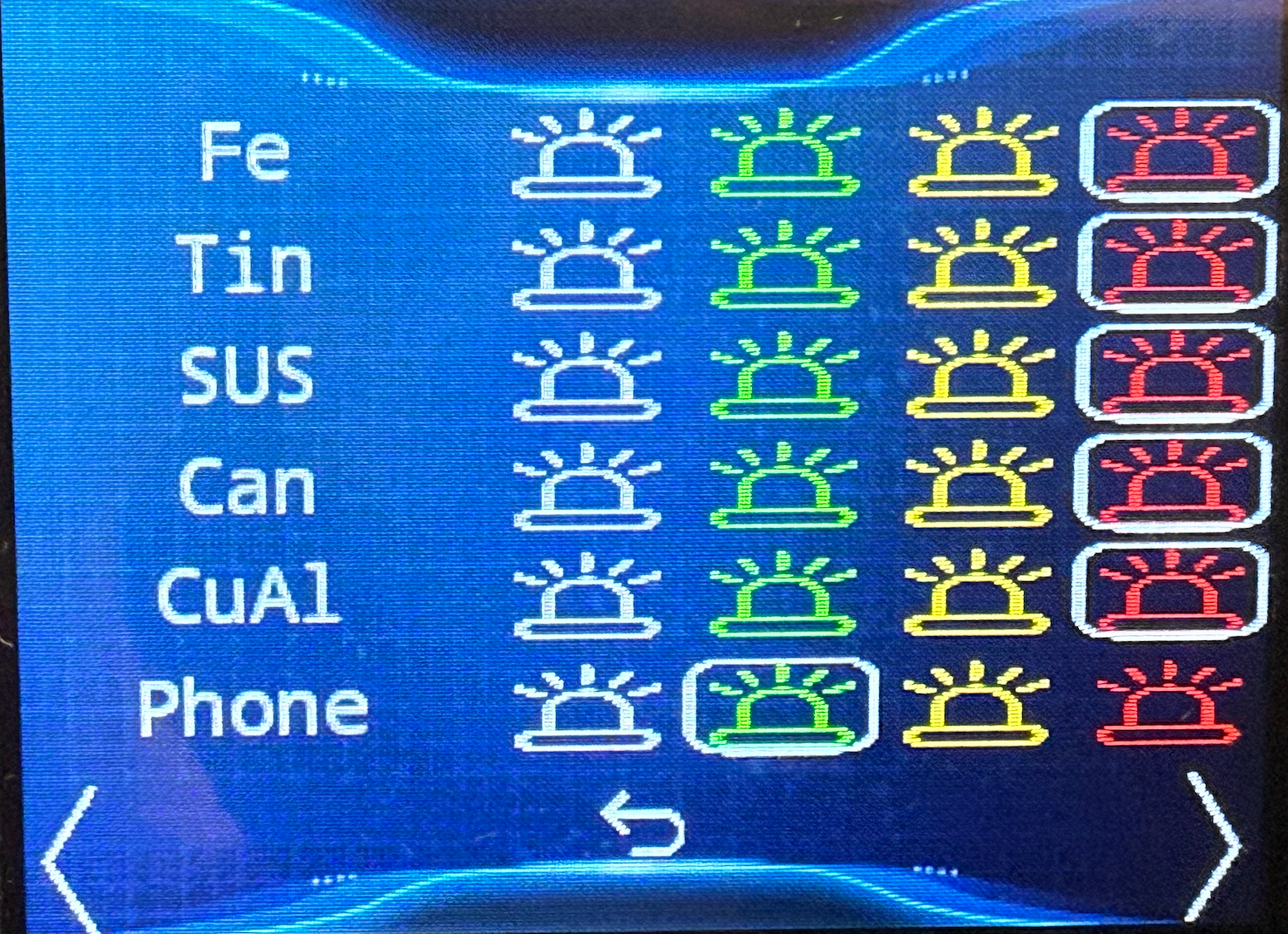
Enable or disable the object categories as desired. Green is clear and Red is alert. White and Yellow are not in use at this time.
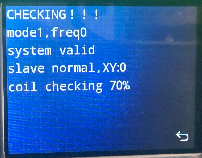
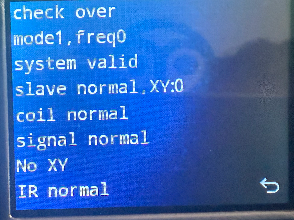
If desired, you can run a self test on the Apollo by clicking on the Shield and Magnifying glass icon from the home screen, then the test will run and give the results
Technical Support
Email- support@athena-security.com,
Call-833-928-4362 27/7 Support
Was this article helpful?
That’s Great!
Thank you for your feedback
Sorry! We couldn't be helpful
Thank you for your feedback
Feedback sent
We appreciate your effort and will try to fix the article