Overview
The Apollo Concealed weapons detection system can be configured in two setup modes: Ethernet Wired Setup and Wireless Setup. Both configurations support the Apollo Intelligent Metal Detector and operator iPad for system management and alert resolution.
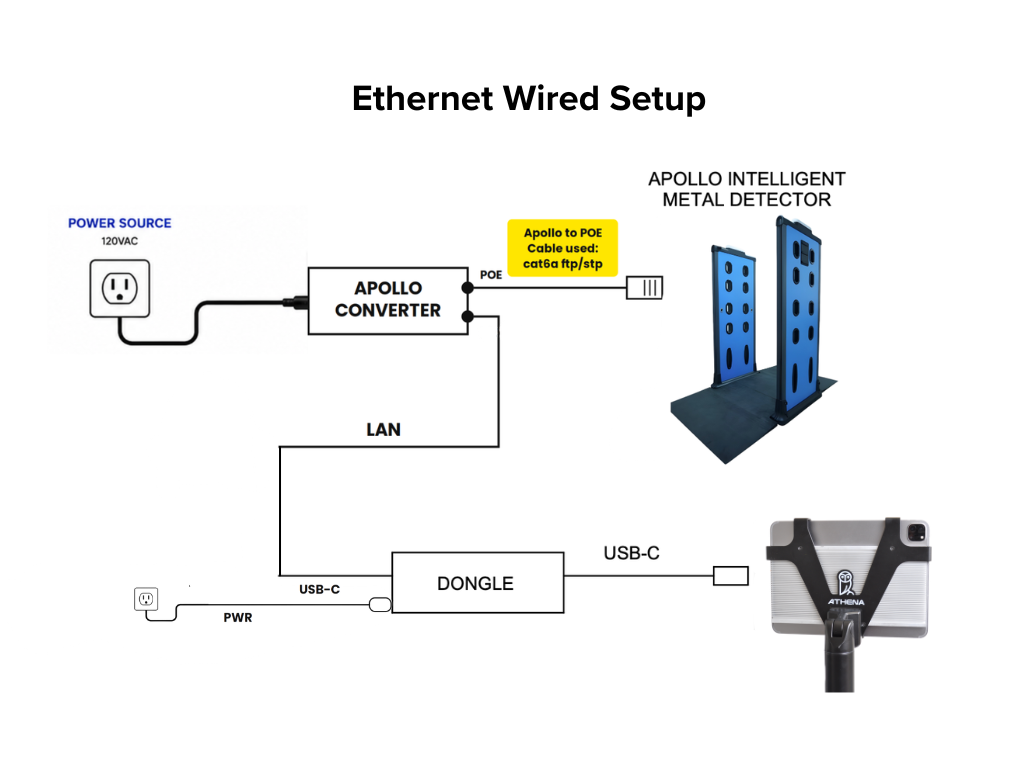
Components Required:
- 120V Power Source
- Apollo Converter (with LAN socket and POE socket)
- Dongle (with LAN port and USB-C port)
- Apollo Intelligent Metal Detector
- Operator iPad
- Cat6a FTP/STP Ethernet Cables
Connection Flow:
- Apollo to Converter:
- Apollo Intelligent Metal Detector connects via Cat6a FTP/STP ethernet cable
- Cable plugs into Apollo Converter POE socket
- Converter to Dongle:
- Apollo Converter LAN socket connects to Dongle LAN port via Cat6a FTP/STP ethernet cable (DATA line)
- Dongle to iPad:
- Dongle USB-C port connects to Operator iPad to power/charge the iPad
- Power Connections:
- 120V Power Source connects to Apollo Converter (PWR)
- 120V Power Source connects to Dongle (PWR)
Dongle Port Configuration:
- LAN Port: Receives data connection from Apollo Converter LAN socket
- USB-C Port: Connects to and powers/charges Operator iPad
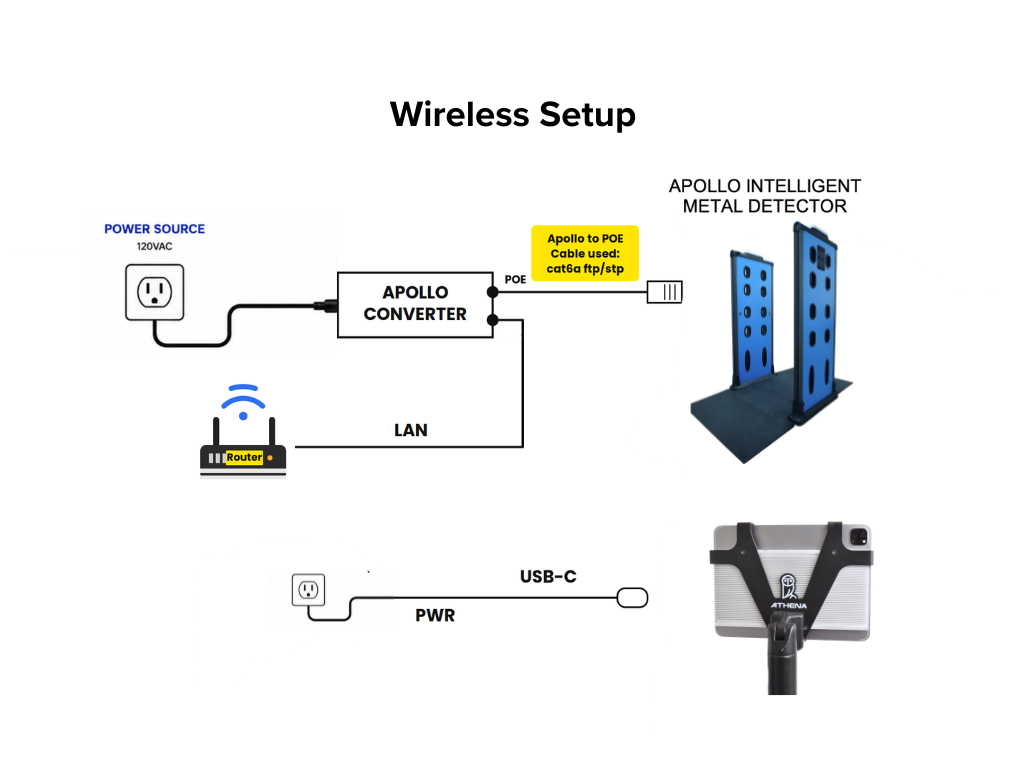
Components Required:
- 120V Power Source
- Apollo Converter (with LAN socket and POE socket)
- Wireless Router
- Apollo Intelligent Metal Detector
- Operator iPad
- Cat6a FTP/STP Ethernet Cables
- USB-C Power Cable
Connection Flow:
- Apollo to Converter:
- Apollo Intelligent Metal Detector connects via Cat6a FTP/STP ethernet cable
- Cable plugs into Apollo Converter POE socket
- Converter to Router:
- Apollo Converter LAN socket connects to Wireless Router LAN port via Cat6a FTP/STP ethernet cable (DATA line)
- Router to iPad:
- Wireless Router communicates wirelessly with Operator iPad
- No dongle required in this setup
- Power Connections:
- 120V Power Source connects to Apollo Converter (PWR)
- 120V Power Source connects to Operator iPad via USB-C cable (PWR)
Apollo Converter Socket Configuration
The Apollo Converter has two sockets:
- POE Socket: For Apollo Intelligent Metal Detector connection (provides power and data)
- LAN Socket: For Dongle (wired setup) or Wireless Router (wireless setup) connection (data only)
Cable Specifications
Cat6a FTP/STP Ethernet Cables:
- Cable Type: Cat6a FTP/STP (Foiled Twisted Pair/Shielded Twisted Pair)
- Purpose: Transmits data and provides Power over Ethernet (POE)
- Connections:
- Apollo Intelligent Metal Detector to Apollo Converter POE socket
- Apollo Converter LAN socket to Dongle LAN port (wired) or Router LAN port (wireless)
USB-C Connection:
- Purpose: Powers and charges the Operator iPad
- Wired Setup: USB-C cable from Dongle USB-C port to iPad
- Wireless Setup: USB-C cable from 120V Power Source to iPad
Key Differences Between Setup Types
Ethernet Wired Setup:
- Apollo Converter POE socket → Apollo Metal Detector
- Apollo Converter LAN socket → Dongle LAN port
- Dongle USB-C port → iPad (for power and charging)
- All connections are hardwired for maximum stability
Wireless Setup:
- Apollo Converter POE socket → Apollo Metal Detector
- Apollo Converter LAN socket → Wireless Router LAN port
- Router → iPad (wireless communication)
- iPad requires separate USB-C power connection from 120V power source
- Provides mobility and flexibility for operator positioning
Installation Notes
- Ensure all 120V power connections are properly grounded
- Use only Cat6a FTP/STP ethernet cables for proper shielding and POE requirements
- Verify dongle has both LAN port and USB-C port before installation
- Connect Apollo to POE socket (not LAN socket) on converter
- Connect Dongle/Router to LAN socket (not POE socket) on converter
- In wireless setup, confirm router has stable connectivity before going live
- Verify iPad maintains adequate charge during operation
- Test all connections before securing equipment in permanent positions
Technical Support
Email- support@athena-security.com,
Call-833-928-4362 27/7 Support
Submit a ticket here | Athena Security Help Desk
Was this article helpful?
That’s Great!
Thank you for your feedback
Sorry! We couldn't be helpful
Thank you for your feedback
Feedback sent
We appreciate your effort and will try to fix the article