Electronic Daily Testing & Compliance for the Apollo 500 WDS
DHS best practices, built into the platform.
Athena Security builds DHS best practices for walkthrough weapons detection directly into the WDS platform through its Electronic Daily Testing & Compliance module — a complete, tamper-resistant system for scheduling, performing, documenting, and reporting daily operational testing across every unit in your fleet.
Paper logs and honor-system checklists don't survive an audit, an incident investigation, or a lawsuit. Athena replaces them with an electronic record that proves — for every unit, every day — that your detection systems were tested, working, and ready.
Scheduled, Enforced Daily Testing
- Schedule and require daily testing for every Apollo 500 in your deployment. Testing isn't optional or ad hoc — the platform enforces it.
- Verified performance, not checkbox compliance — the system prevents an operator from simply marking "PASS" without actually performing the test procedure. A test session is only recorded as passed when the required procedure is completed, so your compliance record reflects real testing, not paperwork.
Complete Test Documentation — Automatically
Every test session captures the full chain of accountability:
- The specific unit under test, identified individually
- The entrance and location where the unit is deployed
- Date and time, recorded automatically — no manual entry, no backdating
- The employee performing the test, identified by name
- The configuration and sensitivity setting in effect during the test
- The test procedure performed
- The result — PASS or FAIL
Failure Handling & Return to Service
When a test fails, the record doesn't stop — it follows the unit back to readiness:
- Failures are recorded, not buried
- Corrective action is documented — what was done to address the failure is a required part of the record
- Retesting is recorded, confirming the fix worked
- Return-to-service time is captured, establishing exactly when the unit was back in operation
The result is a complete, defensible timeline for every failure: what happened, what was done, when the unit was verified working again.
Fleet-Wide Compliance Visibility
- Per-unit historical record — every Apollo 500 maintains its own complete testing history for the life of the unit
- System-wide compliance reporting — a single report shows which units passed and failed each day across your entire deployment, so administrators spot gaps immediately instead of discovering them in an audit
- Full export to PDF and CSV — the complete testing history exports on demand for auditors, insurers, legal counsel, regulators, and internal stakeholders
Why It Matters
Daily testing documentation is what stands between "we have weapons detection" and "we can prove our weapons detection was operational." Whether the question comes from a DHS SAFETY Act review, a Cal/OSHA inspection, an accreditation surveyor, an insurer, or opposing counsel after an incident, the Athena platform answers it with a timestamped, per-unit, tamper-resistant record — produced automatically, every day, at every entrance.
The Apollo 500 is Athena Security's AI-powered walkthrough weapons detection system, protecting hospitals, K-12 schools, government buildings, places of worship, stadiums, event venues, and corporate campuses.
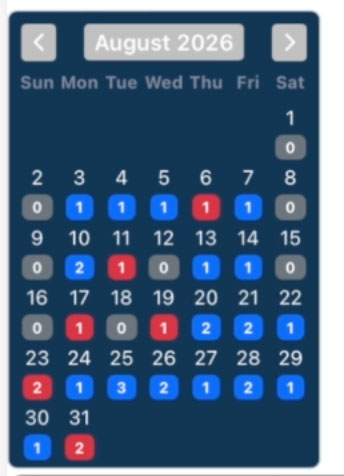
Example of report:
This image shows a monthly calendar view (August 2026) that gives a plain, at-a-glance record of daily weapons detection system testing — which days the system was tested and passed, which days it failed, and which days no test was performed.
Each day of the month has a colored badge beneath the date, and the number on the badge indicates how many tests were run that day:d
Blue — Passed. The system was tested that day and passed. For example, August 3–5 each show one passing test, and August 20–21 show two passing tests each.
Red — Failed. The system was tested and did not pass. Failures appear on August 6, 11, 18, 23, and 31 — days that would warrant follow-up or corrective action.
Grey (0) — No test. No test was performed that day. These cluster on weekends (August 1, 2, 8, 9, 15, 16) plus a couple of weekdays like August 12 and 18's neighbor on the 17th... actually the grey badges show a "0" count, confirming zero tests were logged.
An administrator or compliance officer can instantly verify testing cadence for the month: most weekdays show blue (successful daily verification), red days flag failures needing attention, and grey days reveal gaps in the testing schedule — useful for auditing, compliance reporting, and ensuring the checkpoint is verified before each operational day.
Opening a Day-Detail Report
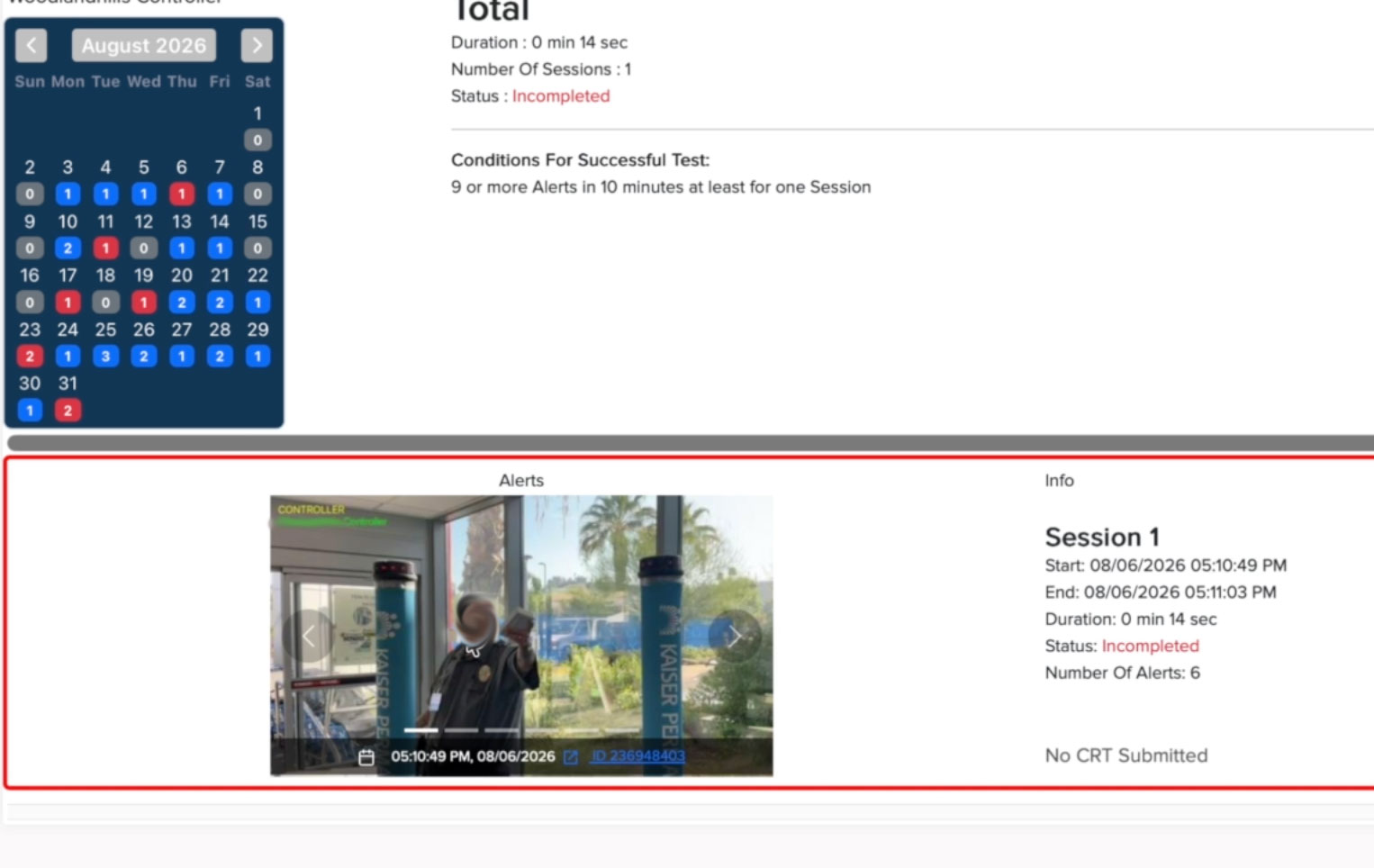
Click any day on the calendar to open the detailed test report for that date. The report has three parts: the day summary, the pass criteria, and the individual session records.
Total (Day Summary)
The top of the report rolls up the entire day:
- Duration — The total time spent testing that day.
- Number of Sessions — How many tests were performed. Each session is a separate, individual test.
- Status — The overall result for the day: Pass, Fail, or Incompleted.
Conditions for Successful Test
The report displays the exact pass criteria the unit is tested against — for example, "9 or more Alerts in 10 minutes at least for one Session." This removes any ambiguity about what a passing test requires. If a session doesn't meet the stated condition, it will not show as passed.
Session Records
Each session that day gets its own numbered entry (Session 1, Session 2, and so on) with two panels:
Alerts (left panel) — A photo of every alert captured during the test run. As the tester walks through the detector, the system records an image of each detection. Every image is stamped with the exact date and time and includes a unique, clickable alert ID that links to the full detection record. Use the arrows or dots to flip through all images in the session.
Info (right panel) — The documented facts for that session:
- Session number
- Start and End timestamps — Exactly when the test began and finished
- Duration — The length of that individual session
- Status — Pass, Fail, or Incompleted for that session
- Number of Alerts — How many detections the unit generated, measured against the pass criteria
CRT Reports (Corrective Resolution Tracking)
When a test fails, the tester files a CRT report, and the session record shows whether one has been submitted. If you see "No CRT Submitted" on a failed or incomplete session, that is an open follow-up item.
A completed CRT report documents:
- The serial number of the unit tested
- The person who performed the test
- What failed during the test
- What was done to resolve the issue and bring the unit back to passing
- The unit's settings at the time of the test
Why This Matters
Together, the calendar and day-detail reports form a complete audit trail: every day shows whether testing occurred, every session is time-stamped with photographic evidence of each alert, results are judged against explicit pass criteria, and every failure is tied to a documented corrective action with the unit's serial number, tester, and settings on record. This is the documentation compliance officers, security directors, and auditors need to verify that your checkpoint is tested and operational.
Quick Reference
| Item | Where to find it |
|---|---|
| Days tested / not tested | Calendar badges (blue, red, grey) |
| Tests run per day | Number inside the calendar badge |
| Total test time for a day | Day report → Total → Duration |
| Pass criteria | Day report → Conditions For Successful Test |
| Photos of each alert | Session record → Alerts panel |
| Session times and status | Session record → Info panel |
| Failure documentation | Session record → CRT report |
Was this article helpful?
That’s Great!
Thank you for your feedback
Sorry! We couldn't be helpful
Thank you for your feedback
Feedback sent
We appreciate your effort and will try to fix the article