Purpose
This manual provides customer-facing guidance for operating the Athena Ambulance Bay Weapons Detection System, also referred to as the AB-WDS. It explains the main system components, daily startup checks, normal scan workflow, iPad Operator Interface, basic care, and when to contact Athena Support.
This manual is intended to help trained site personnel operate the AB-WDS consistently and safely during ambulance bay or emergency intake screening.
Scope
This manual applies to customer use of the Athena AB-WDS, including daily startup, normal scan operation, visual inspection, iPad app use, basic cleaning and care, customer-level troubleshooting, and support escalation.
This manual applies to hospital, security, emergency intake, and other approved site personnel who are trained or authorized to operate the AB-WDS.
System Overview
The Athena Ambulance Bay Weapons Detection System is designed to support weapons screening for patients arriving by ambulance gurney or stretcher. The system uses millimeter wave/ radar imaging technology and Al-supported object recognition to help identify concealed threat shapes during emergency intake.
The AB-WDS consists of the following main components:
- Powered Lift Assembly
- Powered Lift Controller
- Millimeter Wave Scanner Assembly
- System PC
- iPad Operator Interface
- Weapons Detection Operator App
The Powered Lift Assembly supports and positions the Millimeter Wave Scanner Assembly above the stretcher pathway. The Powered Lift Controller connects to the Powered Lift Assembly by cable and allows trained personnel to raise, lower, and adjust the movement speed of the lift. The Millimeter Wave Scanner Assembly connects to the System PC. The iPad Operator Interface connects to the System PC and allows trained personnel to operate the scan workflow through Athena's Weapons Detection Operator App.
During normal use, personnel guide the stretcher through the screening area, confirm system readiness from the iPad Operator Interface, and follow the site's approved response process if the system displays an ObjectDetected alert.
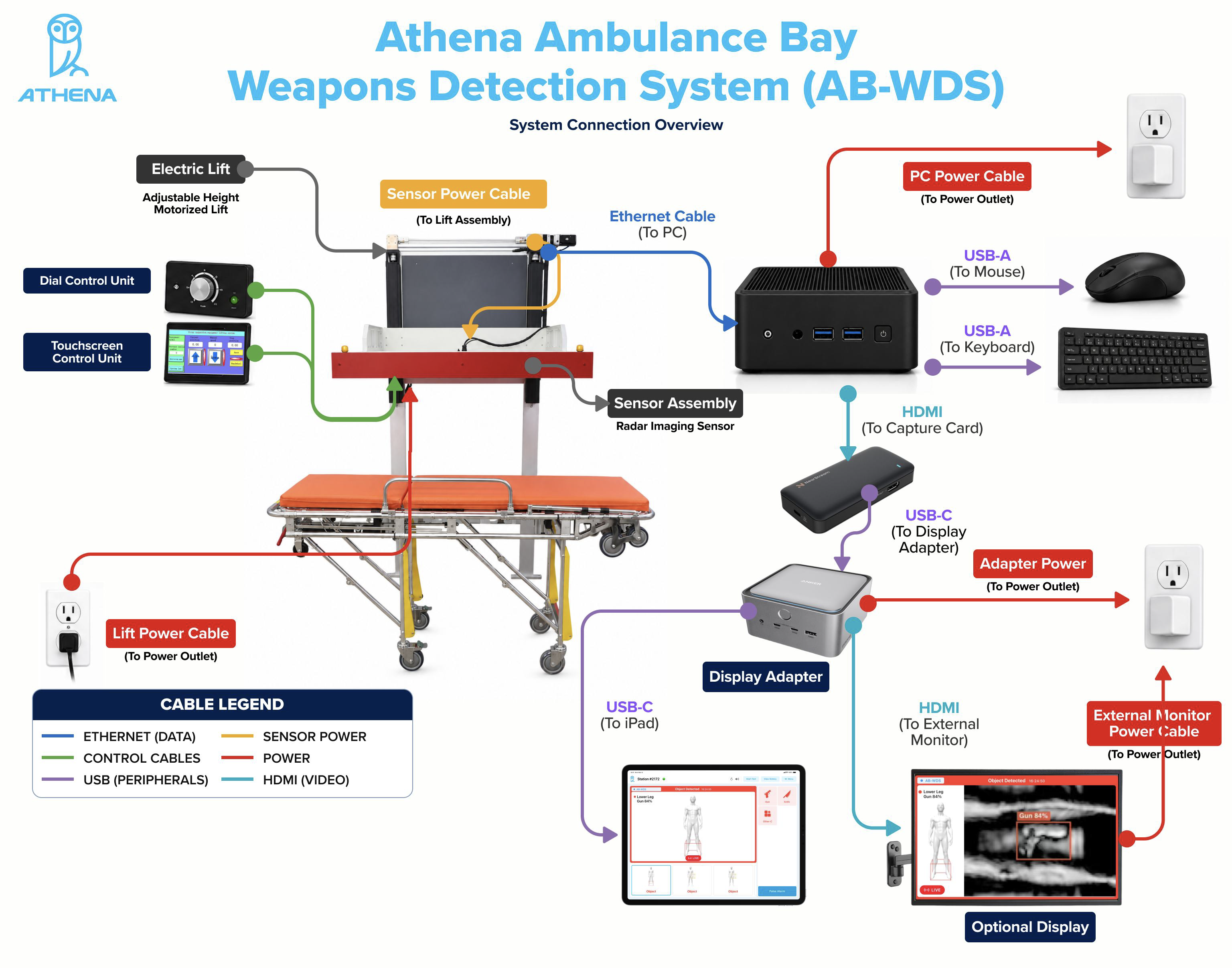
Main System Components
Powered Lift Assembly
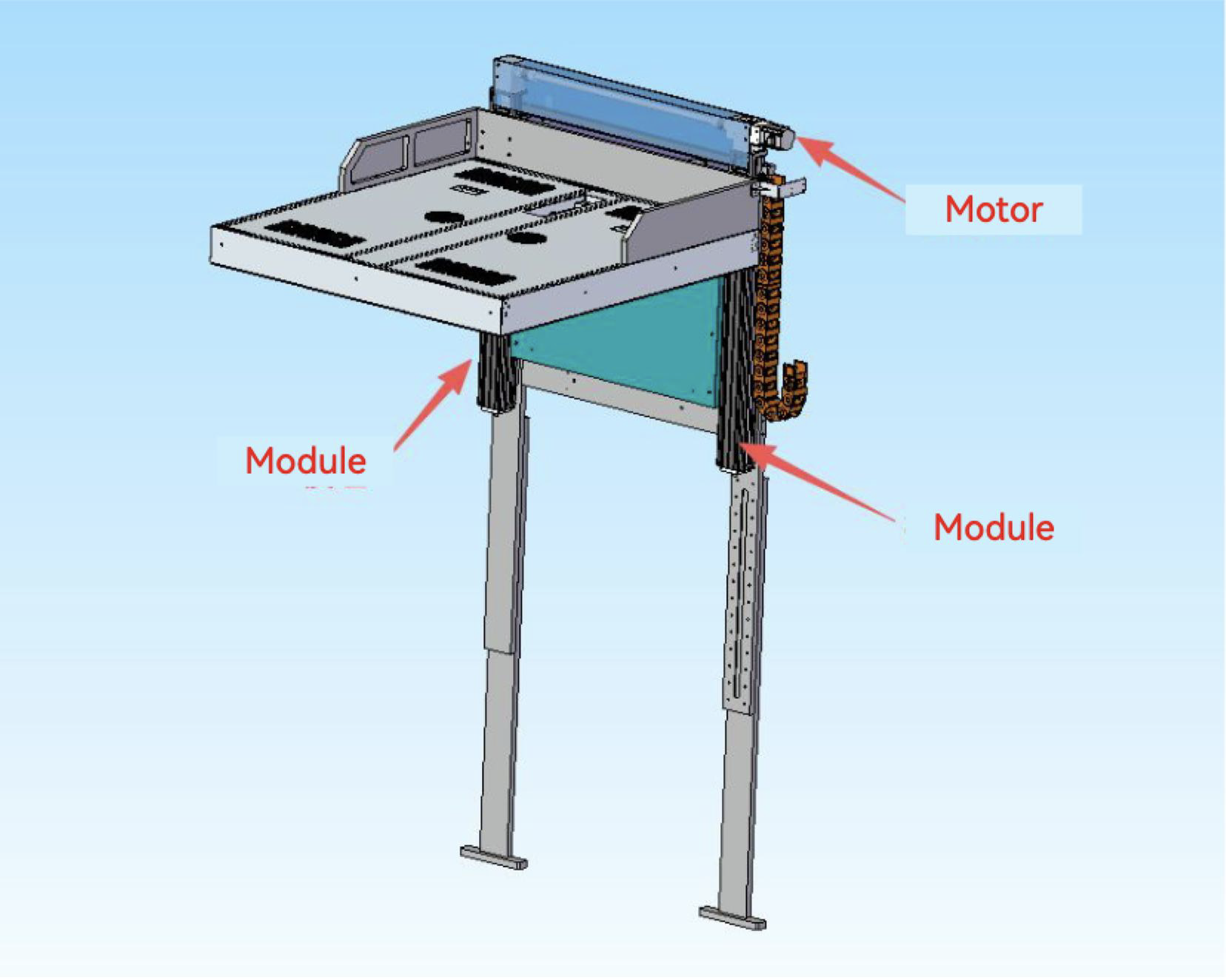
The Powered Lift Assembly is the electric support structure that holds and positions the Millimeter Wave Scanner Assembly for use with an ambulance gurney or stretcher. It allows the scanner assembly to be positioned at the appropriate intake height for the screening workflow.
Users should keep hands, loose items, bags, tools, and unnecessary equipment clear of the Powered Lift Assembly during operation. Users should not force, modify, climb on, lean against, or service the lift assembly.
3D Diagram
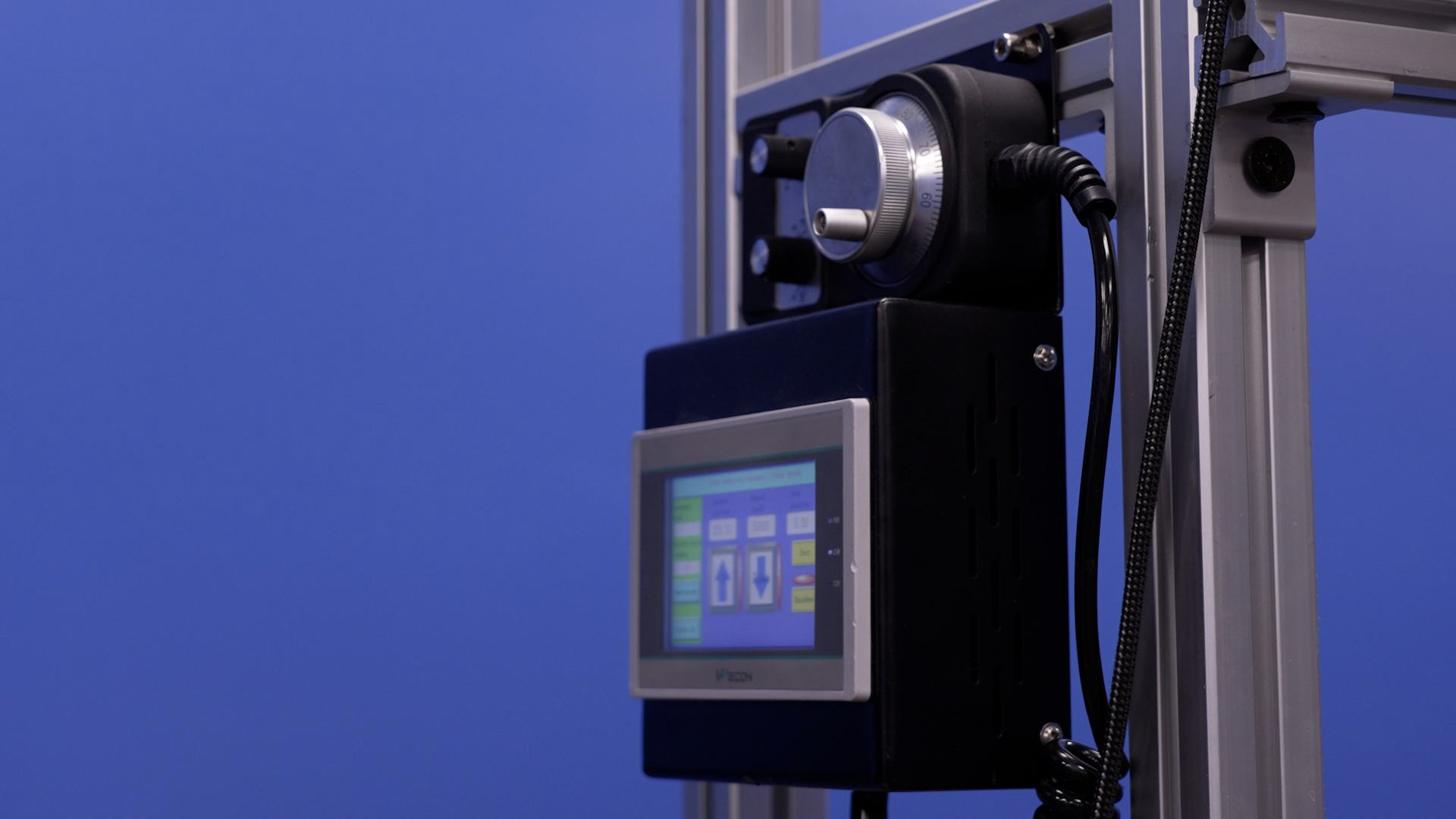
Powered Lift Controller
The Powered Lift Controller is the cabled control device used to raise, lower, and adjust the movement speed of the Powered Lift Assembly. The controller connects directly to the Powered Lift Assembly and should only be used by trained or authorized personnel.
Operators should use the Powered Lift Controller only as instructed during site training. Do not pull, stretch, drop, modify, or attempt to repair the controller or its cable. Stop use and contact Athena Support if the controller is damaged, unresponsive, or causes unexpected lift movement.
I I ? ..
Millimeter Wave Scanner Assembly
The Millimeter Wave Scanner Assembly is the main scanning component of the AB-WDS. It uses non-ionizing radar/ millimeter wave imaging technology to support detection of concealed metallic and non-metallic threat shapes during the screening workflow.
Users should keep the scanner assembly clear of unnecessary objects and visually inspect it for obvious damage before use. Users should not disconnect cables, modify system components, or attempt service unless Athena Support provides specific direction.
System PC
The System PC manages communication between the Millimeter Wave Scanner Assembly and Athena's operator interface. It supports the local processing and communication required for AB-WDS operation.
The System PC should remain powered on and connected during normal use unless Athena Support provides different instructions. Users should not change system settings, disconnect cables, or install software on the System PC unless instructed by Athena Support.
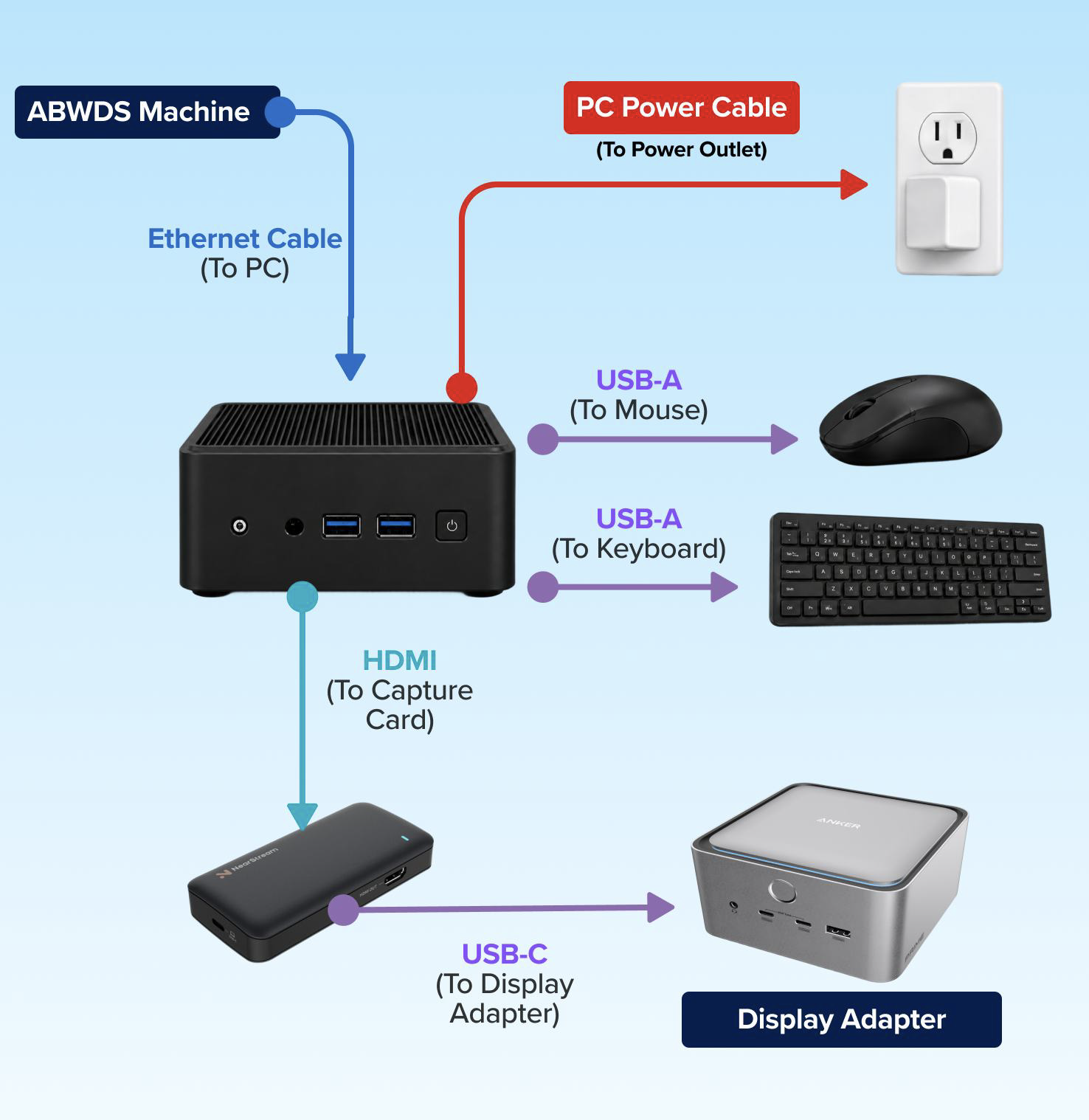
iPad Operator Interface
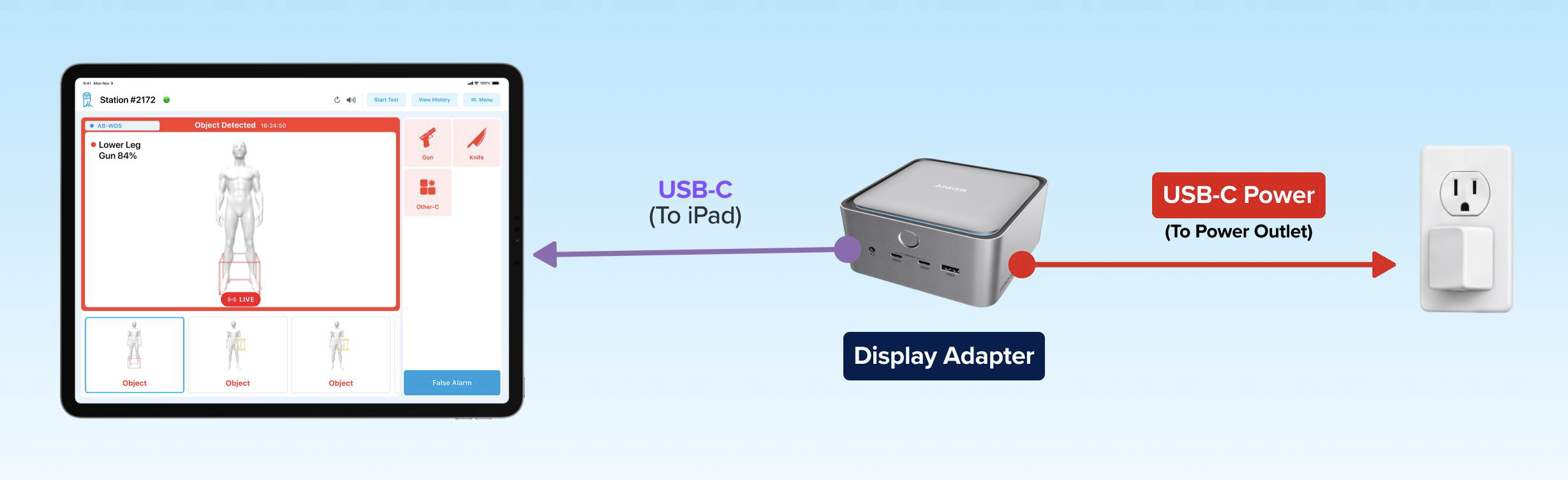
The iPad runs Athena's Weapons Detection Operator App and is used to confirm system readiness, review ObjectDetected alerts, view avatar-based item localization, and support screening documentation.
The iPad should remain plugged in, connected, and displaying the Weapons Detection Operator App. Users should report any iPad damage, connection issue, login issue, or repeated app error to Athena Support.
Optional External Monitor Display
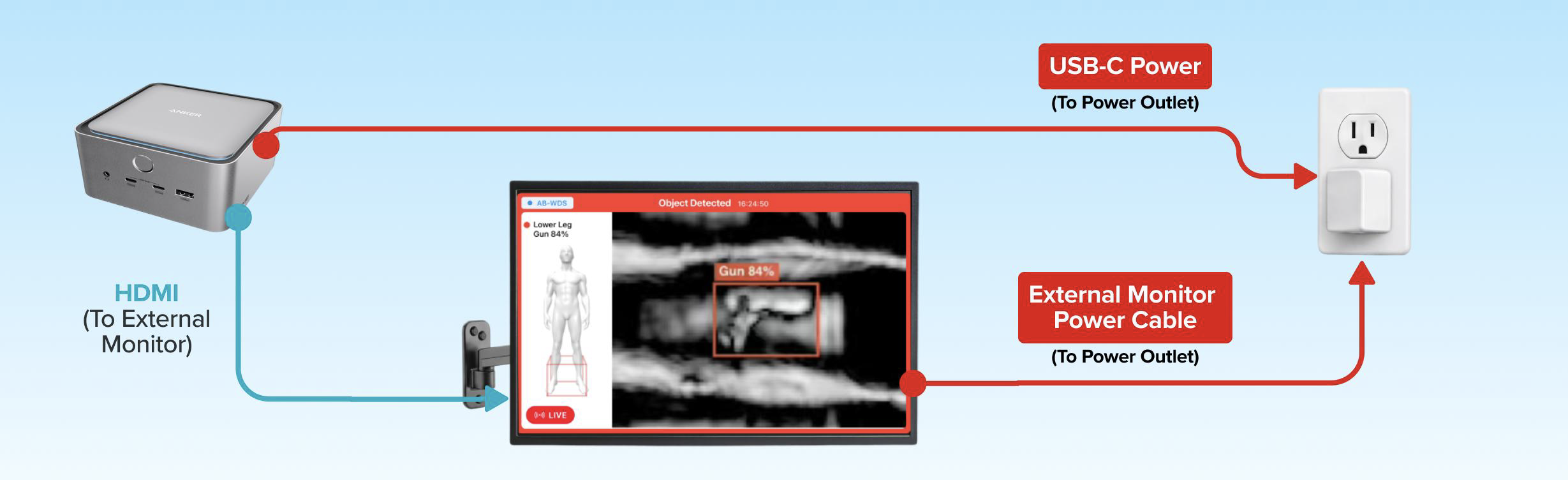
When the optional external alert monitor is used, the iPad continues to display the normal Weapons Detection Operator App interface. The external monitor provides an additional display for reviewing individual ObjectDetected alerts as they are generated. The monitor displays one alert at a time, which can help security, clinical, or intake personnel see the alert more clearly from the screening area.
Weapons Detection Operator App
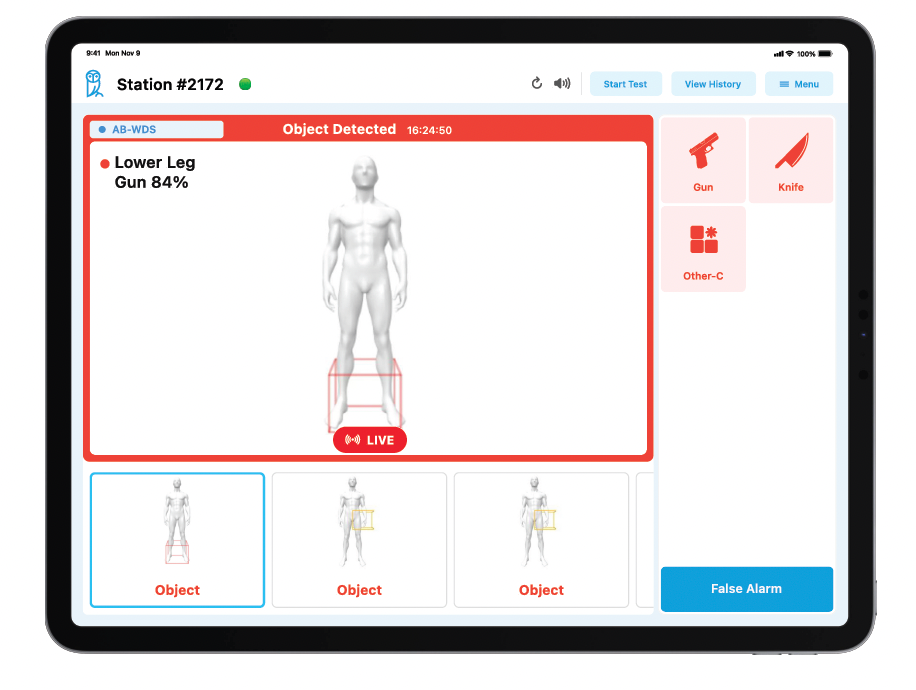
Depending on site configuration, the app may display ObjectDetected alerts, avatar-based item localization, suspected item information, event details, and property-handling documentation tools.
ObjectDetected alerts should be reviewed and handled according to the customer's approved security, clinical, and property-handling procedures. The app supports the screening workflow but does not replace site response protocols or staff judgment.
Safety Information
The AB-WDS is intended to support screening in ambulance bay and emergency intake environments. The system uses non-ionizing millimeter wave/ radar imaging technology and is designed for safe use around people when operated according to Athena instructions and site procedures.
Personnel must follow all site safety, clinical, security, and emergency intake procedures while using the AB-WDS. The AB-WDS is a screening support tool. All alerts, non-alerts, and screening outcomes must be handled according to the site's approved security and clinical procedures.
Clearance Requirements
A minimum of 8 feet of clear space is required on each side of the AB-WDS, meaning at least 8 feet on the entry side and at least 8 feet on the exit side. This clearance accommodates the flow of EMS personnel pushing a patient on a gurney under the scanner until the gurney has fully cleared the other side of the system.
Athena recommends 12 feet of clearance on each side of the AB-WDS when site layout allows. Additional clearance may be needed based on ambulance bay layout, stretcher movement, staff workflow, door swing, equipment staging, or emergency intake procedures.
General Safety Rules
- Only trained or authorized personnel should operate the AB-WDS.
- Keep the screening area clear during operation.
- Maintain the required clearance on both sides of the AB-WDS during screening.
- Keep hands, clothing, cables, bags, tools, and loose objects away from moving lift areas.
General Safety Rules
- Do not stand, sit, climb, or place body weight on the scanner assembly.
- Do not force the Powered Lift Assembly or Millimeter Wave Scanner Assembly into position.
- Do not modify system components or attempt service unless directed by Athena Support.
- Do not disconnect cables unless Athena Support provides direction.
- Do not operate the system if there is visible damage, abnormal movement, unusual sound, heat, smell, smoke, or repeated app errors.
- Keep liquids away from the System PC, power connections, scanner assembly, Powered Lift Controller, and iPad.
- Maintain clear access around the scanner so staff can safely guide the stretcher through the screening area.
Stop Use and Contact Athena Support
Stop using the AB-WDS and contact Athena Support if any of the following occur:
- The system shows repeated app errors.
- The iPad cannot connect to the AB-WDS.
- The scanner assembly does not respond.
- The Powered Lift Assembly moves unexpectedly or abnormally.
- The Powered Lift Controller is damaged, unresponsive, or causes unexpected lift movement.
- Any component appears loose, cracked, bent, damaged, or unstable.
- There is unusual noise, heat, smell, smoke, sparking, or fluid exposure.
- A cable is visibly damaged, pinched, frayed, or disconnected.
- The system has been impacted, dropped, struck, or exposed to weather conditions outside normal site use.
How the AB-WDS Workflow Works
The AB-WDS workflow is designed around emergency intake movement. The patient remains on the ambulance gurney or stretcher while trained personnel guide the stretcher through the screening area.
Arrival
The ambulance arrives and the patient on the stretcher is guided toward the AB-WDS screening area according to the site's intake workflow. Staff should confirm that the screening path is clear and that the required clearance is available before moving the stretcher through the system.
Scan
Trained personnel guide the stretcher through the screening area at a normal, controlled walking pace. The patient does not need to stand or transfer from the stretcher for routine screening. The operator monitors the scan workflow from the iPad Operator Interface.
Alert
If the AB-WDS identifies a suspected concealed threat, the iPad Operator Interface displays an ObjectDetected alert with a visual indication of the suspected item location. Depending on site configuration, the app may display an avatar-based localization view, suspected item information, or other visual indicator to support staff review.
The operator should review the ObjectDetected alert and follow the site's approved alert response process.
Resolution
Security, clinical, or other authorized site personnel follow the hospital's approved property-handling and safety procedure to resolve the ObjectDetected alert before the patient proceeds further into the facility. Any collected or confiscated property should be handled according to the site's chain-of-custody or property-handling policy.
Daily Startup
Complete the following checks before using the AB-WDS at the start of each shift or operating period.
- Confirm the area around the AB-WDS is clear and the stretcher pathway is unobstructed.
- Confirm the required clearance is available on each side of the AB-WDS. A minimum of 8 feet is required on the entry side and 8 feet is required on the exit side. Athena recommends 12 feet on each side when site layout allows.
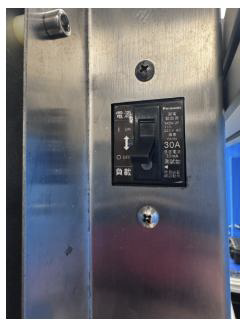
- Flip the device switch to ON. The switch is located at the top right side of the Powered Lift Assembly.
- Confirm the Powered Lift Assembly appears stable and undamaged.
- Confirm the Powered Lift Controller and controller cable appear undamaged.
- Confirm the Millimeter Wave Scanner Assembly appears stable, secure, and undamaged.
- Confirm visible cables are not loose, pinched, frayed, or creating a trip hazard.
- Confirm the System PC remains powered on and connected.
- Confirm the iPad Operator Interface is plugged in and displaying the Weapons Detection Operator App.
- Confirm the app shows the system is connected and ready.
12. Begin normal operation only after the system shows ready status.
The device switch may be flipped to OFF if the system must be powered down due to an emergency or during routine shutdown according to site procedure.
If the system does not show ready status, follow the Basic Troubleshooting section or contact Athena Support.
Normal Operation
Use the following process during routine AB-WDS operation.
Operators should not attempt to adjust internal scanner settings during normal operation. Any repeated issue should be reported to Athena Support.
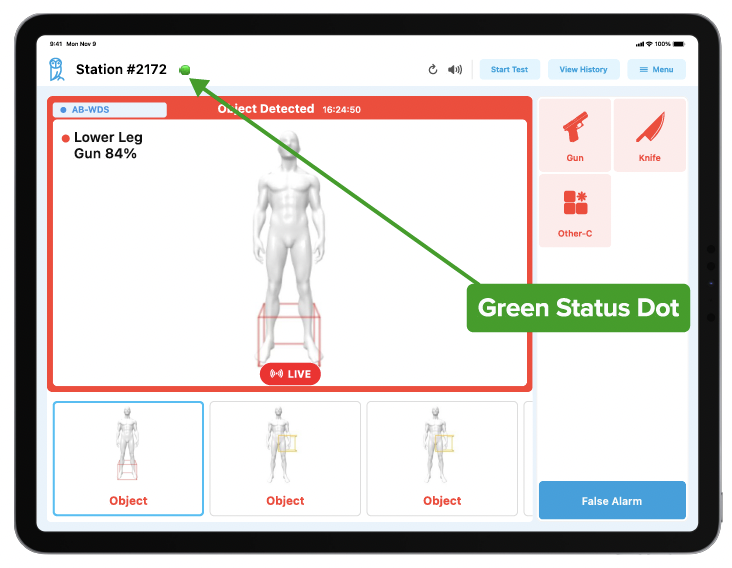
1. Confirm the AB-WDS is ready for operation by verifying that the status indicator at the top right of the iPad Operator Interface is green.
2. Confirm the screening path is clear and the required clearance is available on both sides of the system. A minimum of 8 feet of clearance is required on each side of the AB-WDS, meaning 8 feet on the entry side and 8 feet on the exit side. Athena recommends 12 feet of clearance on each side when site layout allows.
3. Guide the ambulance gurney or stretcher to one side of the scanner. Then pass the stretcher under the scanner at a normal, controlled walking pace.
- For the most accurate scans, the ideal position of the scanner is approximately 3 feet above the patient during the scan.
- Monitor the operator for any alerts as the stretcher passes through the system
6. Wait for the scan result, ObjectDetected alert, or system status to display.
7. If an ObjectDetected alert is shown, review the avatar-based localization, suspected item information, and any available visual indicator. The operator should either confirm the alert or mark the alert as false according to site training and the site's approved response process. This screening data is sent to the backend Athena Control Center (ACC) reporting system. If an item is confiscated, the workflow may optionally open an Incident Resolution Report (IRR) for the confiscated item, depending on site configuration. If no ObjectDetected alert is shown, continue according to the site's normal intake process.
8. Clear the screening area before the next screening event.
iPad Operator Interface Guide
The iPad Operator Interface should remain plugged in, powered on, and displaying the Weapons Detection Operator App as part of normal system setup. Operators should not close the app, change station settings, or navigate away from the app unless directed by Athena Support or site leadership.
Exact screen appearance may vary depending on site configuration, app version, and enabled features.
Home Screen I Ready Status
Before screening, confirm the AB-WDS is ready by verifying that the status indicator at the top right of the screen is green. Do not begin routine screening if the app does not show connected or ready status.
ObjectDetected Alerts
When an ObjectDetected alert appears, the iPad Operator Interface displays alert information for operator review. Alerts may include avatar-based item localization, suspected item information, and other visual indicators depending on site configuration. Operators should review the alert and follow the site's approved response process.
Depending on site configuration, the app may also display a heat-map style view, skeletal overlay, or other visual indicator to support staff review.
Optional External Alert Monitor
The AB-WDS may be configured with an optional external alert monitor mounted near the system to improve alert visibility for on-site staff.
The iPad Operator Interface remains the primary operator interface for the AB-WDS. Operators must continue to use the iPad to review ObjectDetected alerts, confirm or mark alerts as false, and complete any required documentation. The external monitor does not replace the iPad Operator Interface.
When the optional external alert monitor is used, the iPad continues to display the normal Weapons Detection Operator App interface. The external monitor provides an additional display for reviewing individual ObjectDetected alerts as they are generated. The monitor displays one alert at a time, which can help security, clinical, or intake personnel see the alert more clearly from the screening area.
The external monitor is intended to increase visibility and support review of individual alerts. Operators should still use the iPad Operator Interface to confirm the alert, mark the alert as false, and complete any required workflow steps.
If the external monitor does not display alerts as expected, continue using the iPad Operator Interface and contact Athena Support.
Screening Documentation and Property Handling
The AB-WDS may support digital documentation for screening events, including screening status, ObjectDetected alert review, suspected item indication, and property-handling information.
If an item is collected, confiscated, or transferred to security, all documentation must follow the hospital's approved property-handling and chain-of-custody policy.
Site personnel are responsible for following internal hospital procedures for:
- ObjectDetected alert response
- Patient and staff safety
- Property collection
- Property receipt documentation
- Chain-of-custody documentation
- Security escalation
- Clinical workflow continuation
The AB-WDS supports these workflows but does not replace site policy or staff judgment.
Basic Troubleshooting
The following troubleshooting steps are intended for customer-level users. Do not change internal settings, disconnect cables, modify system components, or attempt service unless Athena Support provides direction.
Issue What to Check Action
App does not show ready status
iPad cannot connect to the system
Scanner does not respond
Scan does not start
ObjectDetected alert display does not appear after scan
Confirm the System PC remains powered on and the iPad Operator Interface is displaying the Weapons Detection Operator App.
Confirm the iPad Operator Interface is plugged in and displaying the Weapons Detection Operator App. Check for any damaged cables connected to the iPad.
Confirm the system appears powered and no visible cables are obviously loose or damaged.
Confirm app ready status and clear screening path.
Confirm the app is still connected and did not freeze.
If unresolved, contact Athena Support.
Contact Athena Support if the issue repeats.
Do not disconnect cables or attempt service. Contact Athena Support.
Retry once. If the issue repeats, contact Athena Support.
Restart the app only if safe to do so and no active screening event is underway. Contact Athena Support if unresolved.
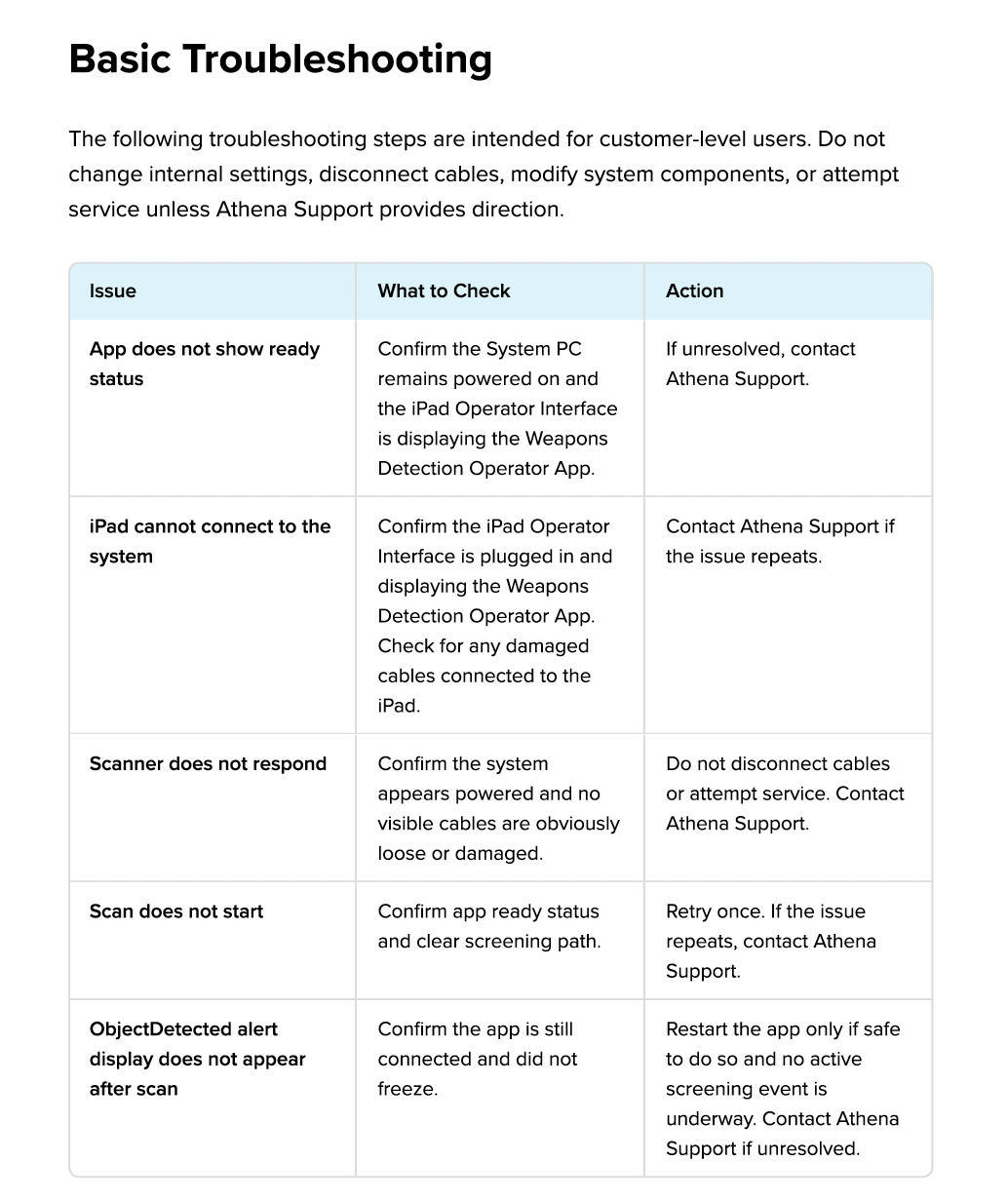
For Troubleshooting guide please see the PDF attached.
Was this article helpful?
That’s Great!
Thank you for your feedback
Sorry! We couldn't be helpful
Thank you for your feedback
Feedback sent
We appreciate your effort and will try to fix the article