EQUIPMENT
1 Visitor Station
Located in front of the security station, guest services desk, or another designated area. All visitors will be directed to Visitor Tablets for check-in.
Access Control Station
Located with the security team, the Access Control Station Tablet receives, and prints badge requests sent from the Visitor Tablet.
STAR MC-Label3 Printer
Each Access Control Station will have an assigned printer to print the Visitor badges.
Workflow
Step 1: 'Push to Scan' or 'Manual Enter'
The Visitor will walk up to the Kiosk and select 'Push to Scan', or 'Manual Enter' if they do not have a license to scan.
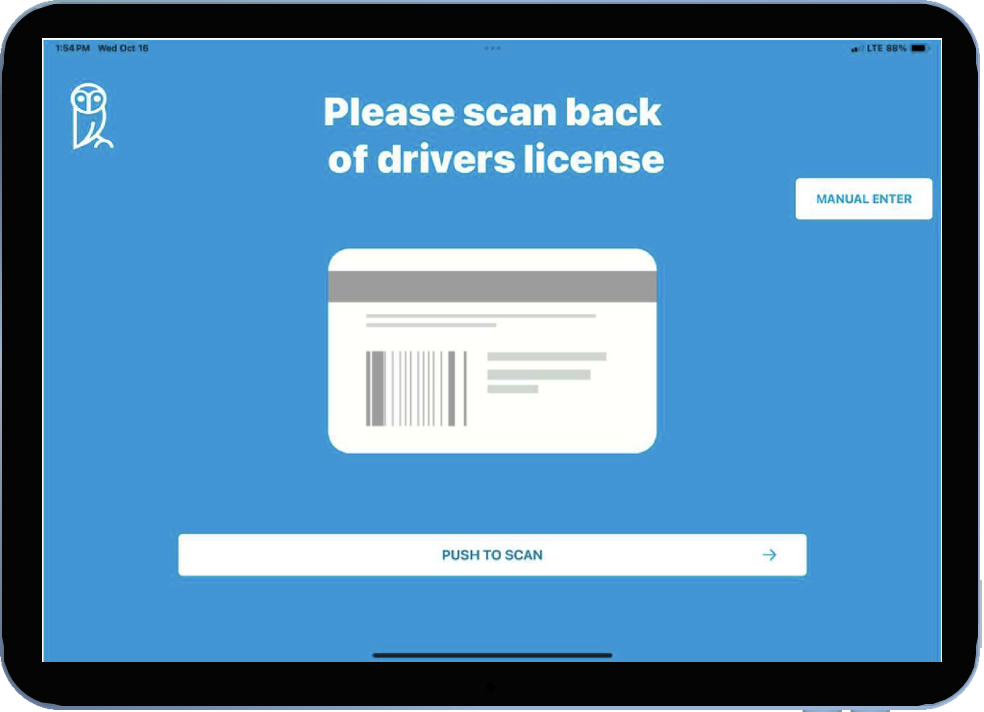 Fig 1.0: VMS Homepage
Step 2: Scan ID
The Visitor will place their ID in the ID holder with the barcode facing the camera.
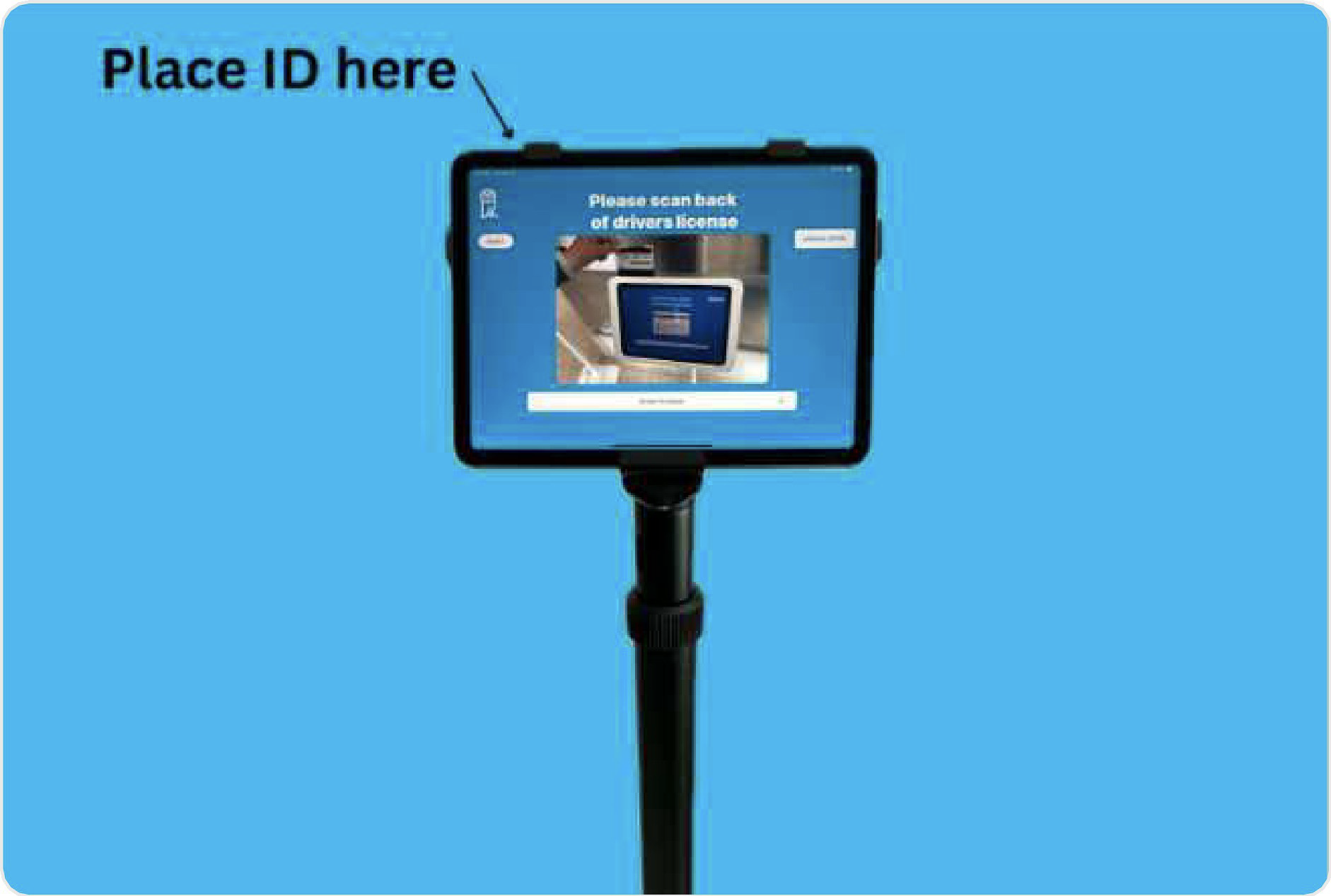
Fig 2.0: Locating scan point
Step 3: Review
Once the ID has been scanned, it will take you to the information screen and display the visitor's ID information for review.
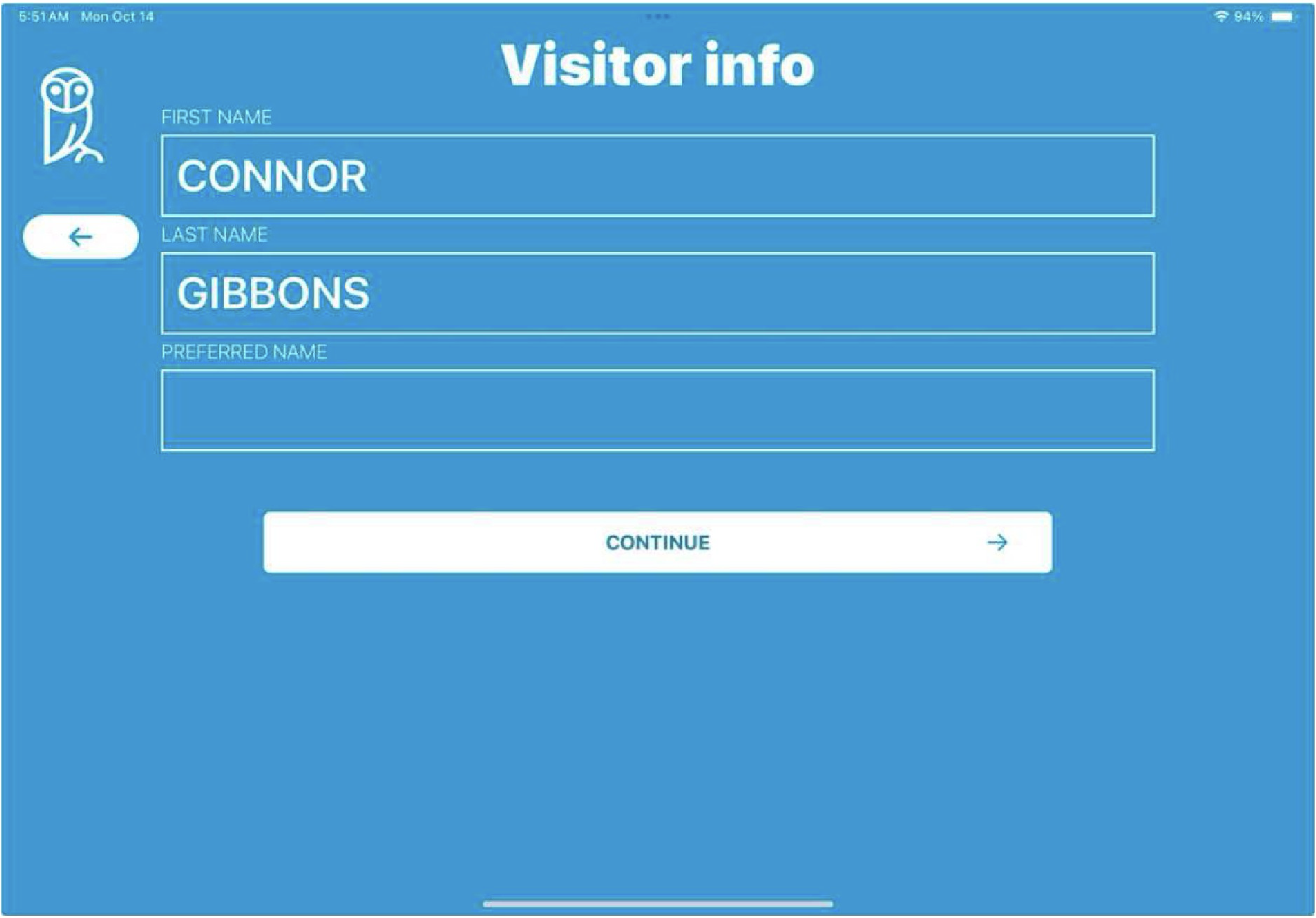
Fig 3.0: VMS Visitor info page
NOTE: If the Visitor fills out the preferred name field, that is the name that will be printed on the badge.
Press 'Continue'
Step 4: Patient Info
After pressing 'Continue', the next screen will display 'Patient you are visiting'. Fill out the patient's name.
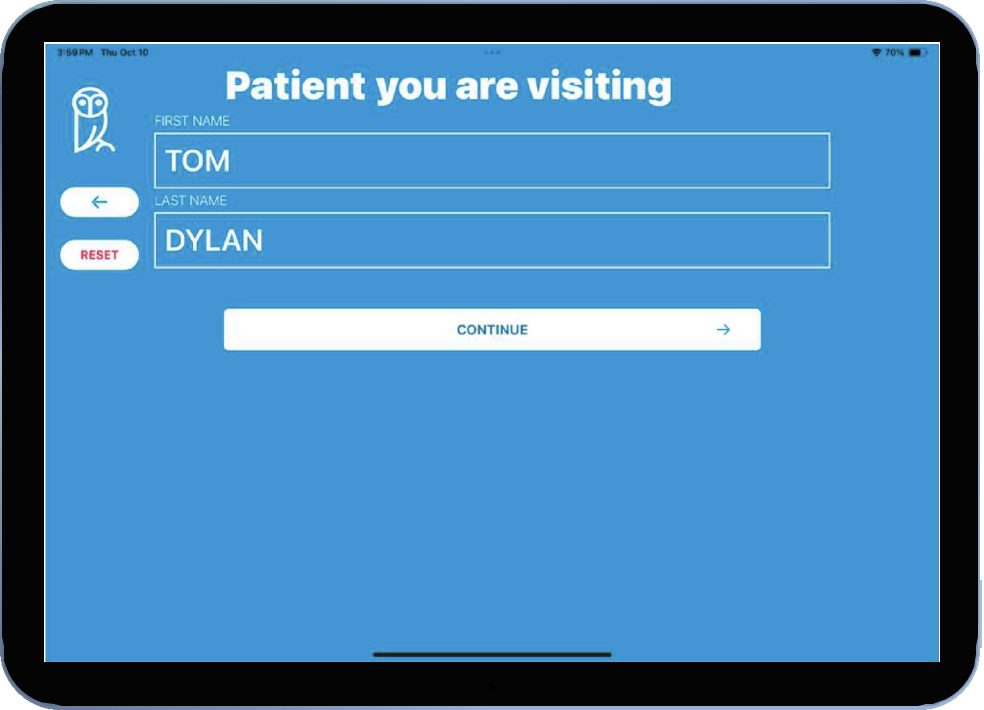
Fig 4.0: VMS Patient inputs
Press 'Continue'
Step 5: Visitor Selfie
The Visitor will be asked to take a selfie.
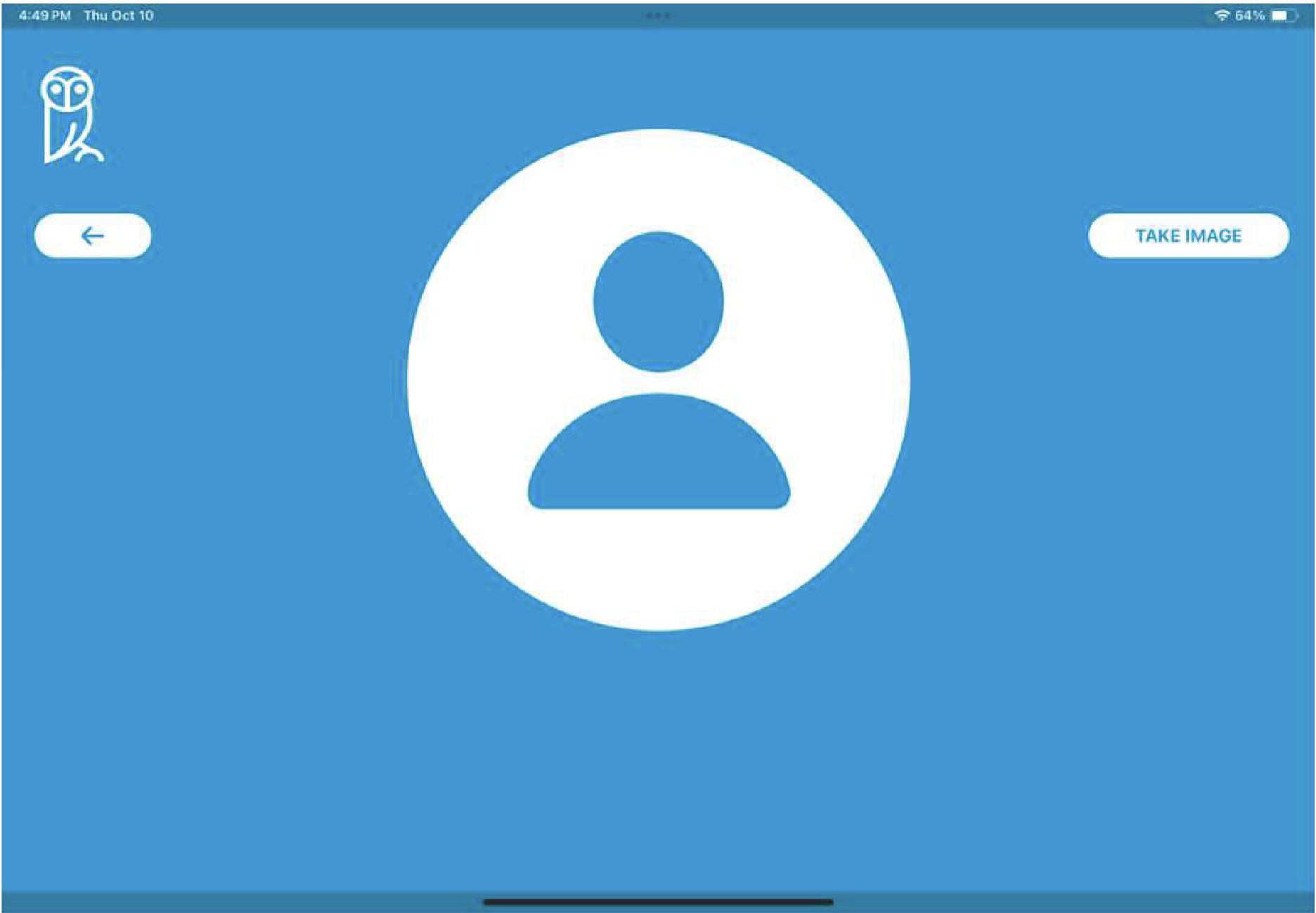
Fig 5.0: Interface to upload selfie
Press 'Take Image'
Step 6: Take Image
Take the Image and select 'Use Photo'
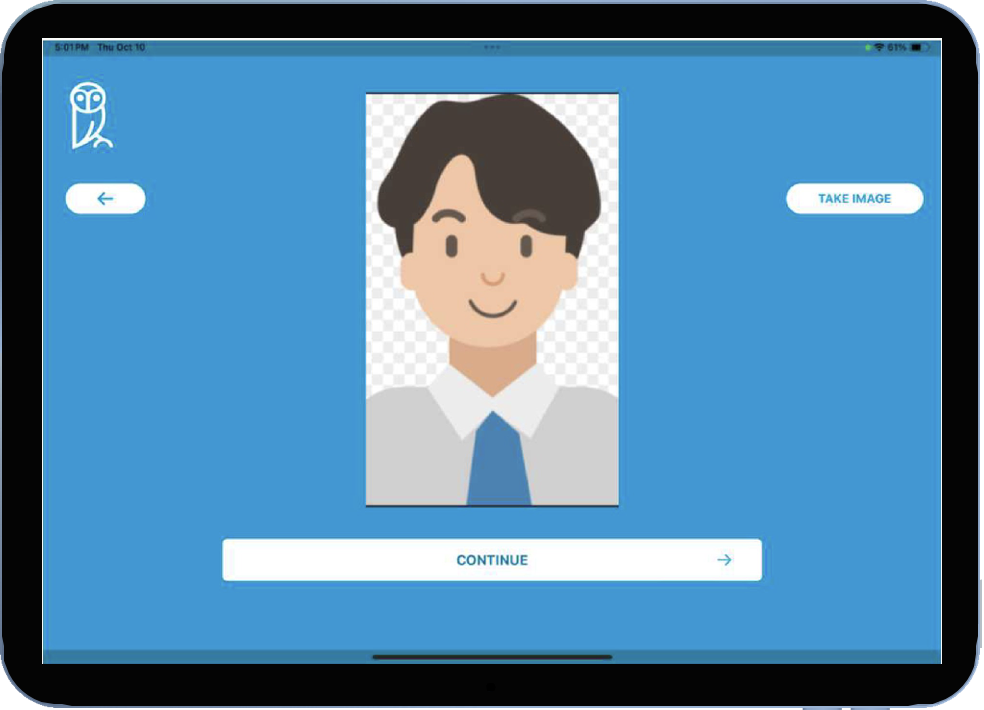
Fig 6.0: VMS uploaded se/fie
Press 'Continue'
Step 7: Search Department
The Visitor will then. search for the Department they are visiting or press SKIP.
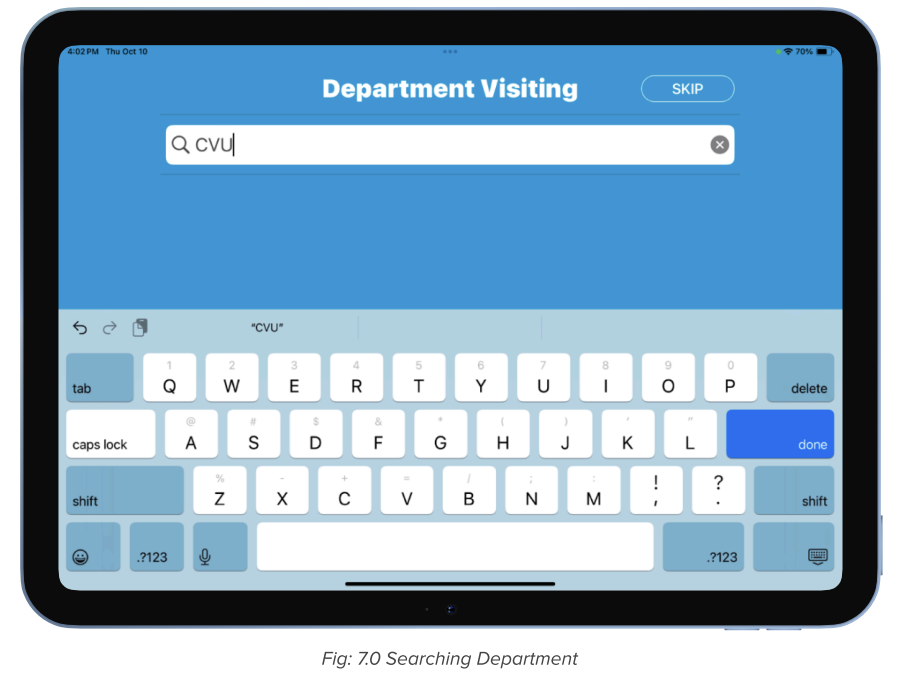 Press 'Done'
Step 8: Select Room
The Visitor will then fill out room number or press SKIP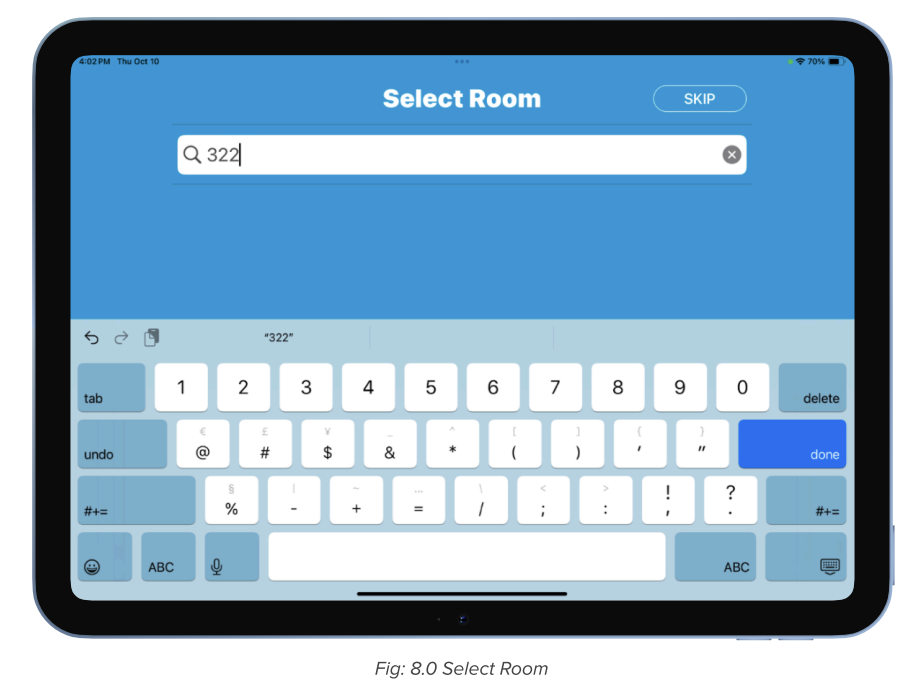 If the Visitor Skips this information, the Access Control Officer is responsible for adding
it when printing the badge.
If the Visitor Skips this information, the Access Control Officer is responsible for adding
it when printing the badge.
Press ‘Done
Step 9: Enter Phone Number
The Visitor will then be asked to type in their phone number.
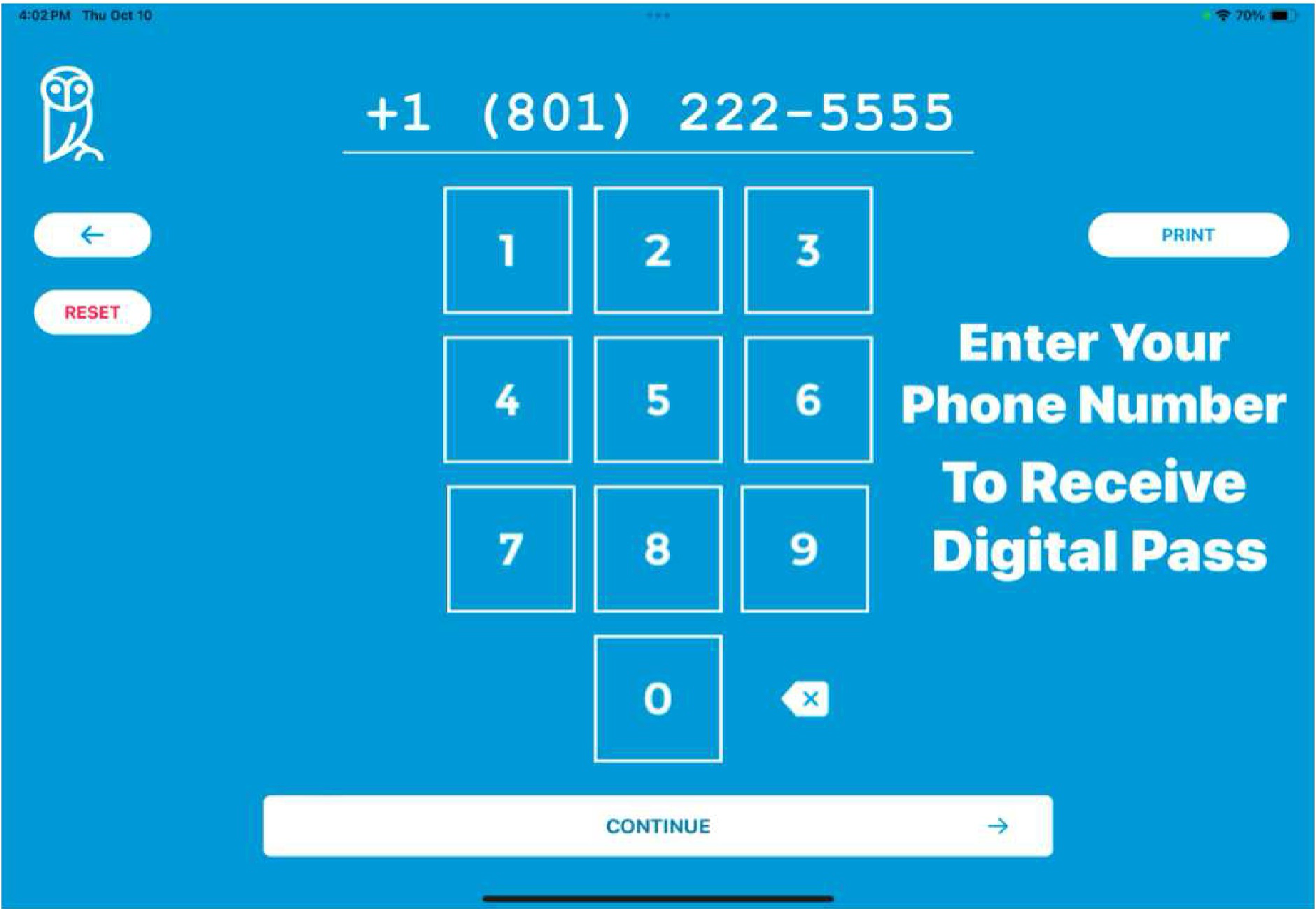
Fig 9.0: Input Phone Number
Press 'Continue'
Step 10: Confirm Phone Number
Then the Visitor will then confirm their phone number.
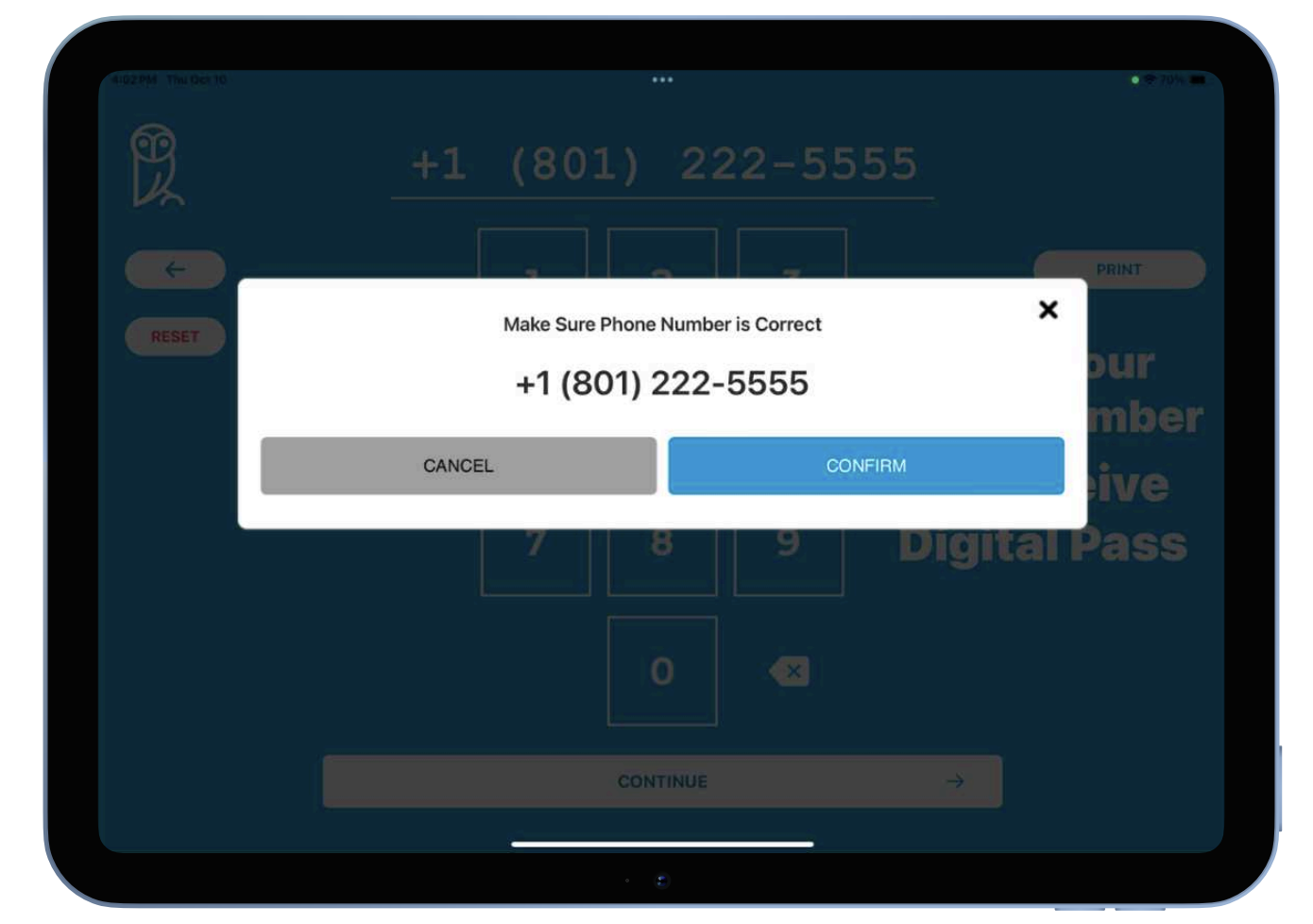
Fig 10.0: Confirm Phone Number
Press 'Confirm'
Step 11: Visitor Experience Complete
Once the Visitor experience is complete, all information is sent to the Access Control Officer for verification before printing.
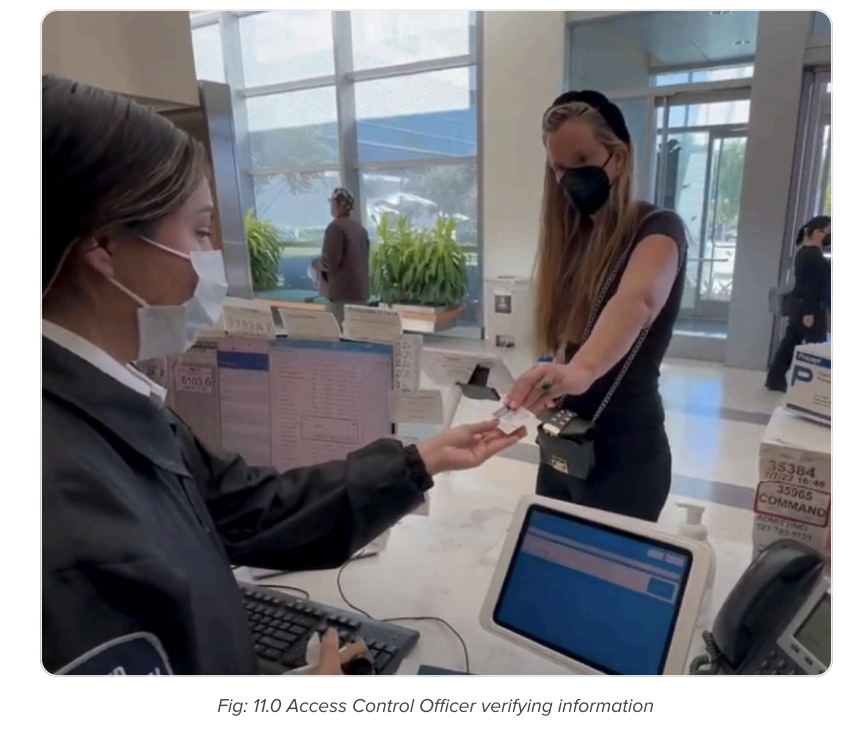 Step 12: ID Verification
The Visitor will then hand their physical ID to the Access Control Officer to confirm the Visitor's information and print their badge.
Step 13: Access Control Station — Visitor Queue$
The Access Control Officer will see the Visitor in the queue on the Access Control Station tablet. The queue displays the visitor's name and the patient they are visiting.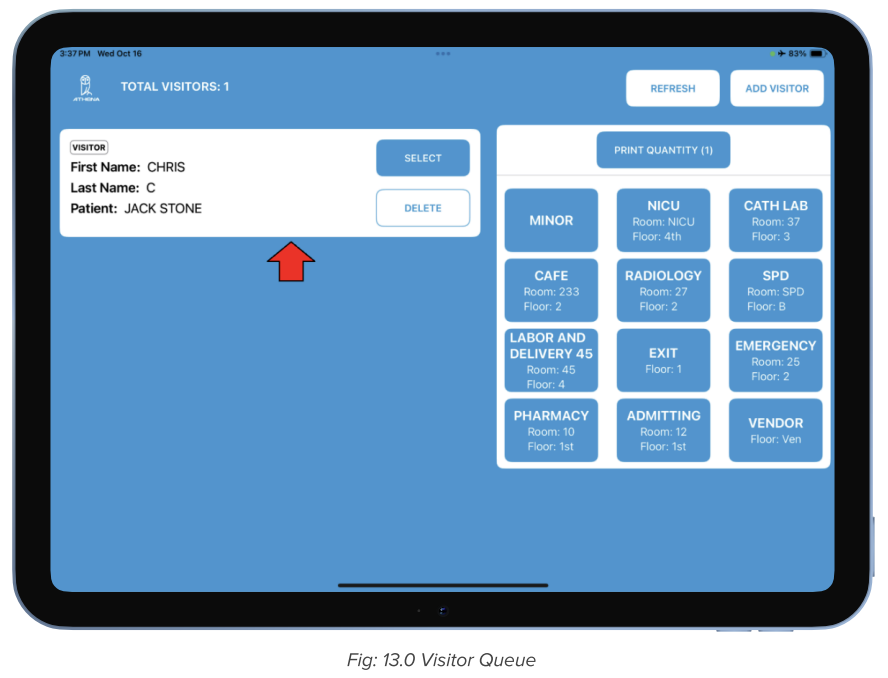
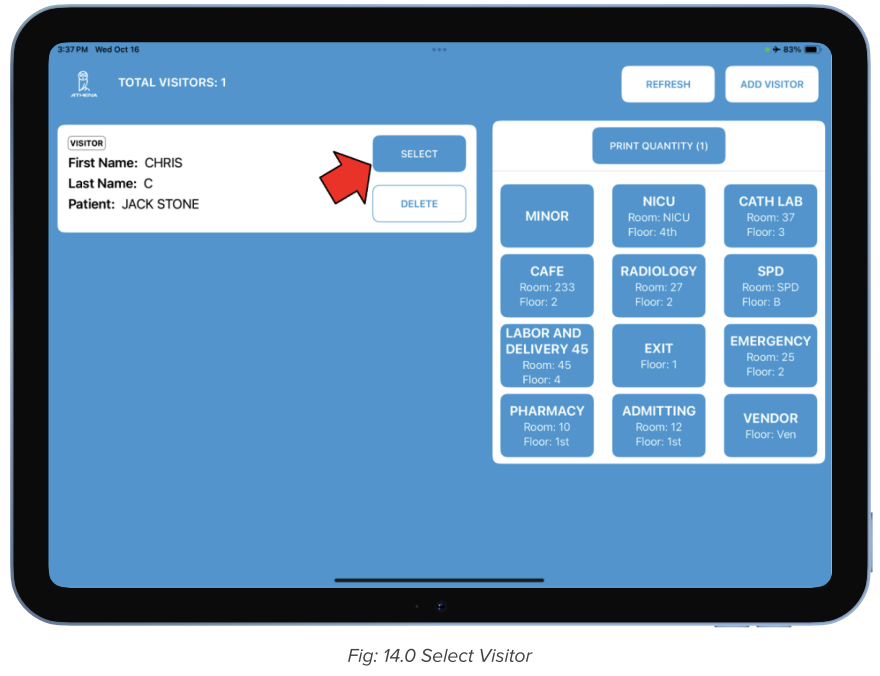
Step 14: Select and Print
Once the Visitor is in the queue, the Access Control Officer will press Select to open the print screen for that Visitor's badge.
 Step 15: Add Room and Department
The Visitor's image, Patient's name, room number, and department will display for review.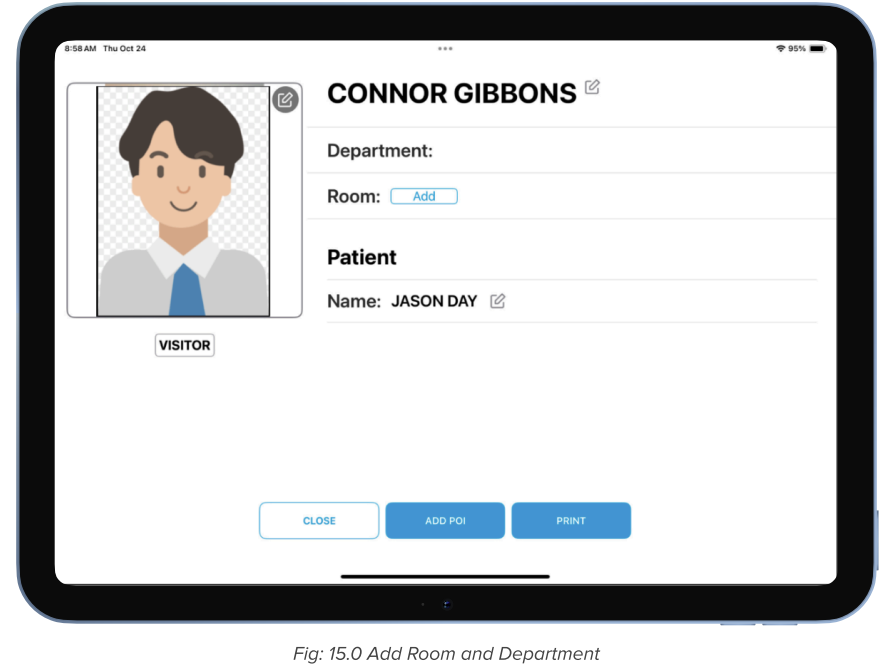
- The Access Control Officer will add the room number and department being visited.
- Add the room number and department in the designated fields.
- If the Visitor's ID is expired, the system will flag it on this page.
▶ Press Print if information is accurate
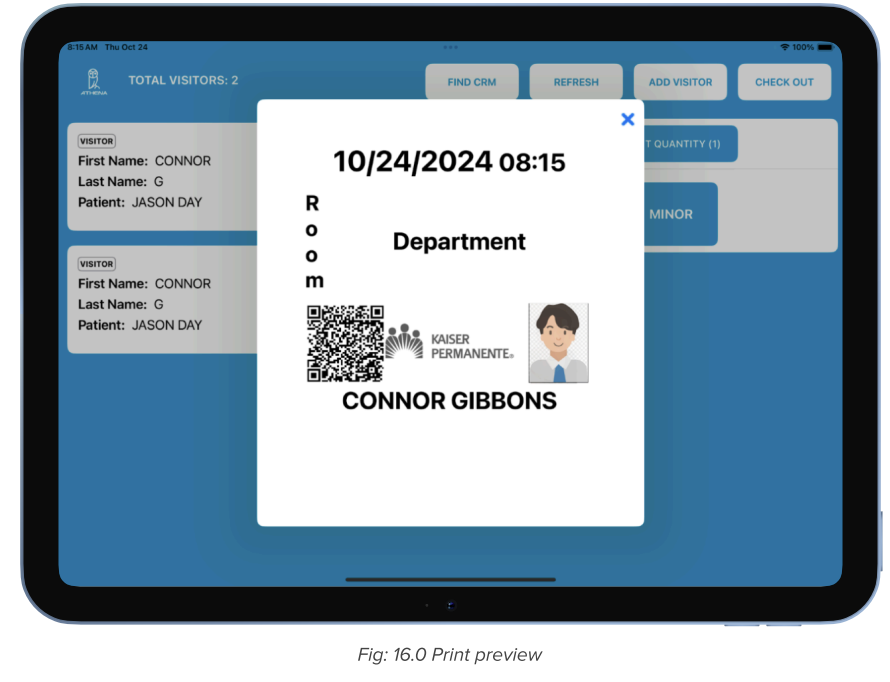
Step 16: Print Preview
After pressing Print, a preview of the badge will appear before it prints.
- If the printer is not connected, the Visitor information will remain in the Visitor column until the badge has been printed.
- If the printer is not connected to the Access Control Station, refer to the printer setup instructions.
Step 17: Printed Badge
The printed badge will include the visitor's photo, name, department, room number, date/time, and a QR code.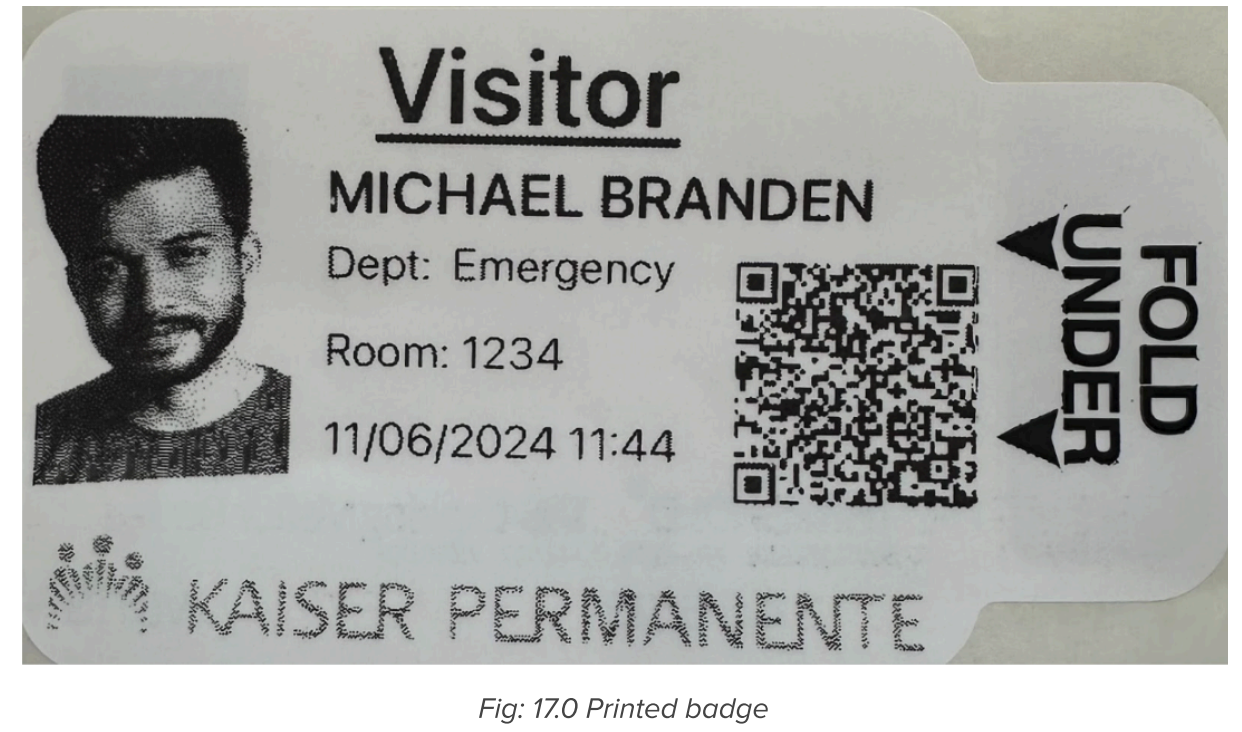
? The 'FOLD UNDER' tab is the self-expiring part of the badge. Fold it prior to giving the badge to the Visitor.
Step 18: Quick Prints
QuickPrints allow the Access Control Officer to bypass the full check-in workflow and quickly print a badge for a Visitor. This is typically used for Minors or areas of the facility that do not require full check-in.
- Select a QuickPrint category (e.g., Minor, Cafe, Radiology, Emergency) from the right panel.
- If there are multiple Visitors of the same type, use Print Quantity to set the number of badges to print.
- QuickPrint categories and settings are fully customizable per your facility's requirements.
Athena Security | supportwe@athena-security.com | 1-833-928-4362 | www.athena-security.com
Was this article helpful?
That’s Great!
Thank you for your feedback
Sorry! We couldn't be helpful
Thank you for your feedback
Feedback sent
We appreciate your effort and will try to fix the article