Troubleshooting Guide: X-Ray & iPad Connectivity
Use the Status Indicator Dot at the top of the iPad screen to identify and resolve connection issues quickly.
? If the Status Dot is RED
A red dot indicates a physical connection failure between the iPad and the X-ray system.
Reset the iPad Connection: Unplug the USB-C cable from the iPad, wait three seconds, and plug it back in firmly.
Wait 10 Seconds: If the dot does not turn green within 10 seconds, the physical link is still broken.
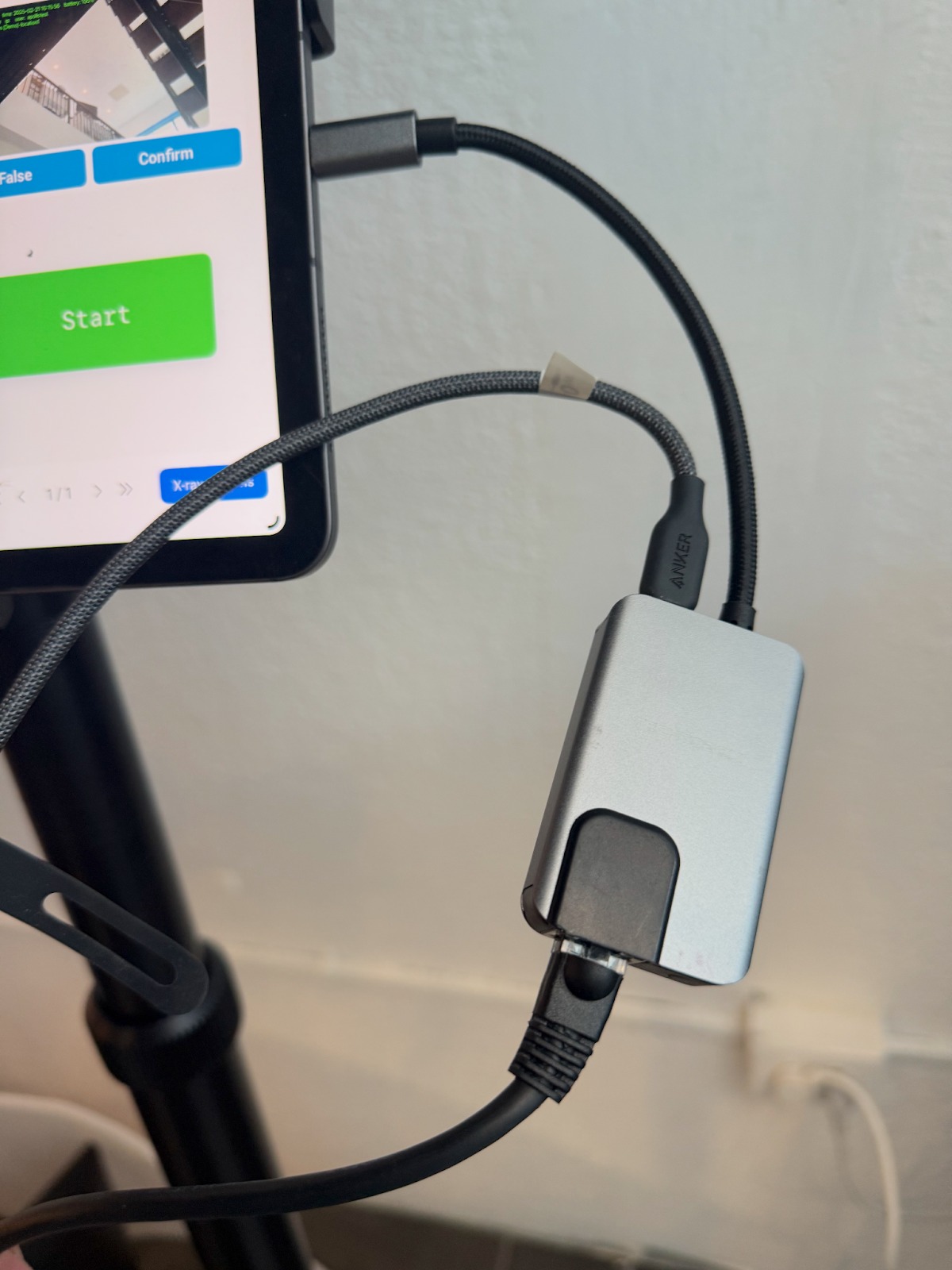
Inspect the Cabling: * Follow the cable from the iPad down to the floor or behind the desk.
Check the USB-C extension and the Ethernet adapter.
Ensure the network cable is clicked securely into the adapter and that the adapter lights are blinking.
Reconnect: Secure any loose plugs. The dot should transition to green once the path is restored.
? If the Status Dot is GREEN (But No Alerts Received)
A green dot means the iPad and the computer are talking, but data isn't flowing correctly. This is usually caused by one of two things:
A. App Filter Settings: The iPad is connected, but a filter may be hiding the alerts. Check the "Filters" menu in the app to ensure you are set to view all relevant detection categories.
B. Windows System Error: The internal X-ray computer may have encountered a software hang. If your filters are correct but you still see no alerts, reboot the X-ray machine to restart the communication service.
Support Contact
If the dot remains red after checking all cables, or if a reboot does not restore alerts:
Athena Security Technical Support Phone: 1-833-928-4362
Was this article helpful?
That’s Great!
Thank you for your feedback
Sorry! We couldn't be helpful
Thank you for your feedback
Feedback sent
We appreciate your effort and will try to fix the article